

Overview
This guide covers the deployment of third-party integration stacks to integrate Alexa and Google Voice Assistants with RainMaker, using AWS SAM and CloudFormation StackSets. Key integrations include Cognito App Clients for Alexa and Google, Lambda functions for voice assistant directives, and essential add-ons for certification requirements.
Component Description
The demployment consists of below stacks:
-
AWS Cognito App Clients for Alexa and Google Voice Assistant (ESP-RainMaker-3p-CognitoClients)
- The deployment will create AWS Cognito App Clients for the Alexa skill and Google Actions.
-
Alexa Smart Home Skill and Google Smart Home Action in three regions (ESP-RainMaker-3P-Integrations)
- The Lambda functions handling the directives from Alexa and Google Voice Assistant will be deployed.
-
Alexa Smart Home Skill and Google Action Addon Extension
-
Google Actions: Addons repo provides the webhook handler that proactively reports the changes in node state to Google's HomeGraph database. For more information, check Google Smart Home Action Report State. Proactive reporting is required for certifying your Google Action.
-
Alexa skills: Addons repo provides the API endpoints required to set up Alexa app-to-app account linking. Alexa app-to-app account linking makes it possible to link account starting from your app. For more information, check Alexa App-to-App Account Linking. It is required to implement app-to-app account linking for Alexa skills to get Works with Alexa (WWA) certification for your product.
WWA certification is different from Alexa skill certification and publication.
-
For Alexa Skills (WWA) and Google Action (WWGA) certification, it is necessary to have the above functionalities, hence it is required to deploy this repository.
-
Prerequisites
ESP-RainMaker-3p-CognitoClients
-
Ensure that Cognito domain is created using steps given in Cognito Domain Configurations.
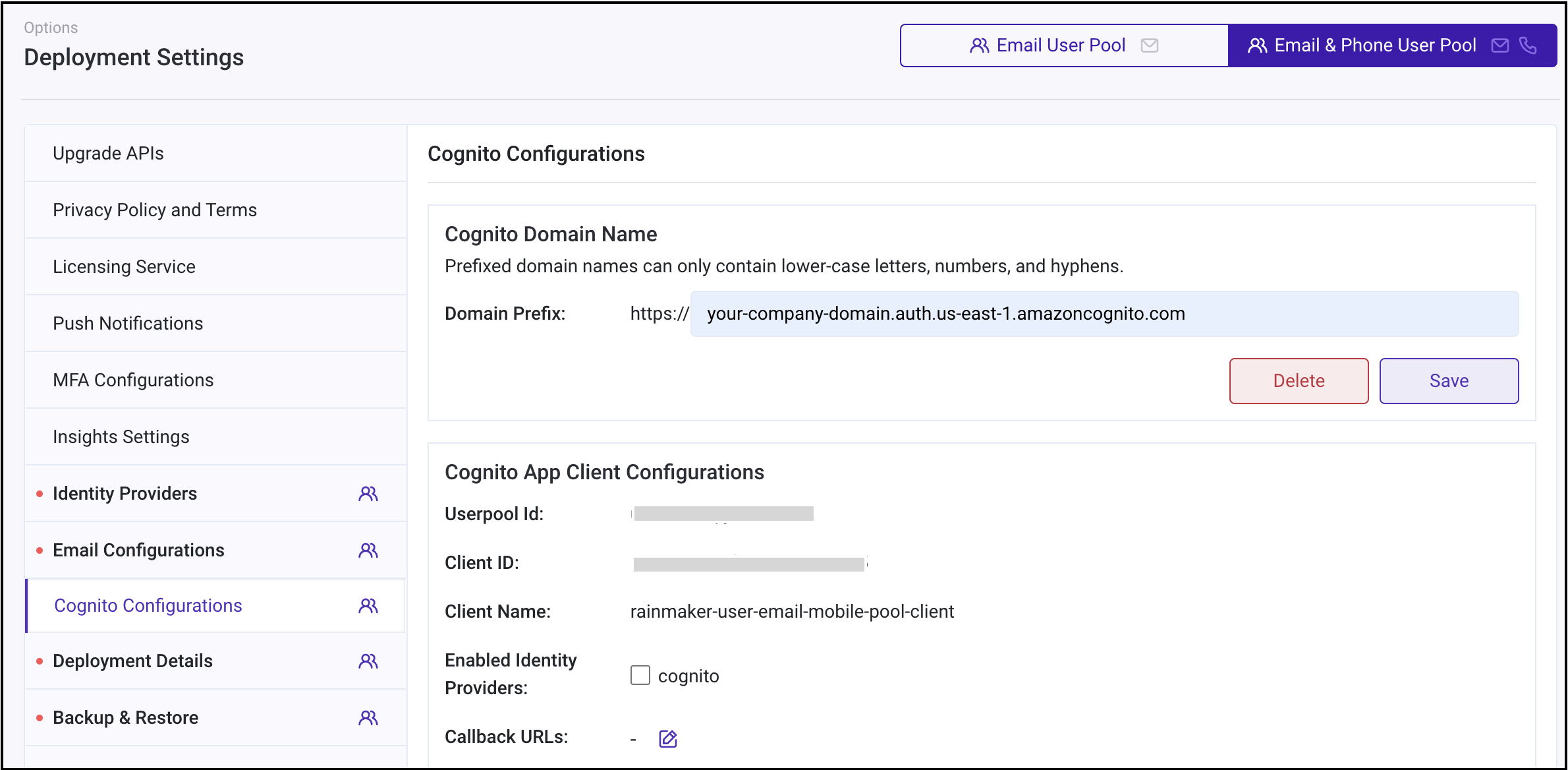
-
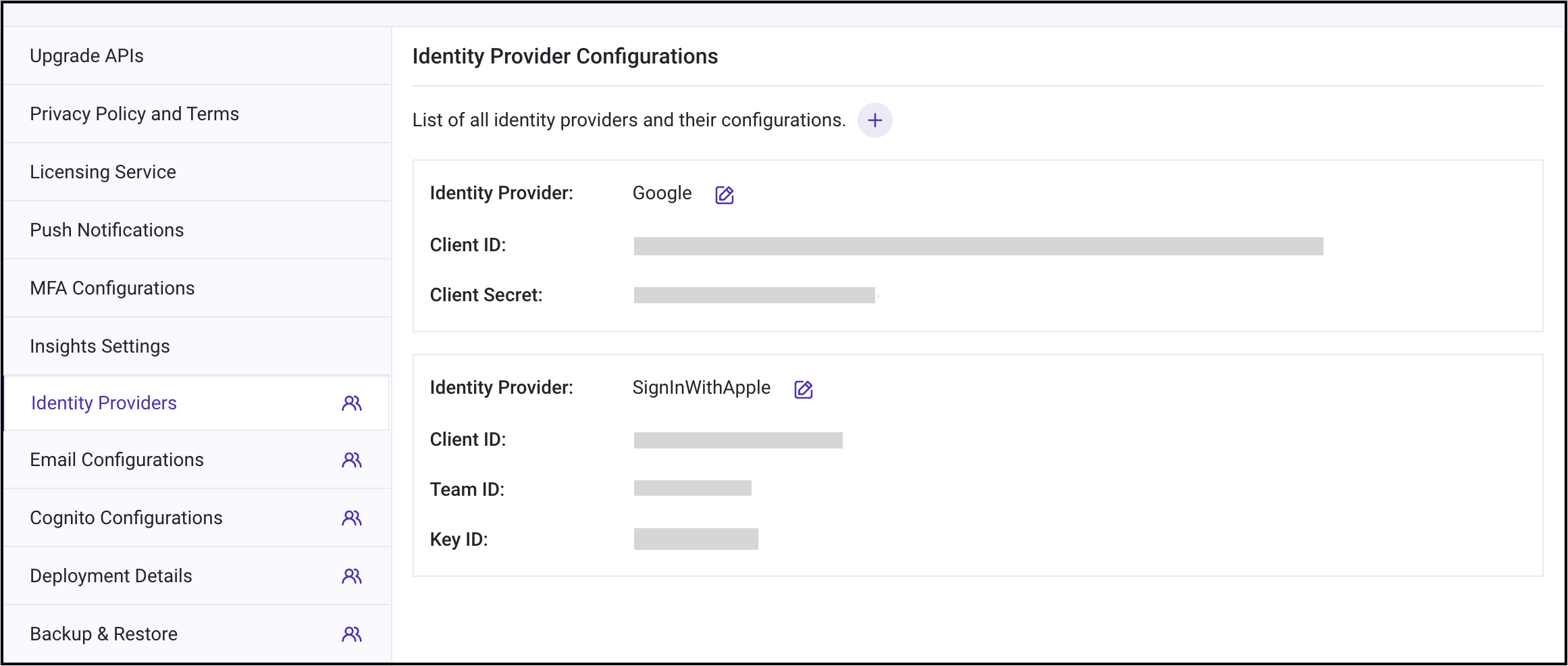
Note down the identity providers.
- To obtain the list of the configured identity providers in the RainMaker deployment, go to the RainMaker dashboard and click the
Deployment Settingstab in the left navigation bar. - Then click the
Identity Providerstab. - Note down the identity providers.
- If Google, GitHub, and SignInWithApple are configured, then the corresponding values in the
SkillIdentityProviderswhile deploying the ESP-RainMaker-3p-CognitoClients SAR Application will be Google, GitHub, SignInWithApple, COGNITO.If no identity provider is configured, then the default value will be set to only COGNITO.
- To obtain the list of the configured identity providers in the RainMaker deployment, go to the RainMaker dashboard and click the
-
Note down
AlexaCognitoCallbackURLsandSkillIdas described in the Alexa skill creation step. -
Note down
GVACallbackURLsas described in the Google Action creation step.
ESP-RainMaker-3P-Integrations
- Alexa GVA handlers call the RainMaker API endpoint URL for device information. Thus, the RainMaker API URL needs to be given as input to the ESP-RainMaker-3P-Integrations application.
- Follow Getting the RainMaker API URL (Base URL) steps to fetch the
RainmakerAPIUrl. - Rainmaker backend API endpoint URL:
<RainmakerAPIUrl>/v1/. - Please note down this value, it will be used as the
APIEndPointURLin the next step.
Google Voice Assistant: Enabling Google Asynchronous Messaging And Getting Google Messaging Client Details
GVA requires the handler to report the state to the HomeGraph service in the Google Cloud. Thus, it is required to create and add the credentials of a Google Service Account into the handler.
If you want to deploy Google Action integration, follow the below steps to get these credentials.
-
Enable the HomeGraph API in your account. Detailed steps are given below.
- Go to Google HomeGraph page.
- On the drop-down menu at the top, select your smart home project created in previous steps.
- Click
Enable.
-
Create a service account key file.
- Go to Google Service Account page.
- Select your smart home project created in the previous step.
- Click
Create Service Accountoption. - In the
Service Account Namefield, enter a suitable name. - In
Description, enter "Service Account for report state token creation". - Click
Create and Continue. - In the next step, select the role type
Service Accountsand select the roleService Account token creator. - Click
Continueand then clickDone. - Service Account is created, now you need to add the key to use the service account.
- Click the created service account email.
- Go to the
Keysoption and clickAdd Key. - Select the
Create Keyoption. - Select the
JSONkey type. - A file will be downloaded with the required credentials details.
- Open the downloaded service account file. Note down the values for
GVAClientID(client_id),GVAClientEmail(client_email),GVAPrivateKey(private_key),GVAPrivateKeyID(private_key_id), andGVAProjectID(project_id).
Alexa Skills: Enabling Alexa Asynchronous Messaging and Getting Alexa Messaging Client Details
For WWA certification, the device state is reported to Alexa. Thus, it is required to enable asynchronous messaging.
If you want to deploy Alexa skills integration, enable Alexa asynchronous messages and copy the AlexaClientId and AlexaClientSecret. The detailed steps are as below:
-
Log in to Alexa Developer Console.
-
Select the Smart Home Skill that you created in the previous steps.
-
Go to the
Permissionstab from the left navigation bar, and enable theSend Alexa Eventsoption.
-
After you enable the
Send Alexa Eventsoption, a new sectionAlexa Skill Messagingwill be visible. -
Note down the values of
Alexa Client IdandAlexa Client Secret.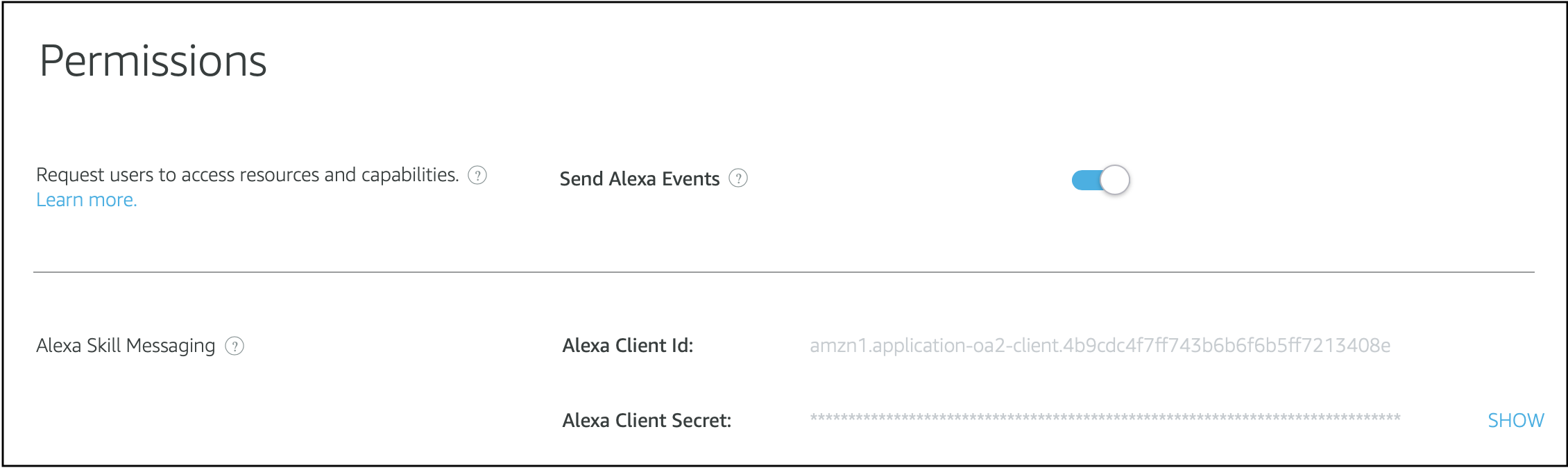
Deployment Steps
Deployment of the Alexa and GVA voice integration components is achieved using the CloudFormation multi-region StackSet, which deploys the following modules:
- ESP-RainMaker-3p-CognitoClients
- ESP-RainMaker-3P-Integrations-Addons
- ESP-RainMaker-3P-Integrations (regions: us-east-1, eu-west-1, us-west-2)
-
Go to the AWS Management Console
- Search for "CloudFormation" in the services menu and click it.

-
Create a Stackset
- Click
Create stacksetin theCloudFormationservice.

- Click
-
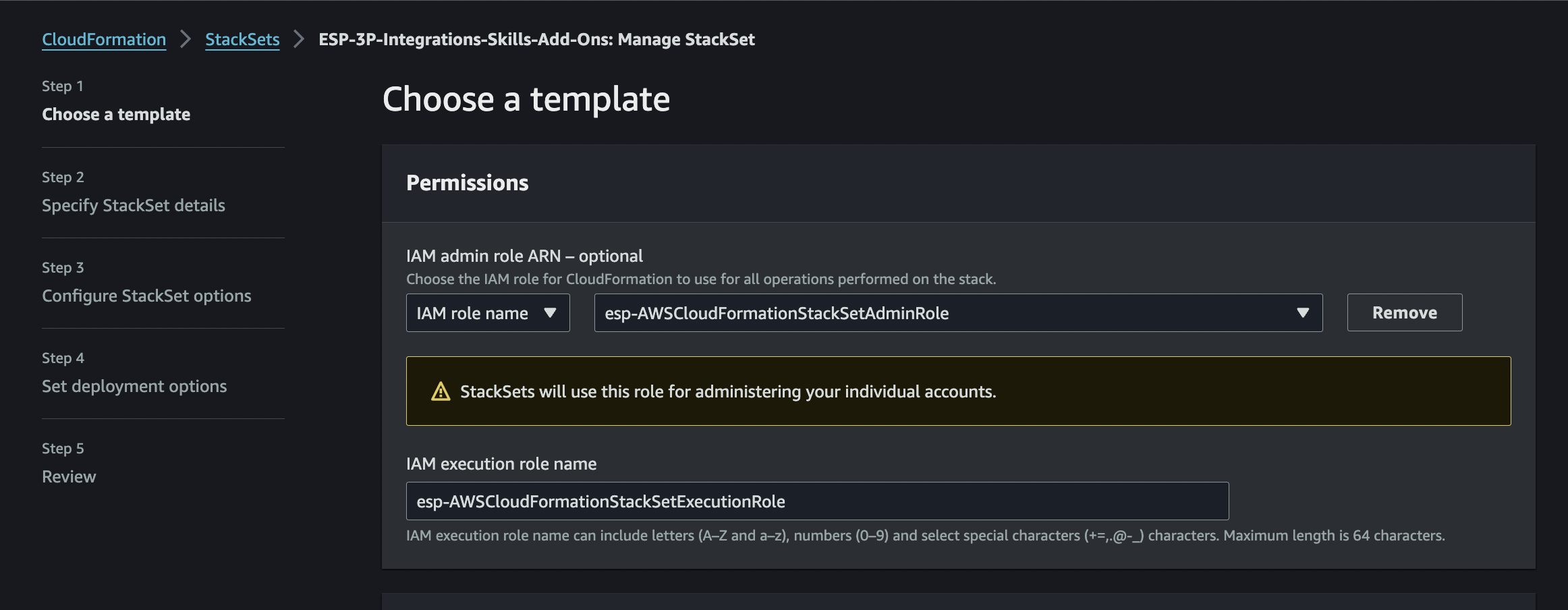
Select IAM Roles
- The required IAM roles will be automatically created. Choose the appropriate roles and click
Next.- Rolename for admin:
esp-AWSCloudFormationStackSetAdminRole - Rolename for execution:
esp-AWSCloudFormationStackSetExecutionRole
- Rolename for admin:
- The required IAM roles will be automatically created. Choose the appropriate roles and click
-
Select Template
- Construct the S3 URL template from here.
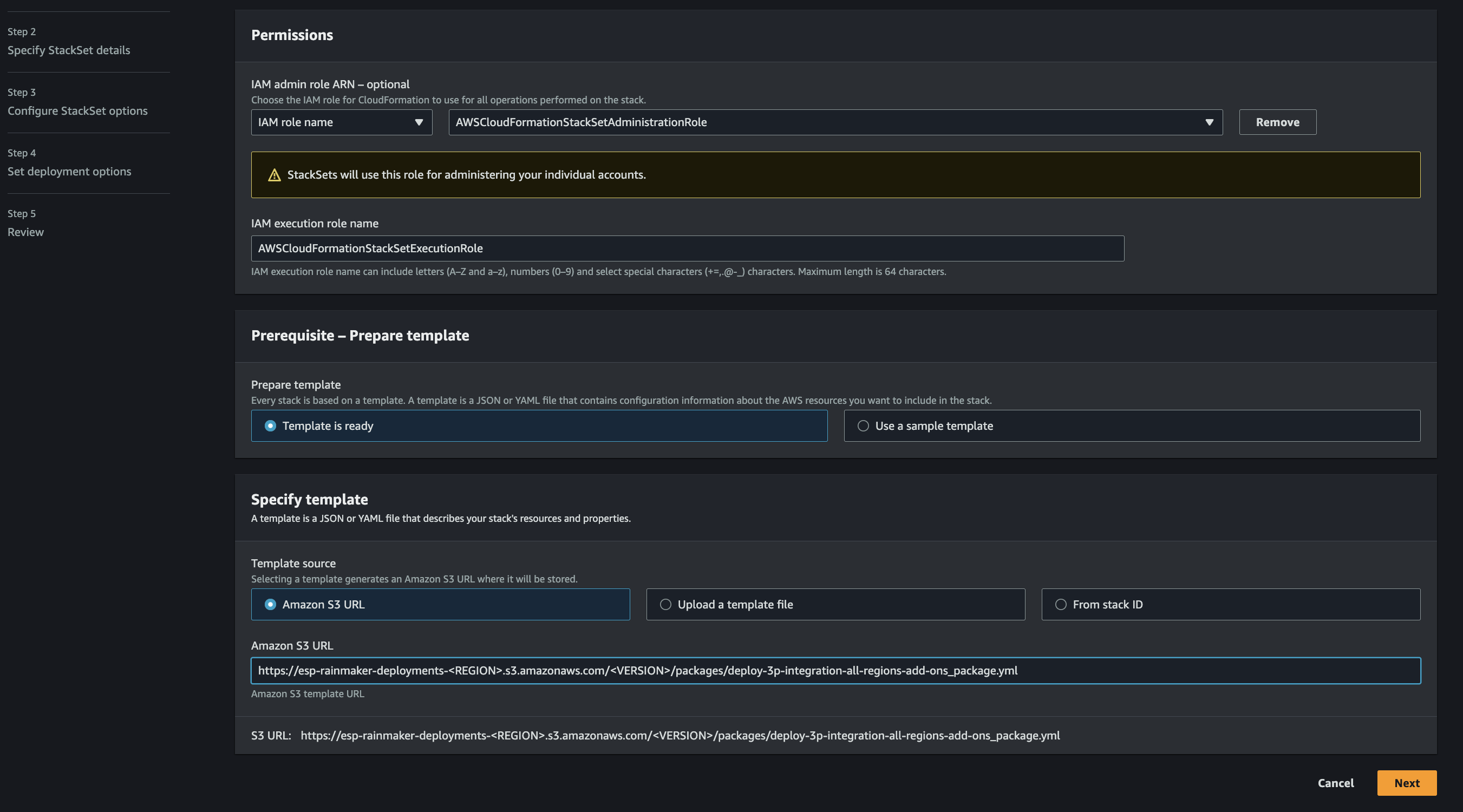
-
Enter the Stack Name
- Enter the stack name as ESP-3P-Integrations-Skills-Add-Ons.
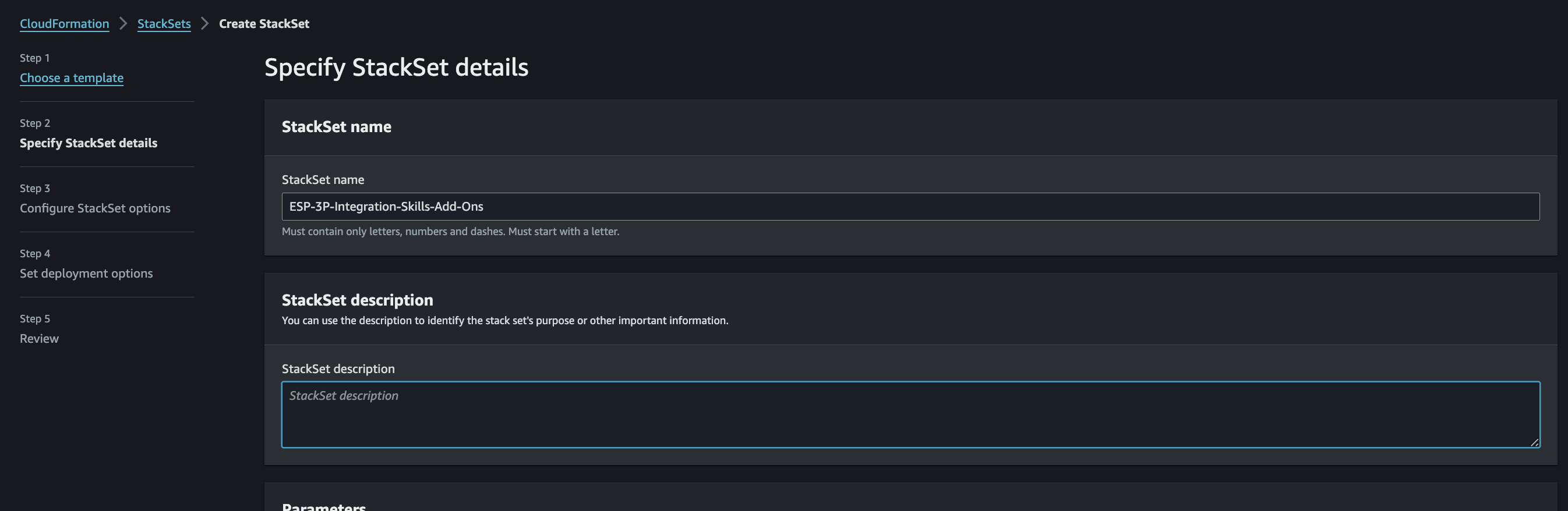
-
Enter Input Parameters
- Provide the required input parameters for Alexa and GVA integration. You can refer to their respective module sections for descriptions.

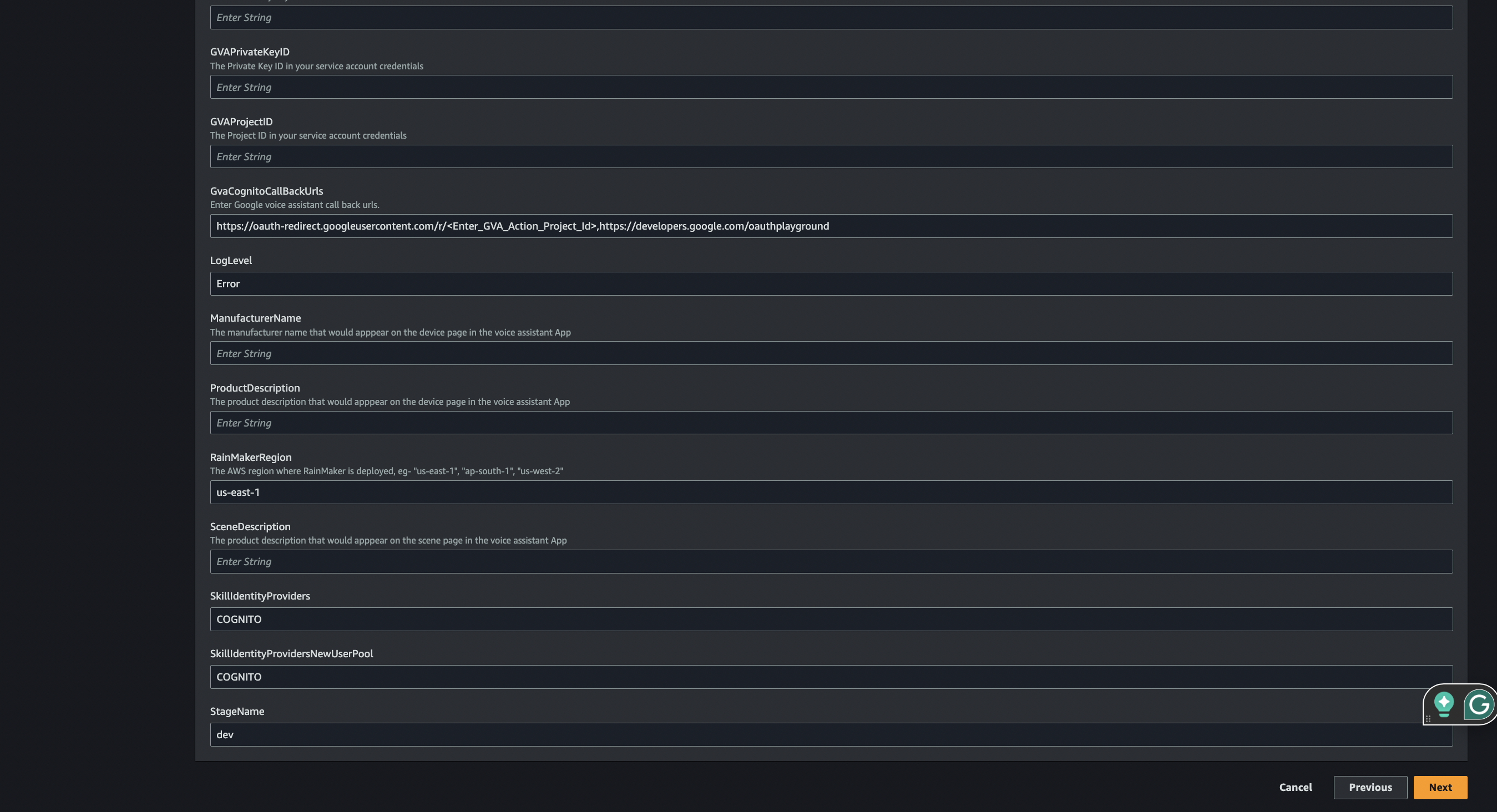
- Click
Nextto proceed.
Parameter Name Description AlexaCognitoCallBackUrlsThe Alexa redirect URLs from the section - Create an Alexa Smart Home Skill, followed by <RainMaker API base URL>/app-link/cognito-callback, separated by commas. The account-linking callback URL is required for users who sign in through the hosted login page. Use the same base URL as the Alexa Authorization URI, including the stage for API Gateway URLs, without/v1or a trailing slash. See Account Linking.GVACognitoCallBackUrlsThe value for this parameter can be found in the section - Create a Cloud-to-cloud Integration SkillIdentityProvidersNewUserPoolEnter the identity providers noted down in the section, Creating the AWS Cognito App Clients for Alexa and Google Voice Assistant SkillIdentityProvidersKeep default values. If Google, GitHub and SignInWithApple are configured, then the corresponding values in the SkillIdentityProviderswill be Google, GitHub, SignInWithApple and COGNITO.APIEndPointURLThe RainMaker Backend API endpoint URL noted down in the section Getting the value of API Endpoint URL. This URL will be used by both Alexa and GVA handlers to communicate with the RainMaker backend. AlexaClientIDThe Alexa client ID noted down from the previous section. This will be used to get the Alexa refresh token for users. AlexaClientSecretThe Alexa client secret noted down from the previous section. AlexaSkillIDYour Alexa skill ID noted down from the previous sections. RainMakerRegionEnter the region where RainMaker is deployed (e.g., us-east-1).ManufacturerNameEnter the manufacturer name for your product. This will be visible for all scenes and products connected via your application. ProductDescriptionEnter the description of your product. SceneDescriptionEnter the description of scenes associated with your product. GVAClientIDGoogle client ID from service account as copied from the service account key file. GVAClientEmailGoogle Client Email from service account as copied from the service account key file. GVAPrivateKeyGoogle private key from service account as copied from the service account key file. GVAPrivateKeyIDGoogle private key ID from service account as copied from the service account key file. GVAProjectIDGoogle project ID as copied from the service account key file. -
Add Tags
- Add a version tag by entering the following details:
- Key: Version
- Value:
<VERSION>(replace with your selected version)
- Click
Add new tagand leave the rest as default. ClickNext.
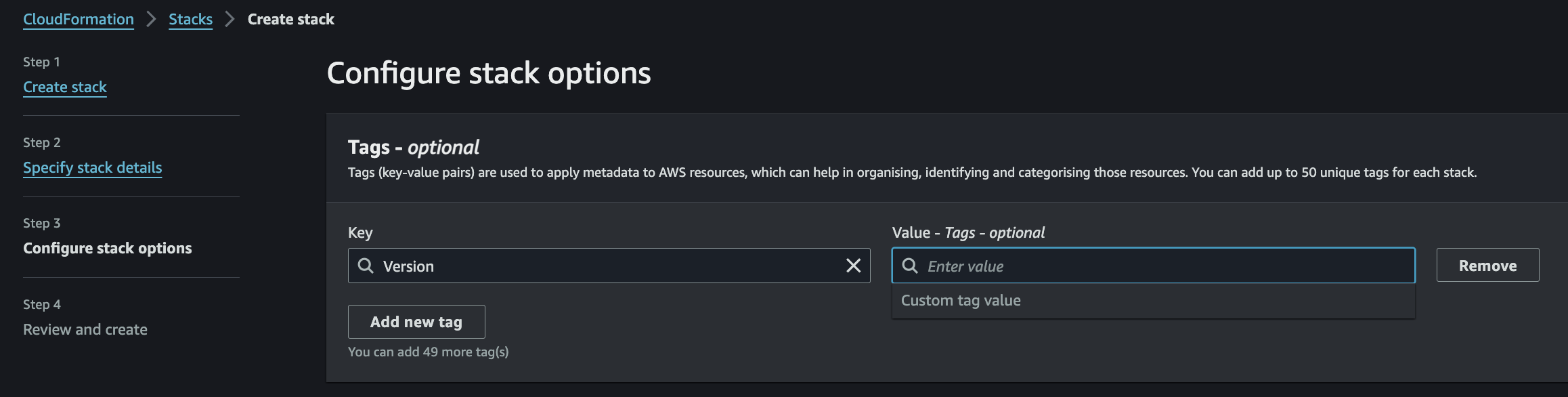
- Add a version tag by entering the following details:
-
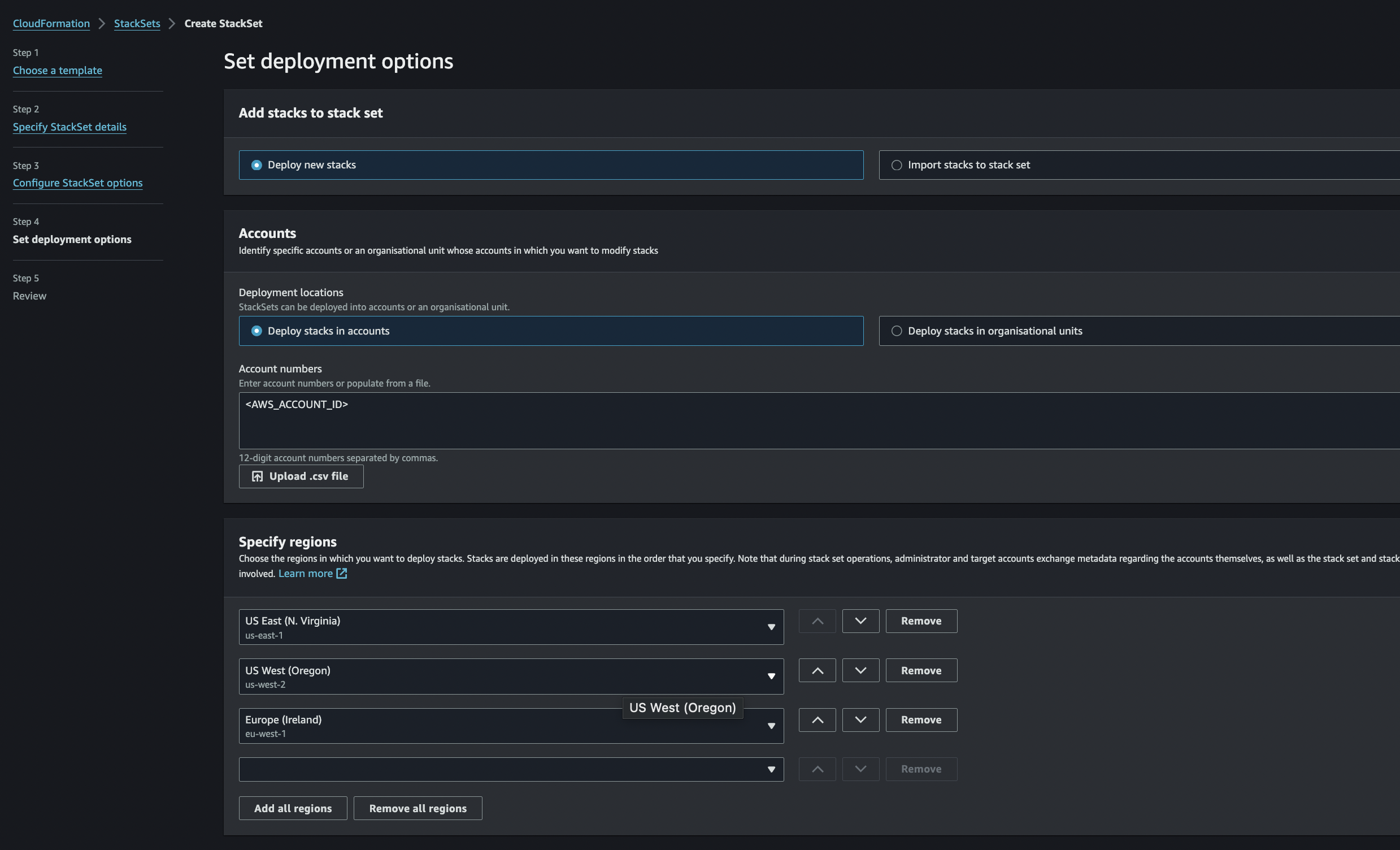
Enter Account ID and Select Regions
- Enter your account ID in place of
<ACCOUNT_ID>. - Alexa requires a multi-region deployment to support invocations from all geographies. Hence Select the following regions:
- US East 1 (N. Virginia)
- US West 2 (Oregon)
- EU West 1 (Ireland)
- If your Rainmaker region differs, select the appropriate Rainmaker region as well from the dropdown.
- Enter your account ID in place of
-
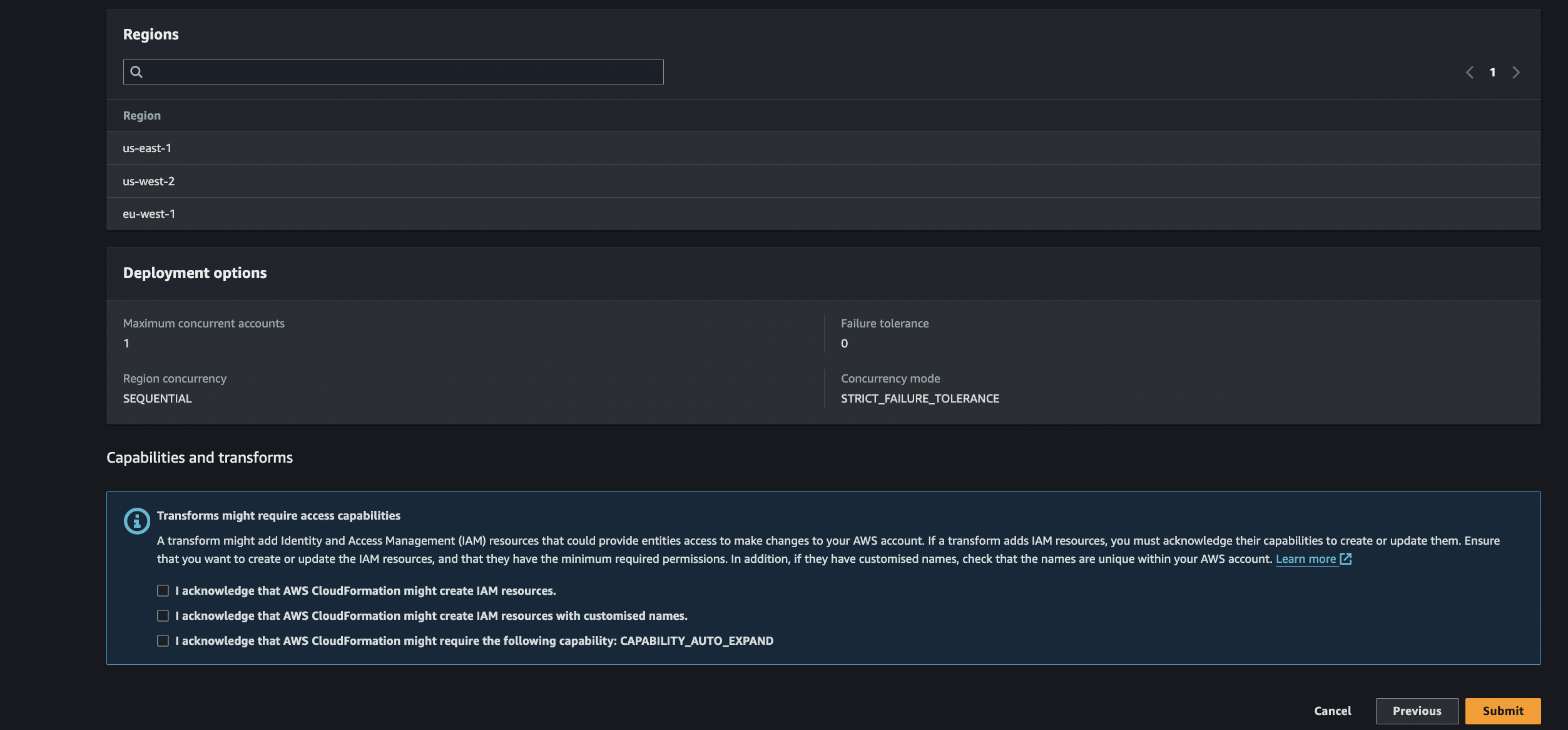
Review and Create
- Select the following options:
I acknowledge that AWS CloudFormation might create IAM resources.I acknowledge that AWS CloudFormation might create IAM resources with custom names.I acknowledge that AWS CloudFormation might require the capability: CAPABILITY_AUTO_EXPAND.
- Click
Create StackSet.
- Select the following options:
-
Wait for Completion
- Wait for the stackset to be created in all selected regions. This process will take approximately 15–20 minutes.
