

Publishing GVA Cloud-to-cloud Integration
Certify and Publish the Cloud-to-cloud Integration
When the Cloud-to-cloud integration is created and configured, it can be used with the developer account of the integration. This is the account using which the integration was created and configured. While the integration is in development, it is automatically available for testing with that account, and can be shared with a limited set of test users.
To make the integration publicly available, it is required to certify and publish it. After testing your integration with your firmware and ensuring it is working as expected, you can submit it for certification.
This section provides the steps to certify and publish the Cloud-to-cloud integration in the Google Home Developer Console.
Google has moved smart home development from the Actions on Google Console to the Google Home Developer Console. Smart home Actions are now called Cloud-to-cloud integrations, certification is part of the Works with Google Home (WWGH) program, and the certification flow is managed from Cloud-to-cloud > Certify in the new console.
Prerequisites
Adding the Logo and Authorization Statement to the OAuth Page
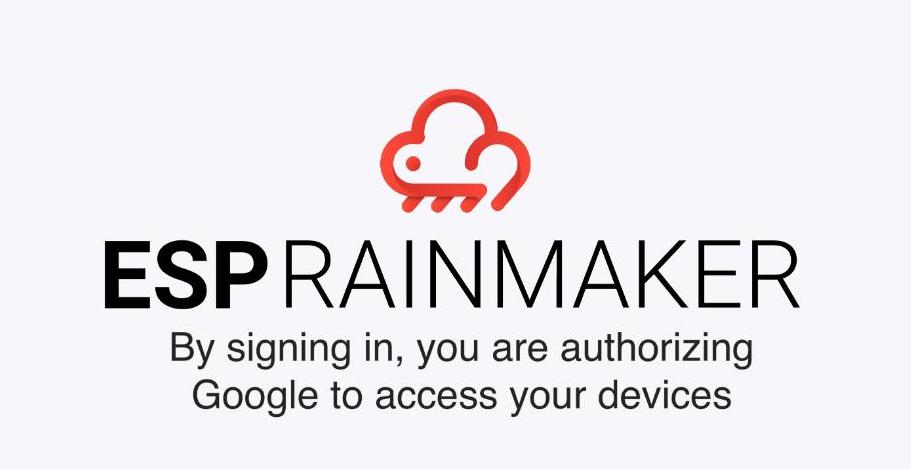
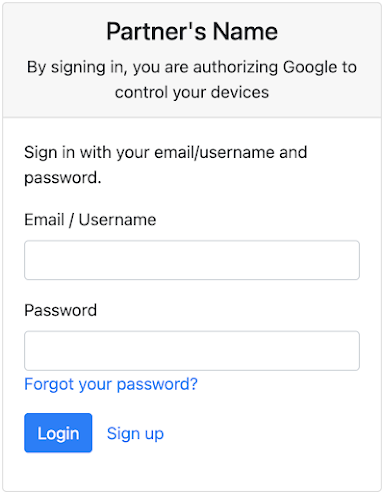
For certification, it is required that the OAuth Page mentions the authorization statement - "By signing in, you are authorizing Google to control your devices”. Follow steps below to include the authorization statement to your OAuth page.
- Keep an image ready with your logo and authorization statement - "By signing in, you are authorizing Google to control your devices". For example:
- The sign-in page will look like the image below.
-
Log in to AWS Console. Go to Cognito service page. Switch to
New console experienceif you can see the option. -
Click
User Pools. -
Click
rainmaker-user-email-mobile-pool. -
In the
App Integrationsection, scroll down and selectesp-rainmaker-google-action. -
Scroll down to
Hosted UI customization. -
Upload the image in
logofield ofUI customization. -
Scroll up and click
View Hosted UIto check if the OAuth Page now includes the logo.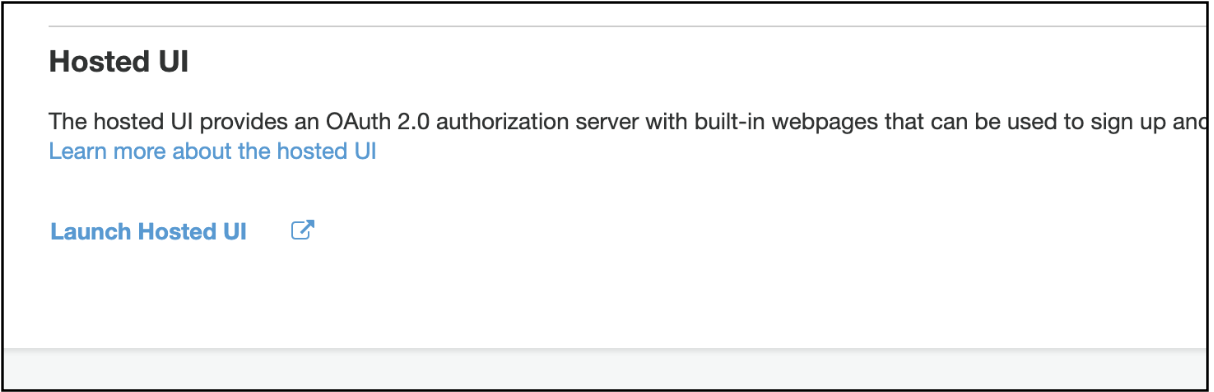
-
Try account linking for your integration using the Google Home app, ensure that the Login page shows the logo along with the authorization statement.
Completing the Company Profile
A completed company profile is required before you can submit an integration for certification. Open it from Project home, or directly at https://console.home.google.com/projects/<project_id>/details (replace <project_id> with your project ID), and fill in all the details:
- Company info -
Company nameandCompany website. This basic info is visible only to Google. - Company assets - upload a
Company logo(192 x 192 px, JPG or PNG). The logo is used on marketing and promotional pages, and in account linking if enabled for your integration. - Privacy policy - the privacy policy URL for your company.
- Contact - your headquarters
AddressandCountry, along with theDeveloper,Marketing, andBusinesscontacts (name and email for each).
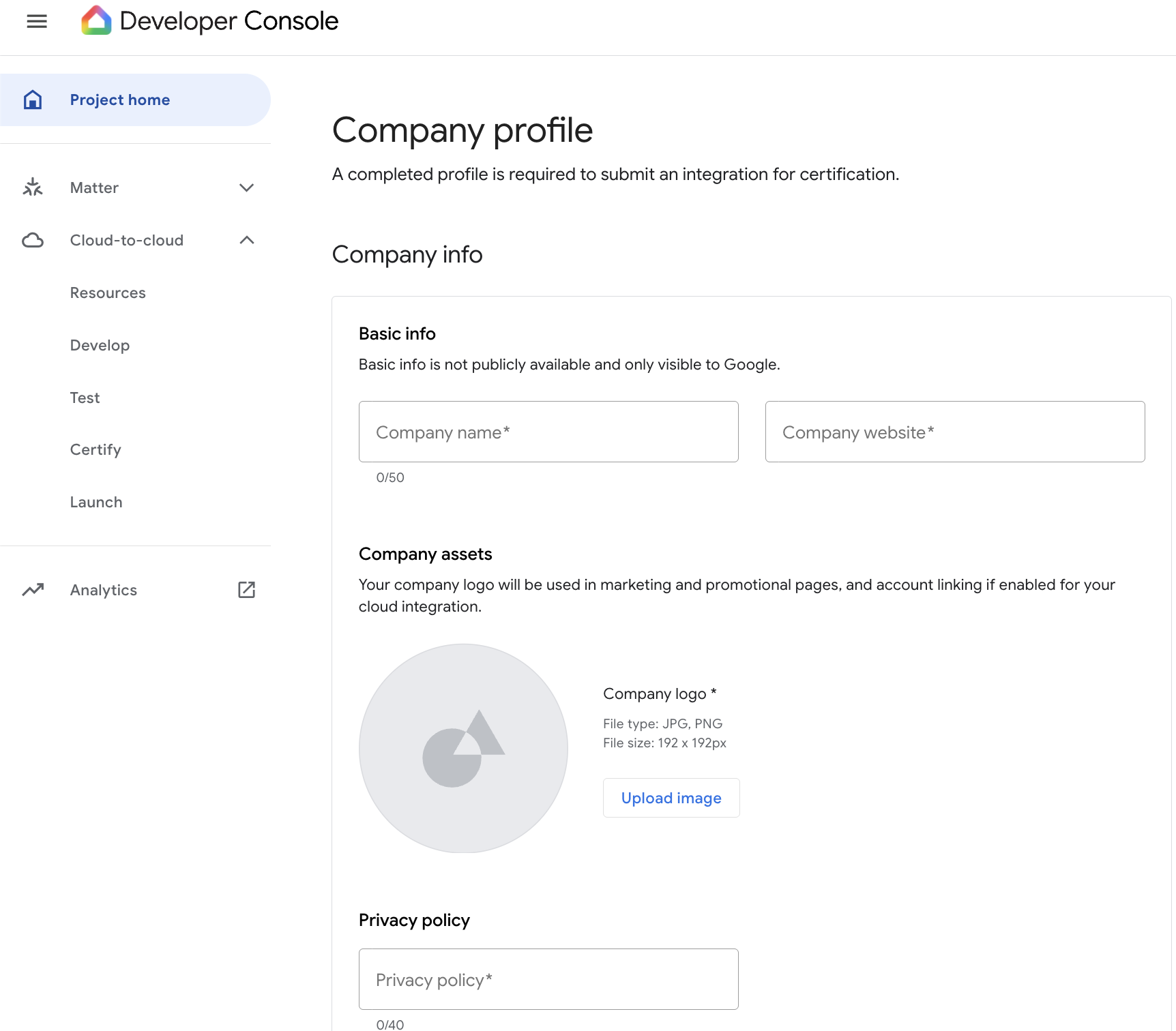
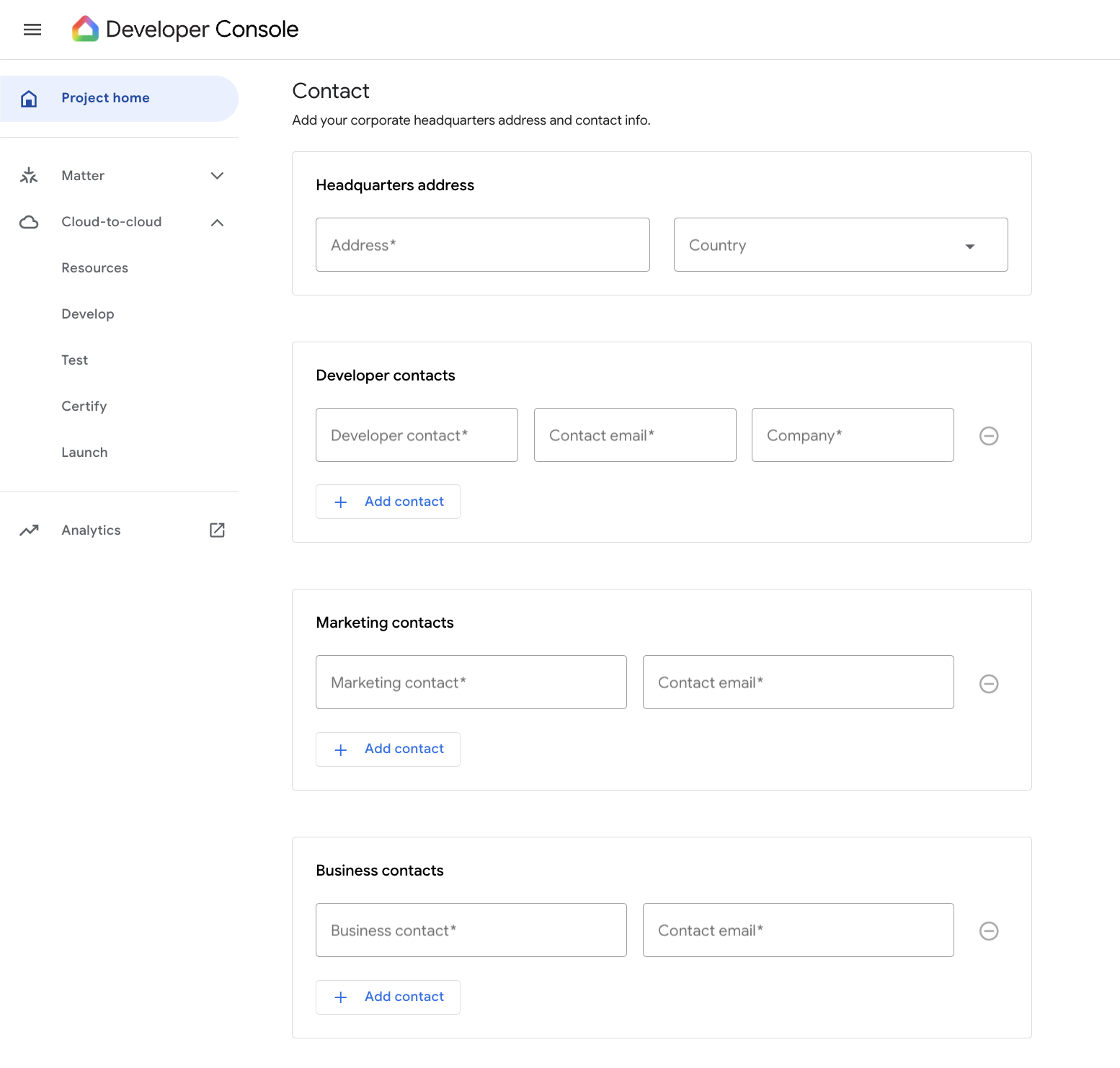
The company profile must be completed and verified before you apply for certification. Google support may raise queries about these details during the review, so make sure every field is filled in correctly — especially the company/product website and the contact details. Most importantly, the company logo must also be present on the company website that you mention here.
Required Details
Keep the following details ready before we submit the integration for certification.
- Privacy Policy and Terms of use URL for your integration.
- Brand Name - the brand name of your product.
- Link(s) to the product on the market.
- Short description - one-line description of your integration.
- The full description - Description that users will see for your integration. The description should give details about what can be done using the integration.
- Keywords - Simple search words that relate to or describe this integration.
- Example phrases (examples of supported voice commands).
- Public name of your integration.
- A test account with at least one test device.
- OAuth page - the screenshot of your OAuth page that will be visible when the user will link the account with your integration.
- Small logo(icon) - requirements for a small logo are:
- Round logo
- 192 x 192 pixels
- A transparent background, using PNG format
- If your logo is white, a colored border must be added
- Large banner image - requirements are:
- 1920x1080 pixels.
- A transparent background, using PNG format
- App Logo (icon) - requirements are:
- Round logo
- 144 x 144 pixels
- A transparent background, using PNG format
- If your logo is white, a colored border must be added
- Contact details - Developer name and email. This information will be used by the Google team to contact you regarding the certification status of your integration.
- Developer details.
Getting Test Suite Results
- Keep your test device or development board online.
- Ensure that the above test node is associated with a test user and the test user has completed the account linking from the Google Home app.
- Log in to the Google Home Developer Console, open your project, and go to
Cloud-to-cloud>Test. - Click
Testfor your integration, provide a test name, and select the devices to test. - Click
Next: Test planand select the test suites you want to run. - Click
Run Test. The Test environment page displays the real-time status and logs of the test execution. - It will take some time to complete the test suite.
- Once the test suite is completed, ensure that there is not any
Failedtest case. - If there is no failed test case, click
Submitto submit the results for certification. You can also clickDoneto view the run on the Test history page. The Test Suite results ID is required while submitting for certification.
To verify the live state of your devices in the Home Graph, open the Home Graph Viewer. Sign in with the Google account associated with your integration, enter your Project ID in the Project ID field, and click Sync to list all your devices along with their current state. Use the Sync button to refresh the device states.
Submitting for Certification
- In the Developer Console, go to
Cloud-to-cloud>Certify. Integrations that have completed their prerequisites appear underReady for certification review. - Complete all sections of the
Submit certificationpage and upload all the required information, including:- Verification info - test account credentials (username, password, and 2FA PIN if required), a screenshot of your OAuth page, link(s) to your product on the market, and a video of the device/Google Home app receiving a notification (if applicable).
- Documentation - the Test Suite results ID, and a UL/CE certificate for devices with safety implications (or confirm that you have no such devices).
- Adding the answers for common required questions during the certification submission:
- Is this integration tied to a commercial product? -> Yes.
- Does your integration implement SCENE trait only? -> No.
- Type of Submission -> Cloud.
- Traits that require manual testing -> Select "I have no traits that require manual testing" if your device can report state, choose "Command Only" otherwise.
- Have you implemented Notifications to your devices, and requires certification -> No.
- If you cannot implement notifications on compatible traits, please specify an ETA when it can be implemented. -> Keep this empty, if your device is not a sensor.
- Have you added app flip to your integration, and need that to be certified? -> No.
- If no, please specify an ETA if you have one. -> Keep empty.
- UL Certificate -> Skip uploading this, if your device is not a cooking appliance.
- Once all sections are complete, submit the integration for certification review.
- You can track the review from
Cloud-to-cloud>Certify, where integrations being certified are listed. - After your integration is approved, Google launches it for you. Approved integrations are launched on a weekly basis.
- Once certified, you become eligible for the Works with Google Home (WWGH) badge. Visit the Partner Marketing Hub to get the WWGH badge assets for use with your device.
- You will receive the certification status updates from the Google certification team.