

RainMaker Deployment Related Issues
I have completed the deployment of RainMaker Services but have not received any email regarding the deployment details. What should I do?
-
Check your junk folder. Verify whether the deployment details email has been filtered into your junk folder.
-
Verify email sending configuration. If the email is not in your junk folder, further investigation is required: Ensure that you have correctly configured the email-sending service for the RainMaker region(s). Refer to the guide: Configure Simple Email Service.
-
Confirm successful deployment. Verify that all required RainMaker components have been successfully deployed using the CloudFormation dashboard, as outlined in the deployment guide: Verification of Backend Deployment.
-
Reset Superadmin password if necessary. If all required stacks are deployed successfully, you can reset the Superadmin password from the RainMaker dashboard.
Steps to Reset the Password:
-
Go to the RainMaker dashboard login page and click
Forgot Password. -
Enter the registered Superadmin email ID. You will receive a verification code via email.
-
Enter the verification code along with a new password.
-
You can now log in to the RainMaker dashboard with your new credentials.
-
Getting the RainMaker API URL (Base URL)
-
Log in to the RainMaker dashboard using your admin credentials.
-
Go to the
Deployment Settingstab.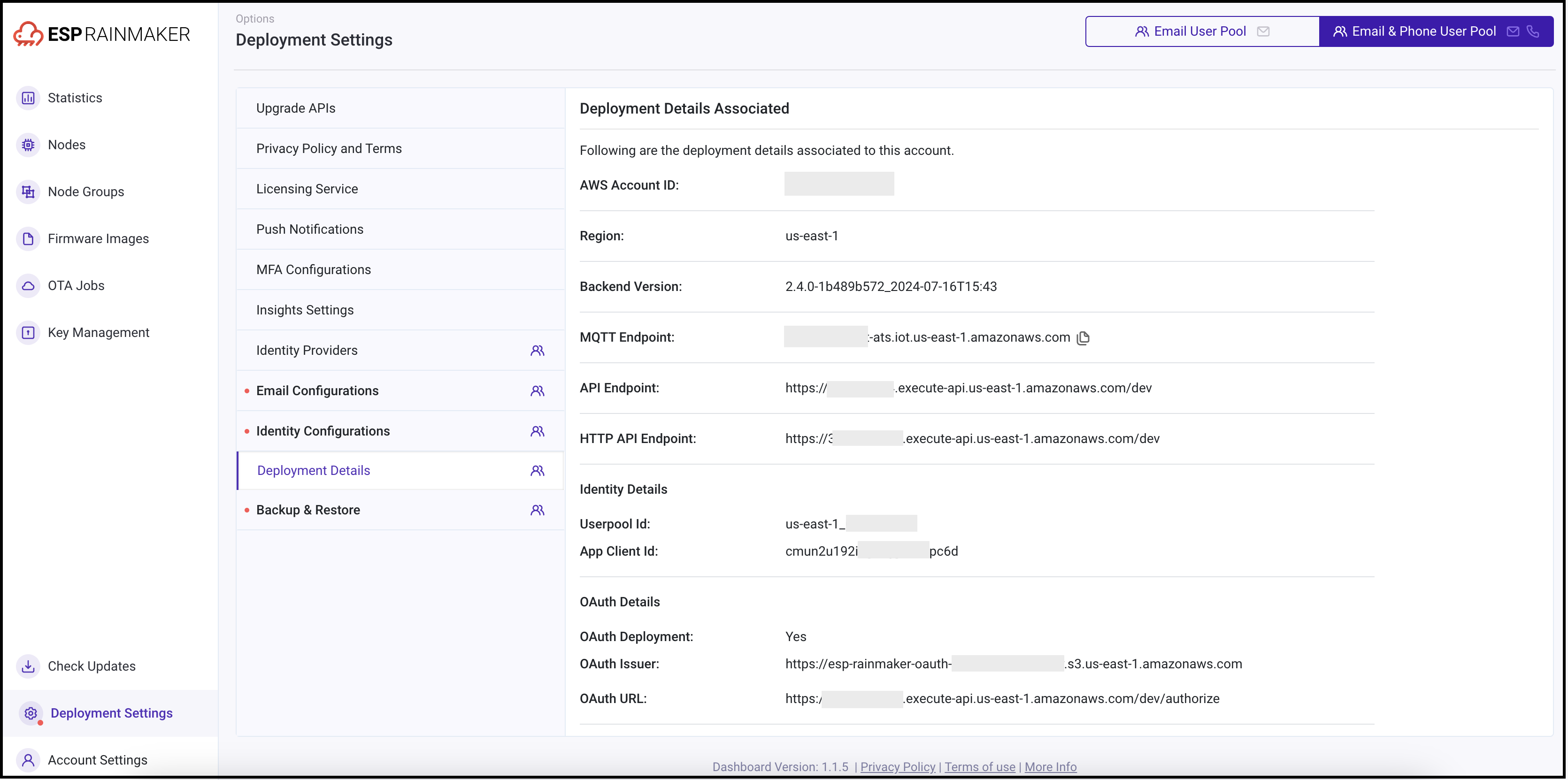
-
Identify the API Gateway type:
-
REST gateway: The default, legacy gateway used for all deployments.
-
HTTP gateway: A newly introduced, cost-effective gateway (about 70% cheaper).
Note: This requires migrating users to a new pool. Follow the steps in the User Pool Migration Guide.
cautionThe ESP API Rate Limiter add-on is not available when using the HTTP gateway. This may expose your API to intentional overload attacks by malicious users.
For OAuth-only RainMaker, only the HTTP gateway is supported.
-
-
Select your preferred API Endpoint.
-
For any further inquiries, contact ESP RainMaker Support at esp-rainmaker-support@espressif.com.
ESP-RainMaker-Core deployment fails. What should I do?
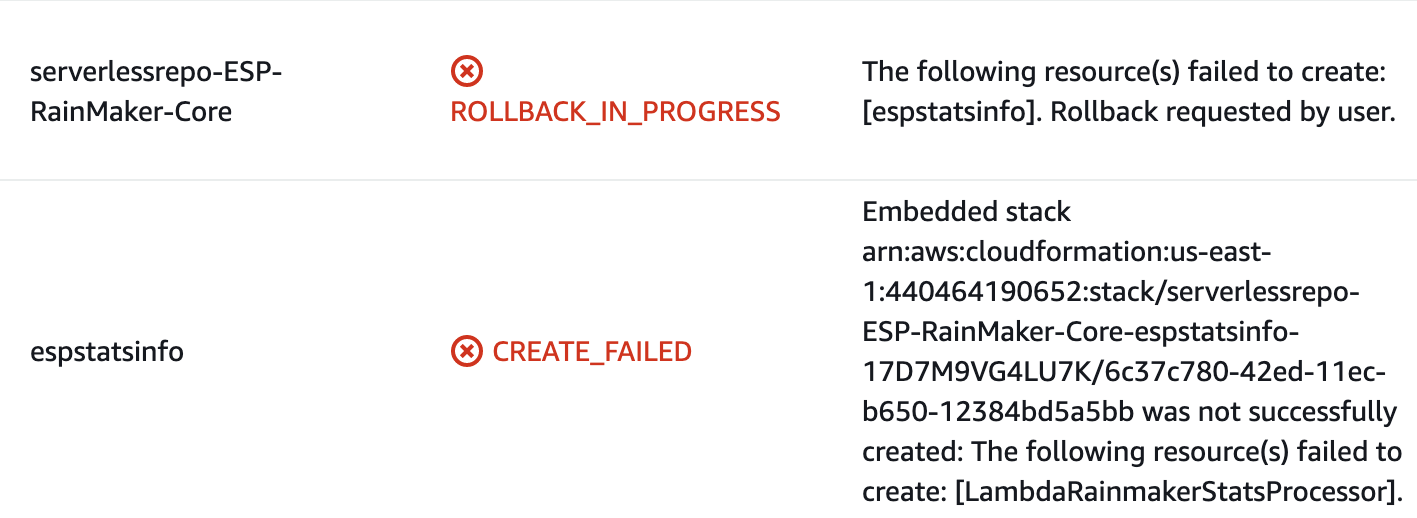
-
Log in to the AWS console.
-
In the AWS console, search for
CloudFormationand selectserverlessrepo-ESP-RainMaker-Core. -
Navigate to the
Resourcestab, search forespstatsinfoand click the associated stack link.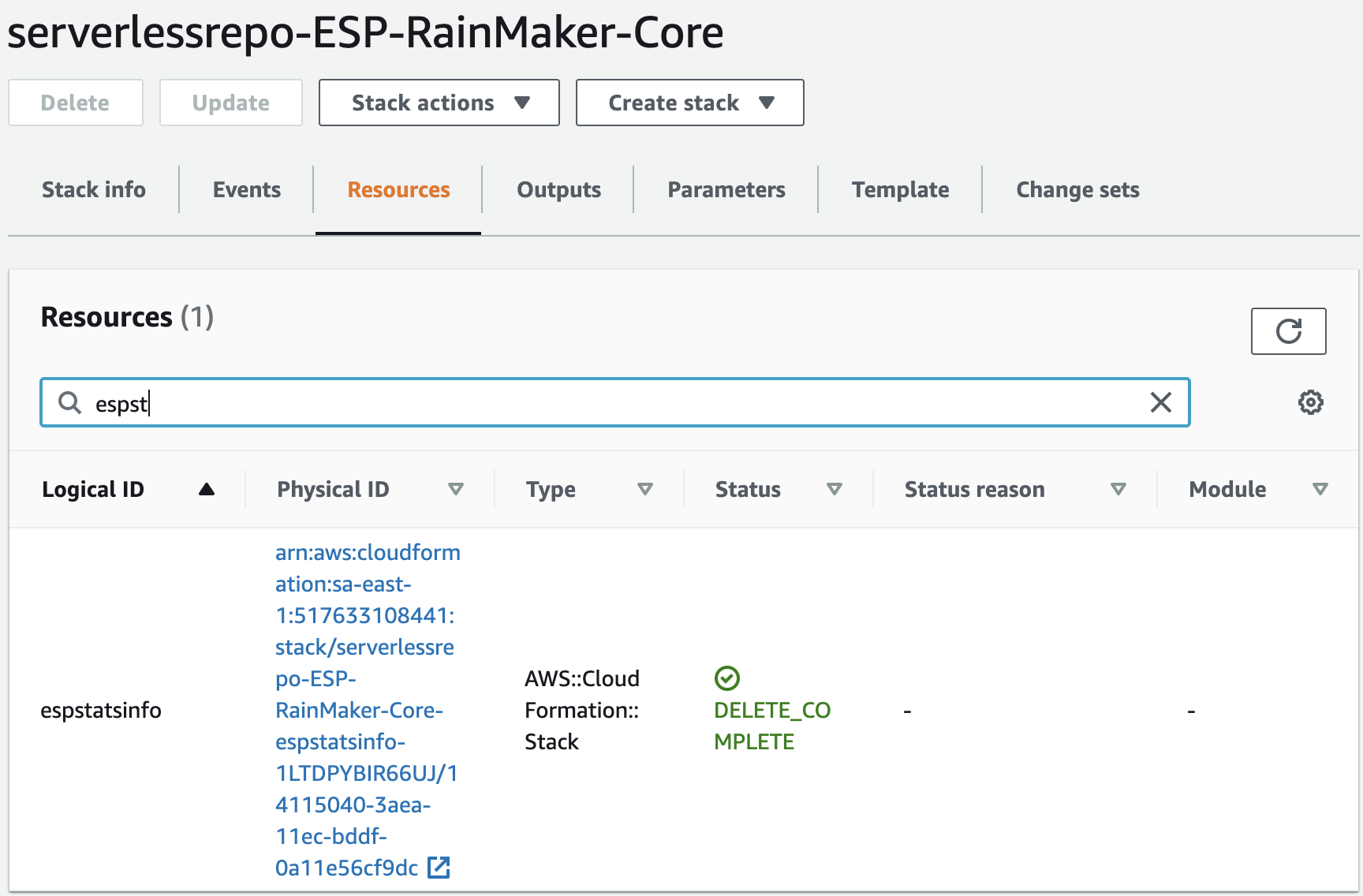
-
Open the
Eventstab and search forCREATE_FAILEDstatus.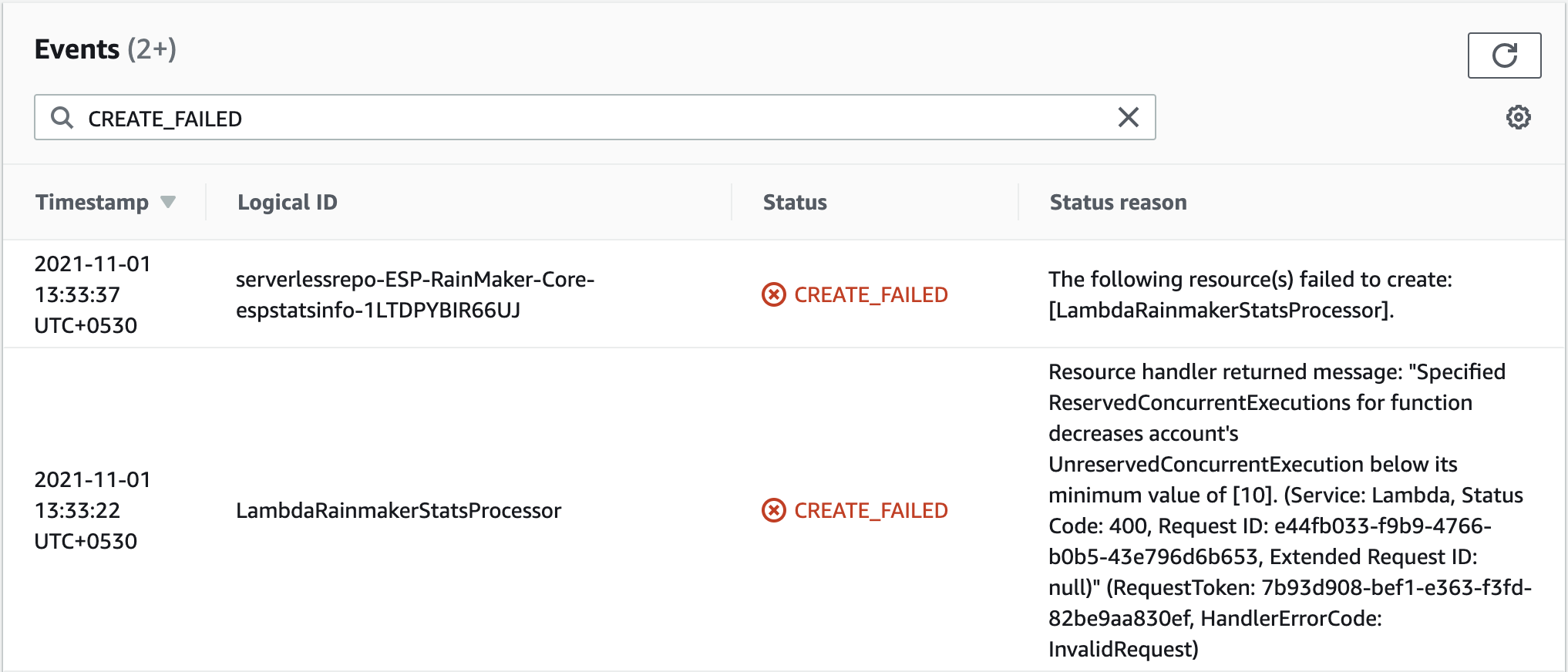
-
If the error matches the example above, the issue is related to lambda concurrency limits. You may need to raise a support ticket with AWS to resolve it.
Below are the steps for raising a Support ticket:
-
Go to your AWS console and search for
Support.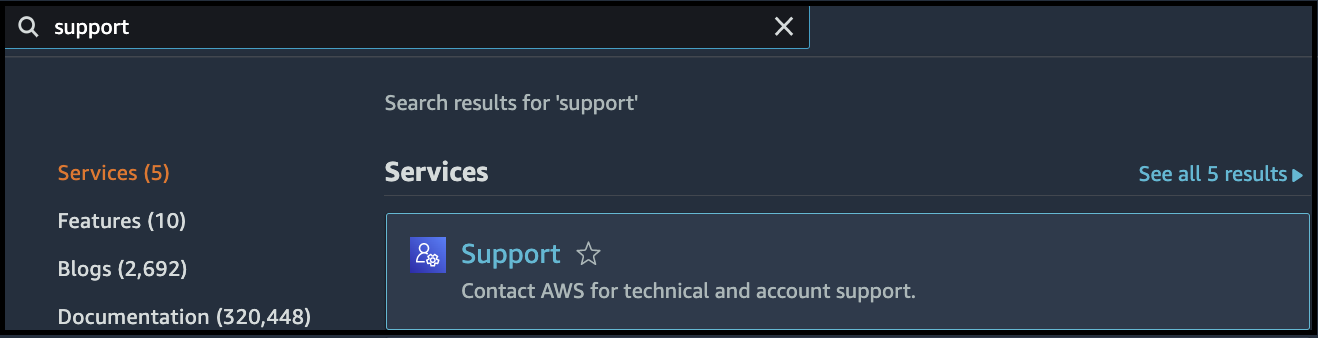
-
Click
Create case.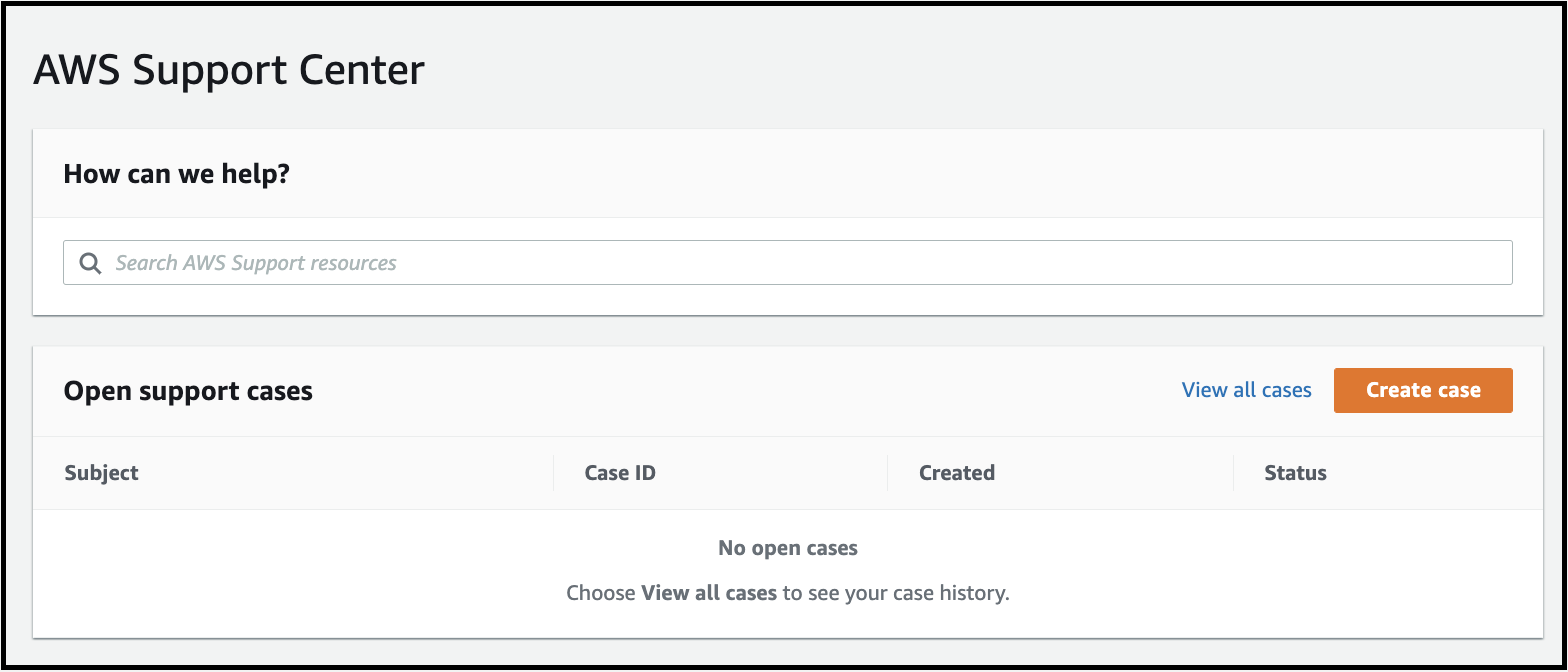
-
Select
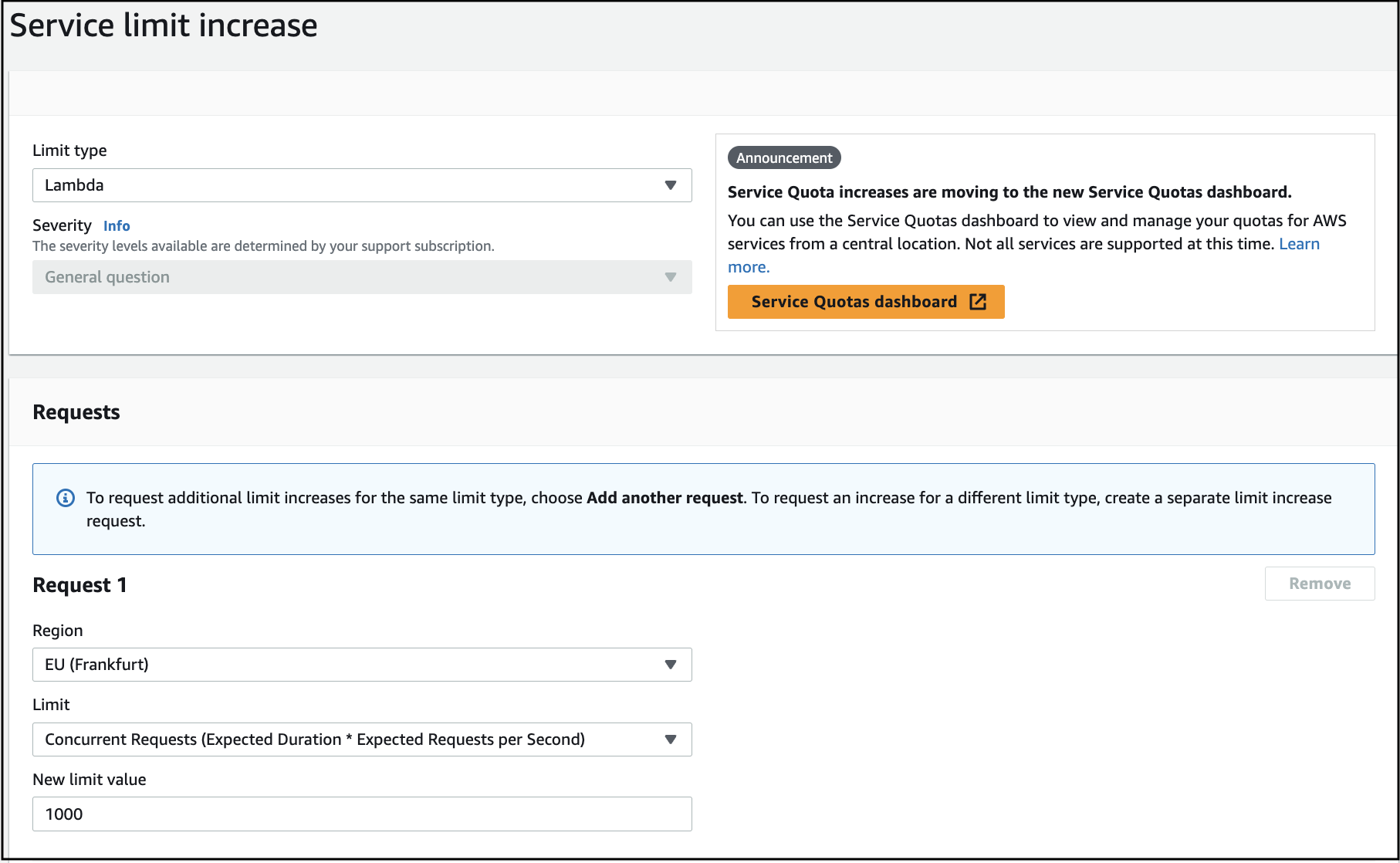
Service limit increaseand then chooseLambdaas Limit type, as shown below: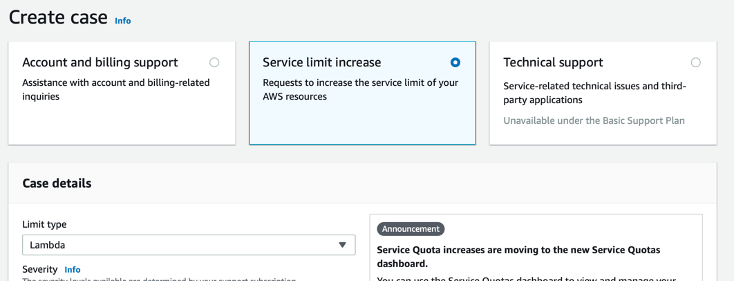
-
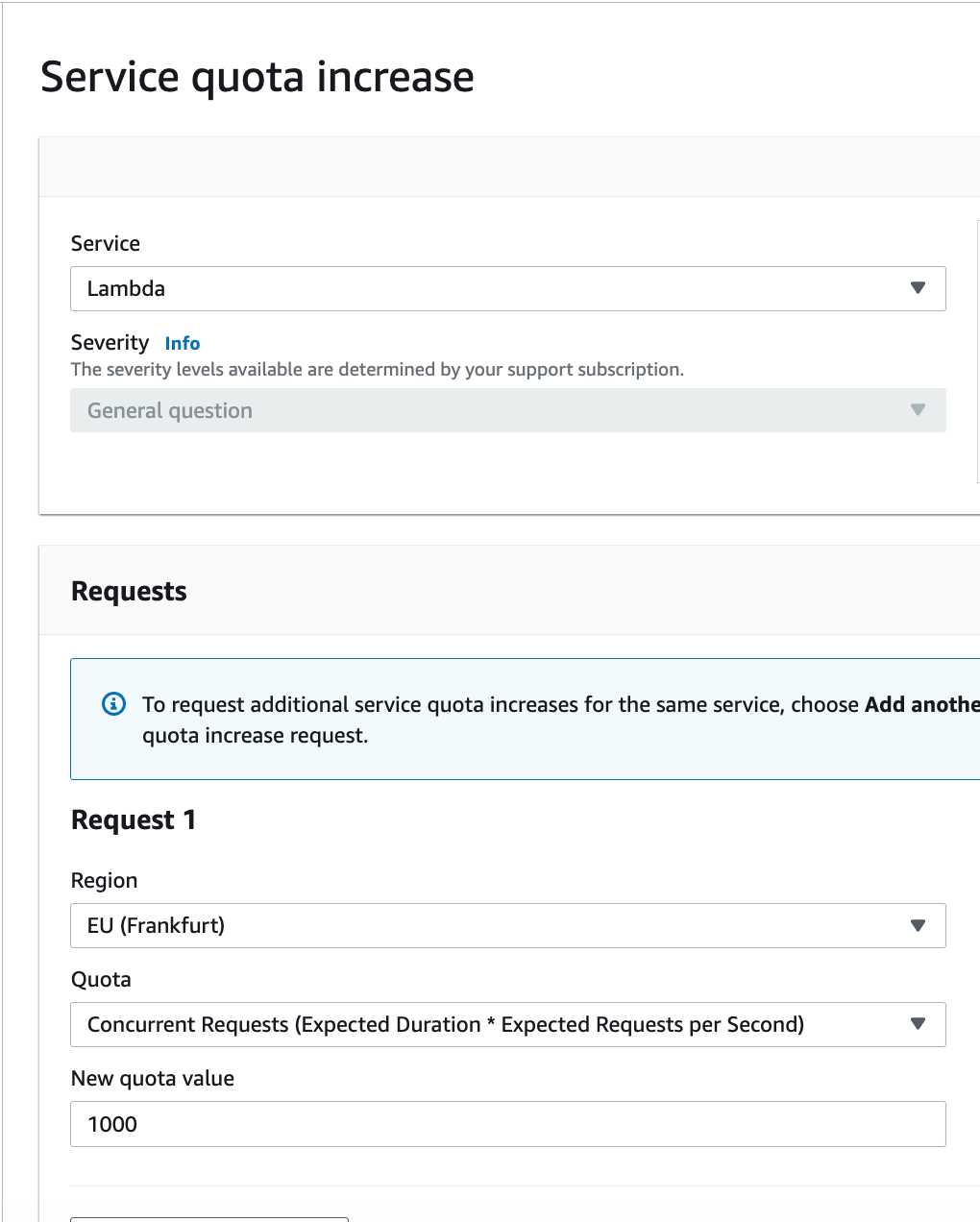
Fill in the case details:
-
Specify the request details:
- Select your deployment region
- Limit: Concurrent Requests (Expected Duration × Expected Requests per Second)
- New Limit Value: 1000
-
Add a Case Description.
We are trying to deploy our product: https://rainmaker.espressif.com/. Since the current limit for concurrency is set to 10, we are not able to proceed with the deployment. Can you please set the concurrency limit to 1000?
-
Submit the request.
I am not able to find the ESP-RainMaker-Base-API stack in CloudFormation.
- The ESP-RainMaker-Base-API stack is disabled after the initial deployment of RainMaker.
- If you are cleaning up and redeploying the RainMaker, please contact the Espressif RainMaker team at esp-rainmaker-support@espressif.com to request access to the ESP-RainMaker-Base-API stack.
- There is no need to upgrade the ESP-RainMaker-Base-API stack if you are only upgrading Rainmaker.
How to confirm if the system is functional after downtime for the v3.1.0 upgrade?
-
Log in to AWS management console.
-
Navigate to the
IoT Core AWSservice. -
From the left-hand menu, expand
Security, clickPolicies, and selectesp-rainmaker-iot-policy.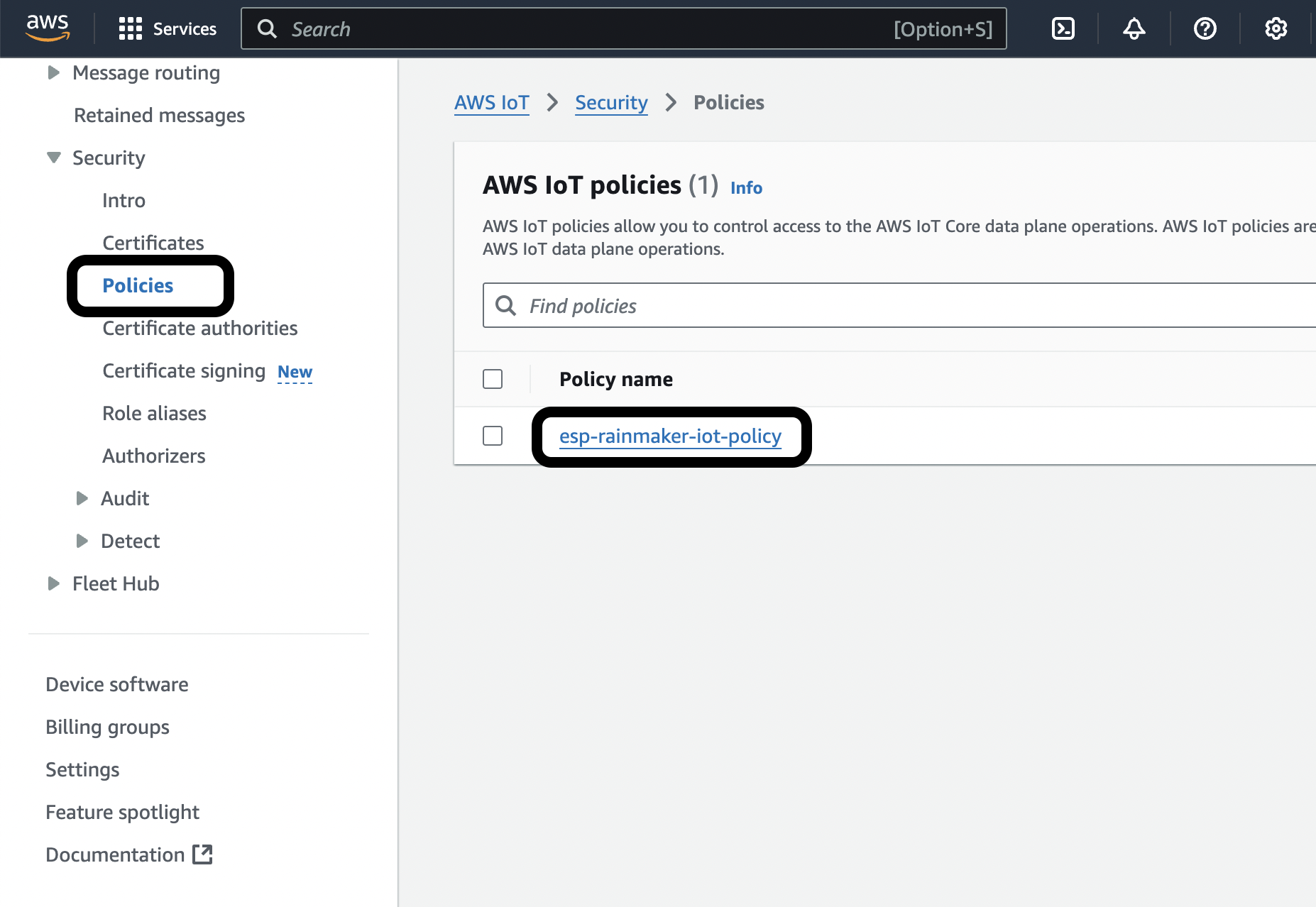
-
If your
Activepolicy looks like the following: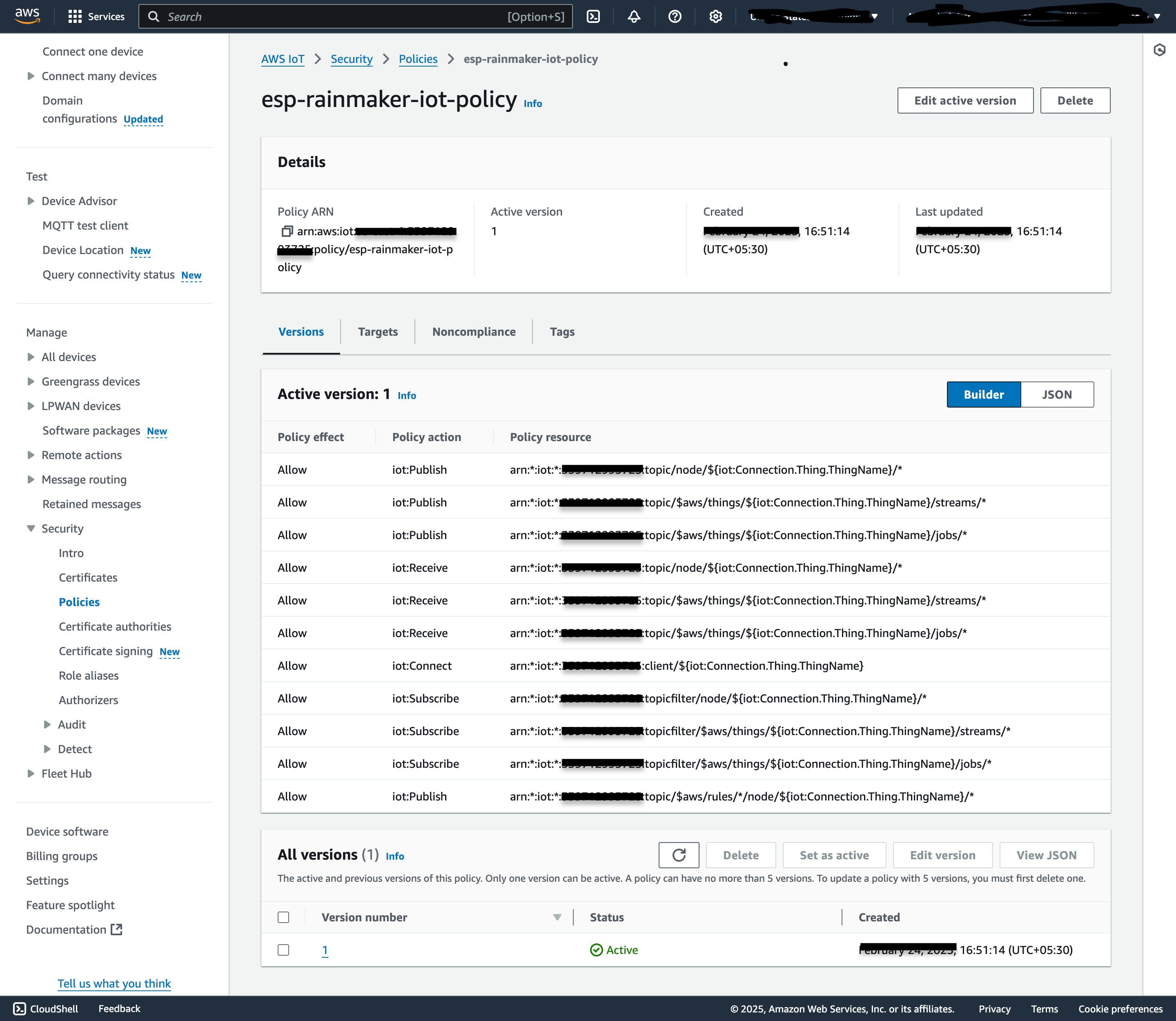
Then your system is working as expected, there is no MQTT downtime, and your devices are connected.
-
If your
Activepolicy looks like a connect-only policy: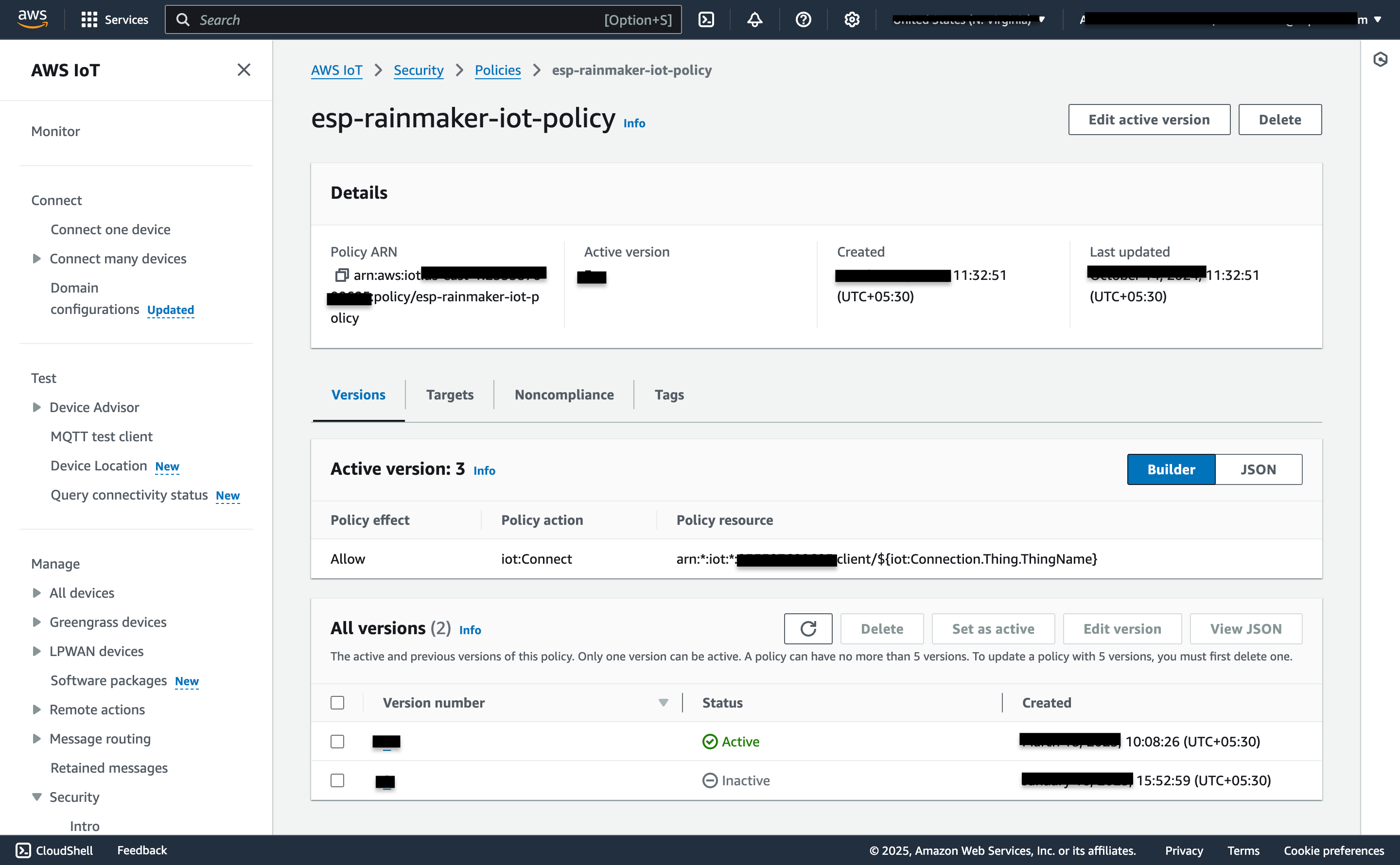
Then check if there is another
Inactiveversion that looks like the following: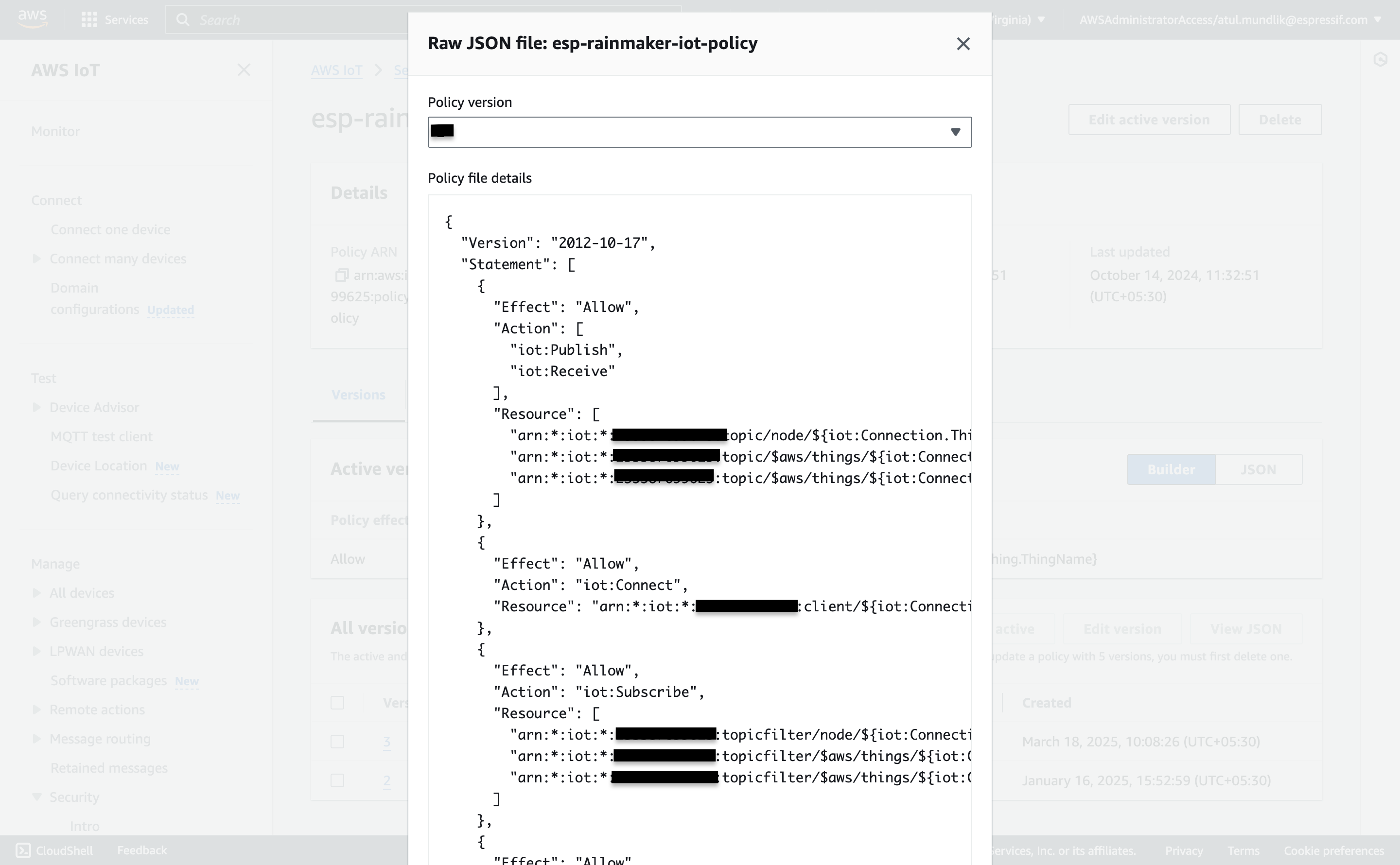
Select that
Inactiveversion and clickSet as Active.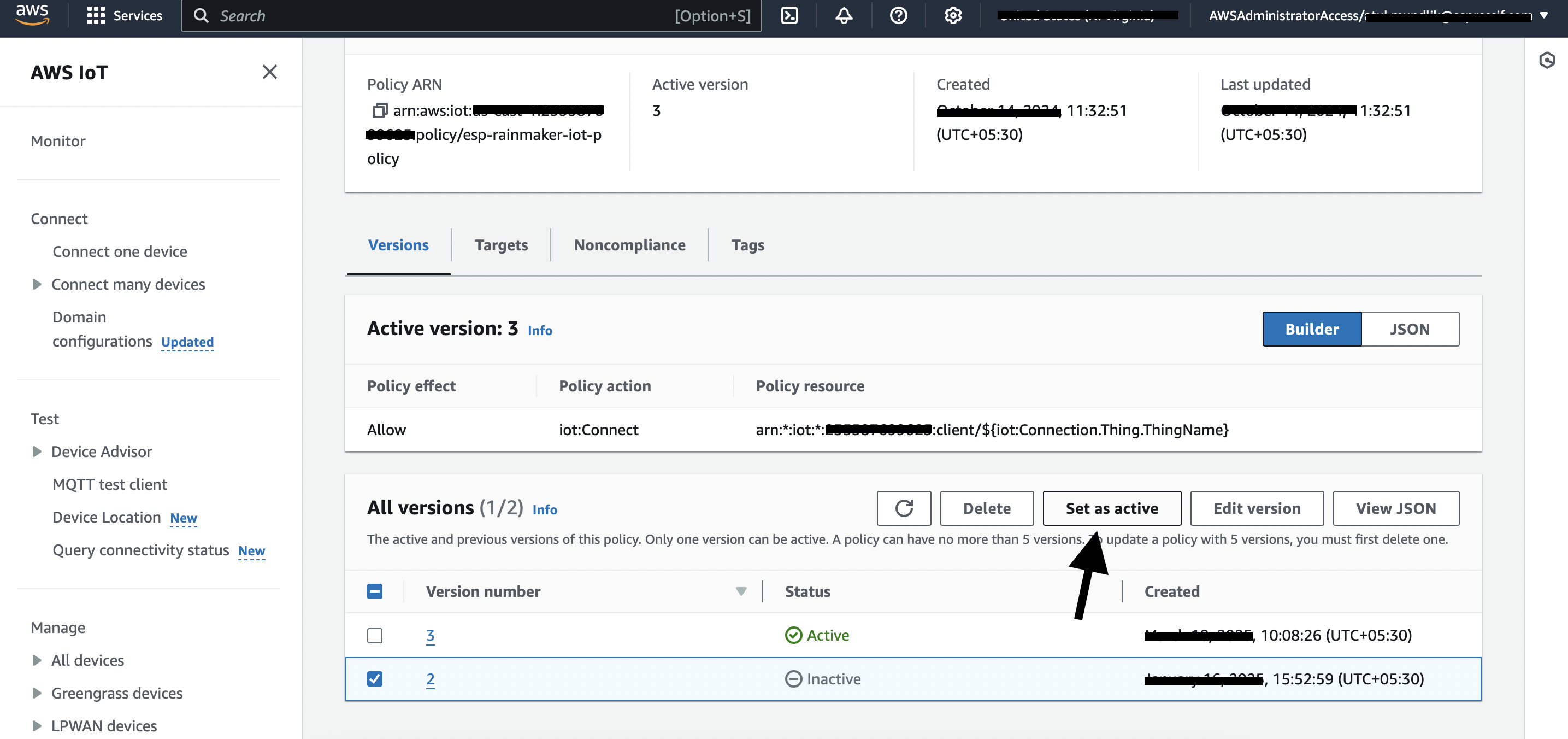
How to recover missing admin node group mappings?
Issue Description
A node reset issue was present in all past releases, which incorrectly removed nodes from admin groups. If you are using OTA intended for any admin groups, such nodes will not receive the OTA update. This is fixed in v3.6.1. This issue occurred when:
- A node is reset to factory settings while connected to MQTT
- A new user onboards a node that was previously mapped to another user
Due to the long timeframe and manual operations that may have occurred since, it's infeasible to do a complete historical data correction with certainty about what was affected.
Recovery Scope
Node registration based groups (from v2.8.0 onwards):
- We can recover admin node group mappings from node registrations that occurred approximately 1 year ago, starting from release 2.8.0.
Dynamic groups:
- We will recover dynamic group mappings by regrouping all existing active nodes according to their
group_querycriteria (based onnode_type,node_model,node_fw_version).
Limitations
- Manual group modifications made during the 5-year period are not recoverable.
Recovery Script
Download the script:
Admin Node Group Mappings Recovery Script
How to Run (AWS CloudShell)
# 1. Download the script in CloudShell
wget https://esp-rainmaker-generic-315787942180.s3.us-east-1.amazonaws.com/scripts/restore_admin_node_group_mappings.py

# 2. Run in DRY RUN mode first (no changes made)
python3 restore_admin_node_group_mappings.py --region <your-region>

# 3. Run in LIVE mode to restore mappings
python3 restore_admin_node_group_mappings.py --region <your-region> --live
Output
- Console shows summary only
- Detailed log file:
restore_mappings_<admin_id>_<timestamp>.log - CSV report:
missing_mappings_<admin_id>_<timestamp>.csv
When Should I Run This Script?
- After upgrading to v3.6.1 or later: If you've been running RainMaker since v3.6.0 or earlier and have admin groups with nodes which you use for providing OTA updates, you should run this script once to restore any missing node-group mappings.
- If you notice missing nodes in admin groups: Run this script to check and restore the mappings.
The script runs in DRY RUN mode first to see what changes would be made. To apply the changes, run the script in LIVE mode with --live flag.
Increasing Amazon API Gateway limits
Before upgrading the RainMaker backend (for example to v3.8.0 or later), you must increase the Amazon API Gateway quota Routes per HTTP API to 500 in your deployment region. If this quota is too low, the stack update can fail when API Gateway resources are created or updated.
- Open the AWS Service Quotas console and select your deployment
Region. - Choose
AWS services→Amazon API Gateway. - Locate
Routes per HTTP APIand chooseRequest quota increase(or equivalent). - In the
Request quota increasedialog, enter 500 as the new quota value. The AWS default for this quota is often 300; the value you request must be greater than your current applied quota. Submit the request.
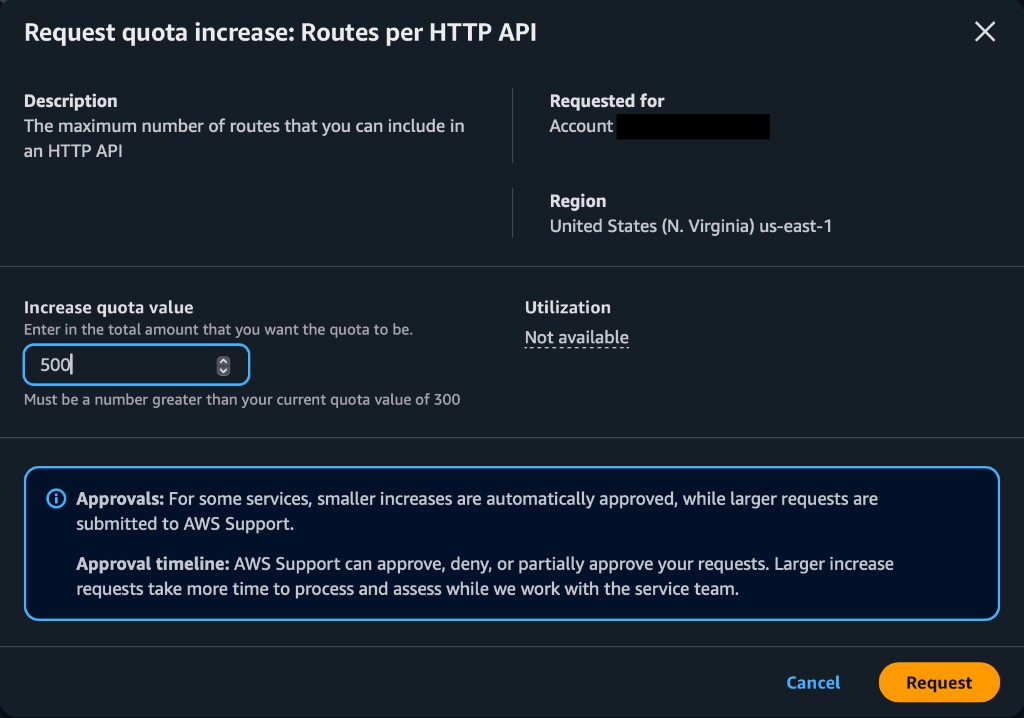
You can track the request under Recent quota increase requests in Service Quotas. The following example shows an approved increase for this quota to 500:

If the upgrade fails with an API Gateway quota error, raise the quota named in the error message, then retry the upgrade. For further help, contact esp-rainmaker-support@espressif.com.