

场景
一键触发场景
- 功能说明 - 使用此功能可以一键控制多个设备。例如,可以一键开启或关闭所有灯光,或设定观看电影时特定的灯光效果。
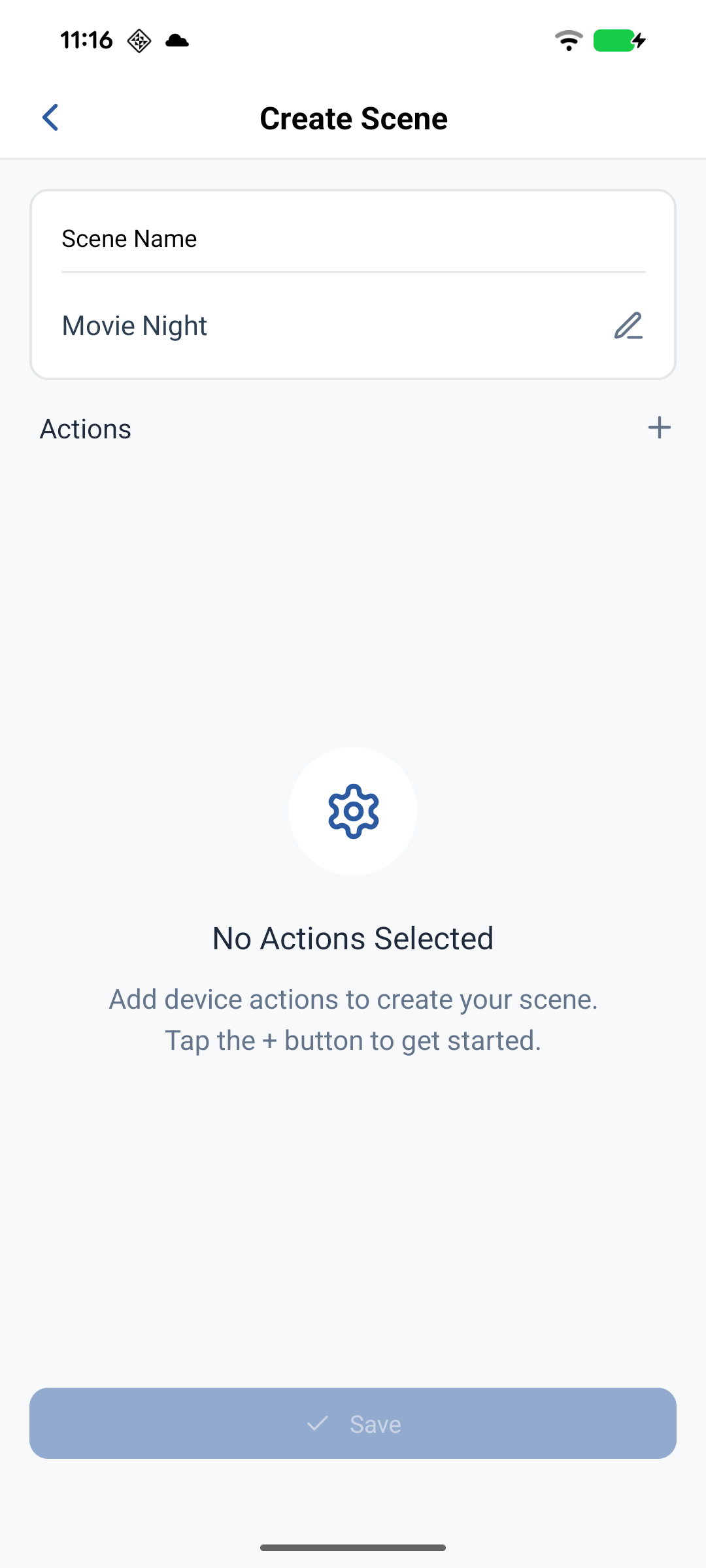
- 创建场景 - 点击底部导航栏的
Scenes标签页,然后点击右上角的+按钮。 - 输入名称 - 将出现对话框提示你输入场景名称(例如,
Movie Night或Good Morning)。点击Confirm继续。 - 添加设备操作 - 点击
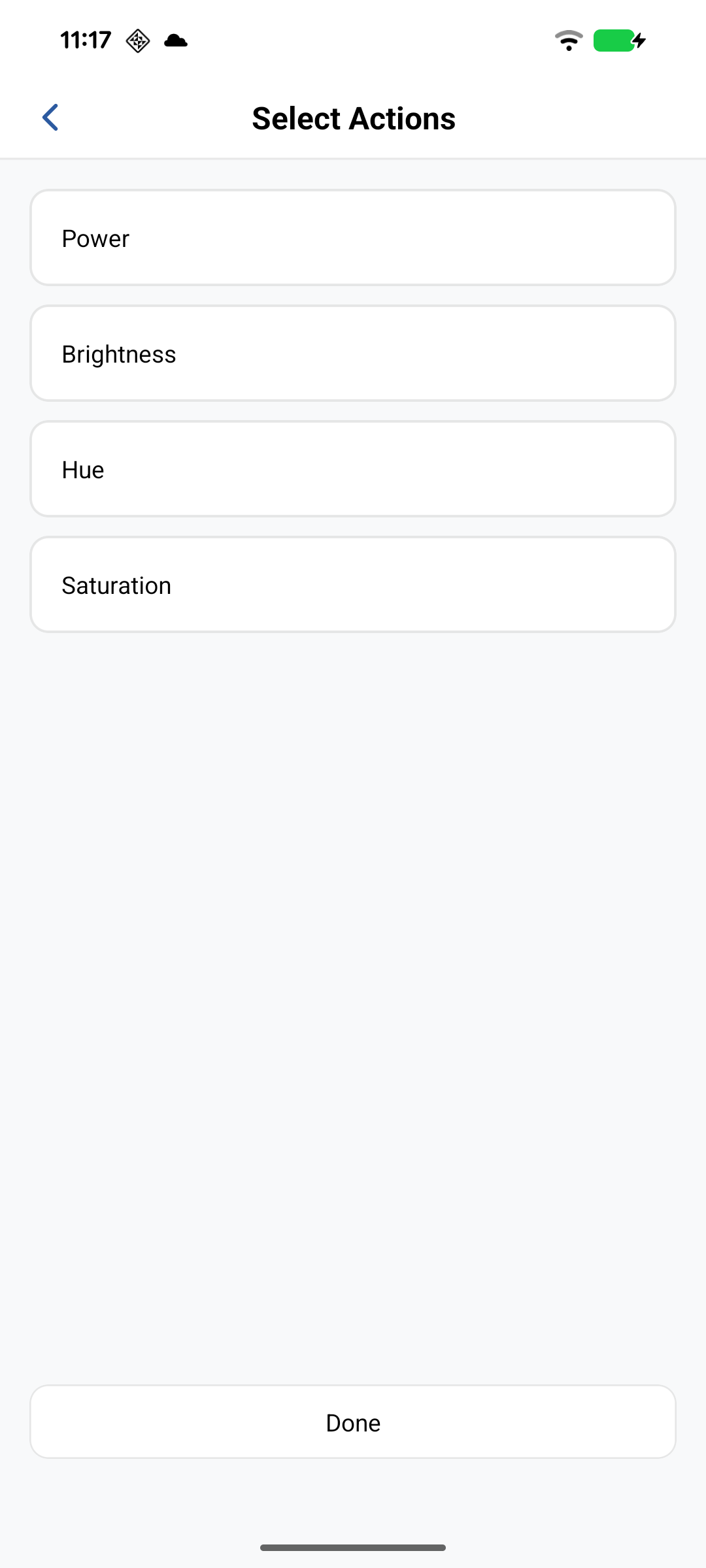
+按钮选择设备。选择设备并配置其操作,例如开关状态、亮度、色温、颜色或饱和度。 - 保存场景 - 点击
Save完成设置。该场景将出现在场景列表中。 - 激活场景 - 点击场景卡片打开菜单,然后点击
Activate以一键执行所有已配置的操作。
编辑或删除场景
- 访问场景 - 在场景页面,点击你想要修改的场景卡片。
- 选择操作 - 将出现一个包含以下选项的菜单:
- Activate: 立即执行该场景
- Edit: 修改场景名称或设备操作
- Delete: 永久删除该场景
- 确认更改 - 删除场景时,会出现确认对话框。点击
Delete进行确认。
收藏场景
- 标记为收藏 - 在场景页面,点击任意场景卡片上的心形图标即可将其添加到收藏夹。
- 查看收藏 - 切换到
Favorites标签页,仅查看你收藏的场景以便快速访问。 - 移出收藏夹 - 再次点击心形图标,可将场景从收藏夹中移除。