快速入门
下载 ESP RainMaker Home
请根据手机系统(Android 或 iOS)使用下方的安装链接下载 ESP RainMaker Home 应用。
在本快速入门指南中,请下载「全球区域」版本的 ESP RainMaker Home 应用。
- 全球区域
- 中国区域

安装参考链接
ESP Private Agents
中国版 ESP RainMaker Home 不支持 ESP Private Agents。如需在手机应用中使用 ESP Private Agents,请改用全球版。
Android (安卓)





iOS

App Store(中国区域)
在 设置 → 通用 → 语言与地区 中将地区设为 中国大陆,然后通过 ESP RainMaker 应用页面 下载安装。

注册
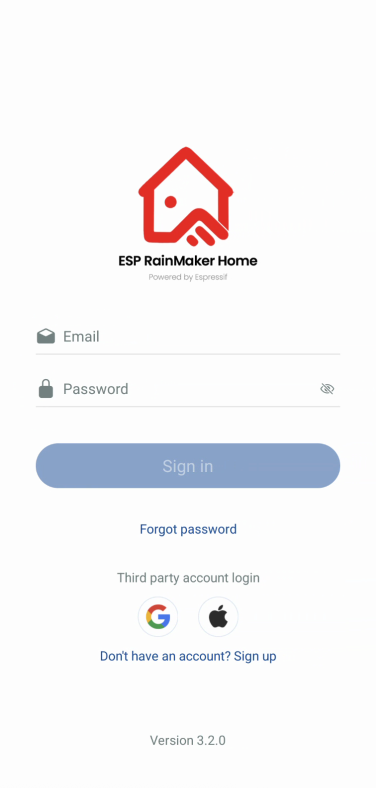
- 在登录页面,点击底部的
Sign Up链接(在登录选项下方)。 - 输入邮箱地址、密码并确认密码。
- 勾选
I agree to Terms of Use and Privacy Policy复选框。 - 点击
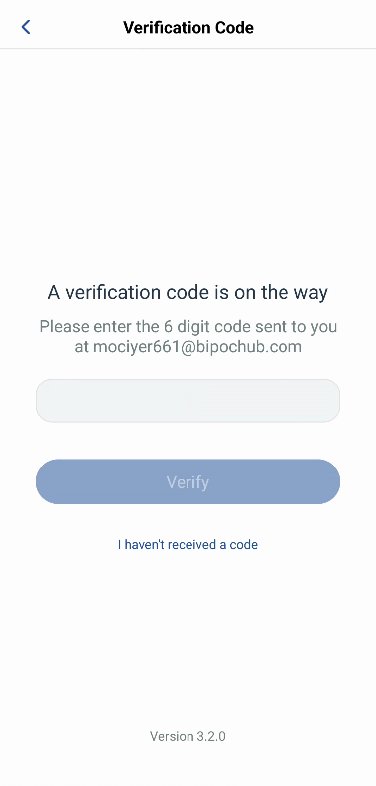
Confirm按钮,系统将向你的邮箱发送 6 位验证码。 - 在下一个页面上,输入通过邮箱收到的验证码。
- 点击
Verify完成注册,验证成功后将自动登录。
注意:如果未收到验证码,可以点击 Resend 重新发送。
- 请通过邮箱注册。此应用的使用国家或地区将与手机设置中的国家或地区自动同步。你可以在注册时更改国家或地区,须注意:注册后无法更改。输入邮箱并点击
Get获取验证码。 - 输入验证码和密码。密码应包含 8-20 个字符,且必须包含至少一个大写字母、一个小写字母和一个数字。
- 勾选同意应用条款和隐私政策( "Terms of Use" 和 "Privacy Policy"),然后点击
Sign up完成注册。
登录
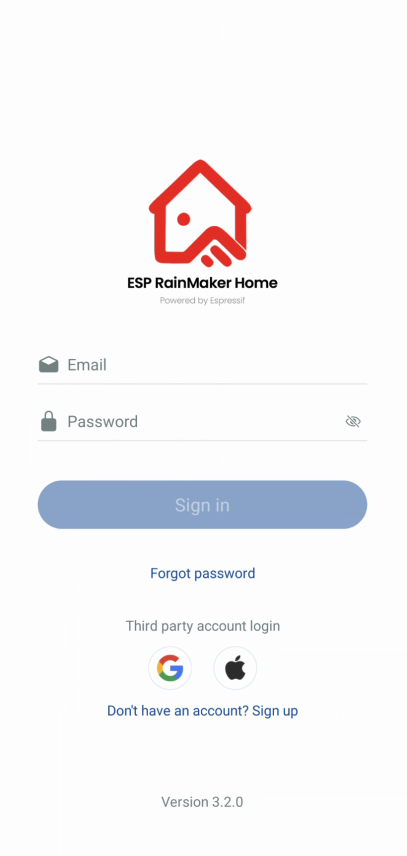
- 在登录页面,输入你注册的邮箱和密码。
- 点击
Sign In按钮。 - 替代方式:点击底部的 Apple 或 Google 图标,通过 OAuth 登录(如果已启用)。
修改密码
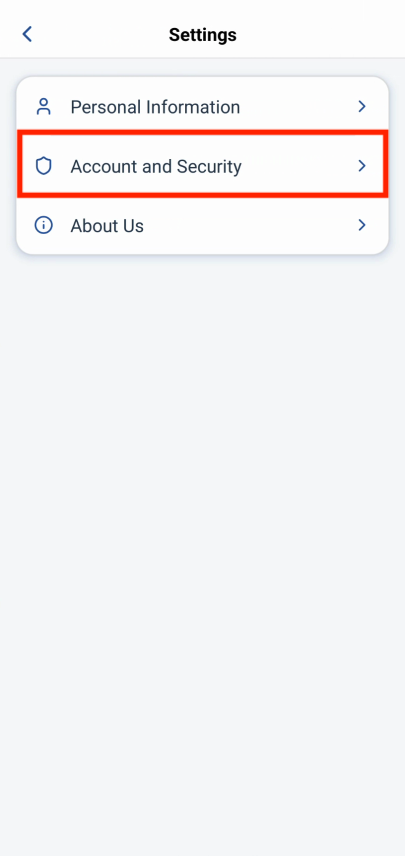
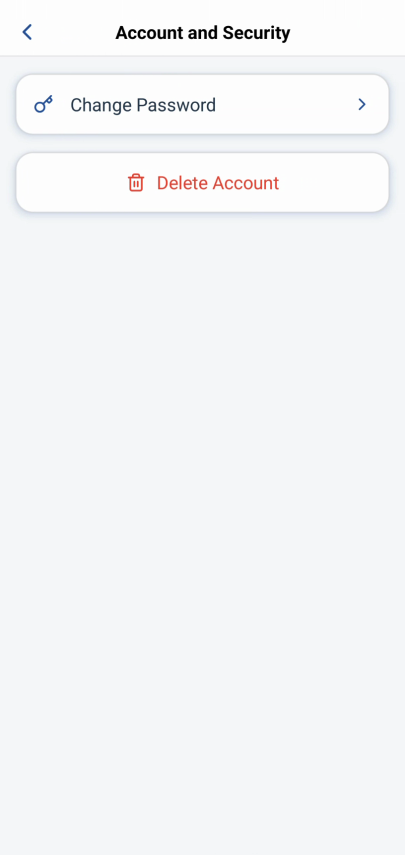
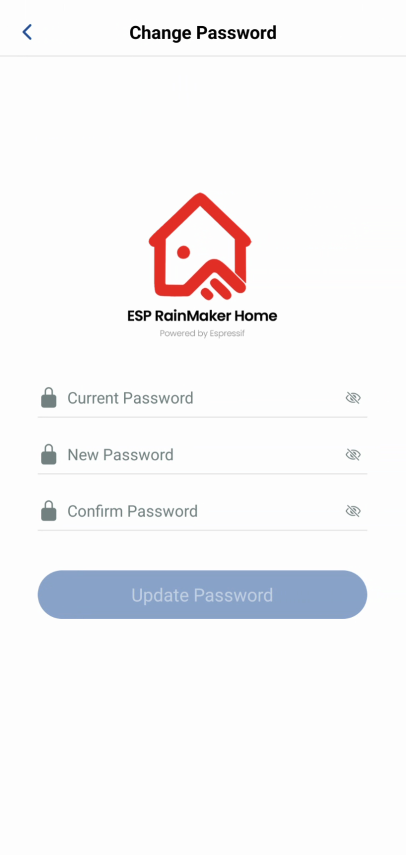
- 导航:点击
User标签 > 头像或设置图标 (⚙️) >Account and Security>Change Password。 - 输入你的当前密码、新密码并确认新密码。
- 点击
Update按钮。 - 你将自动退出登录,并返回到登录页面。
注意:此选项对 OAuth (Apple/Google) 登录用户隐藏。
忘记密码
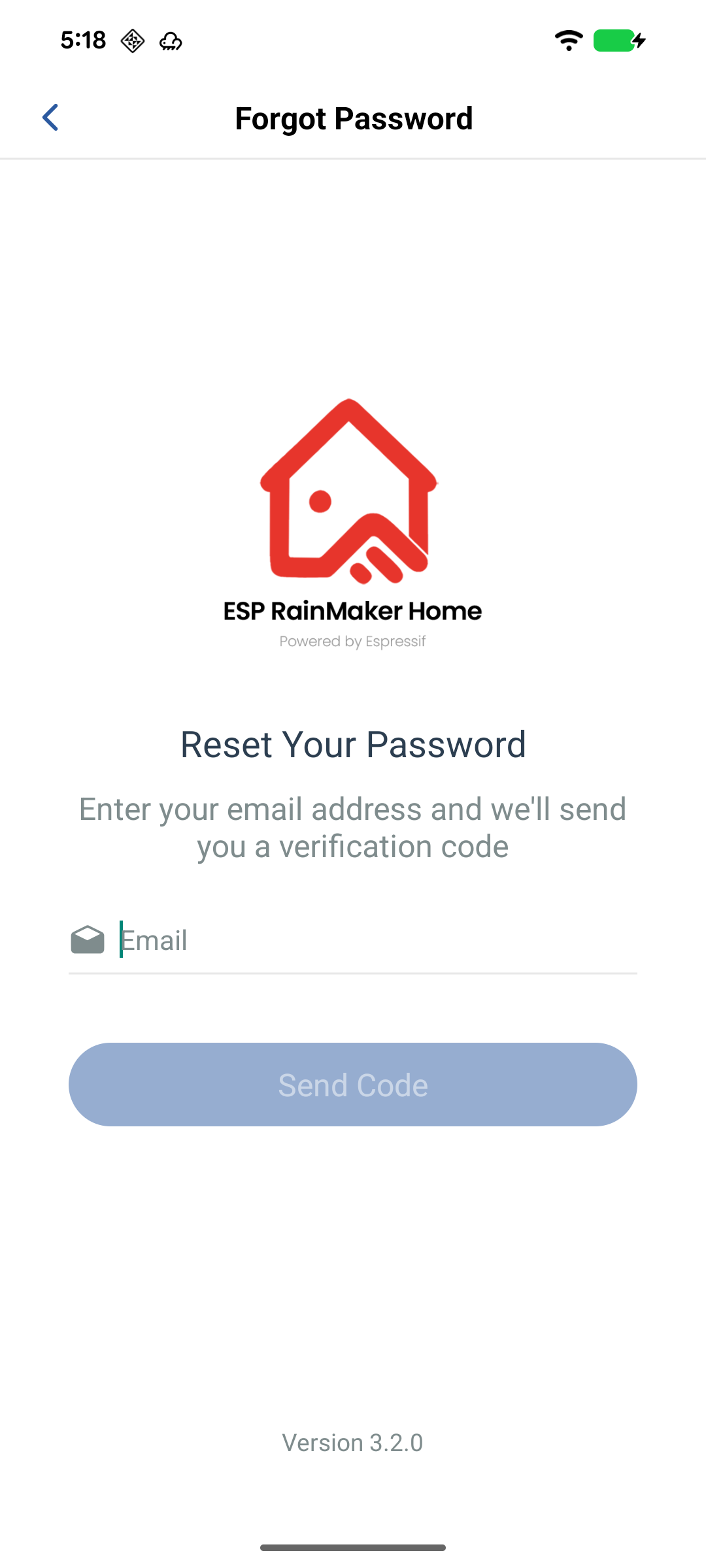
- 在登录页面,点击
Forgot password?。 - 输入你注册的邮箱地址,然后点击
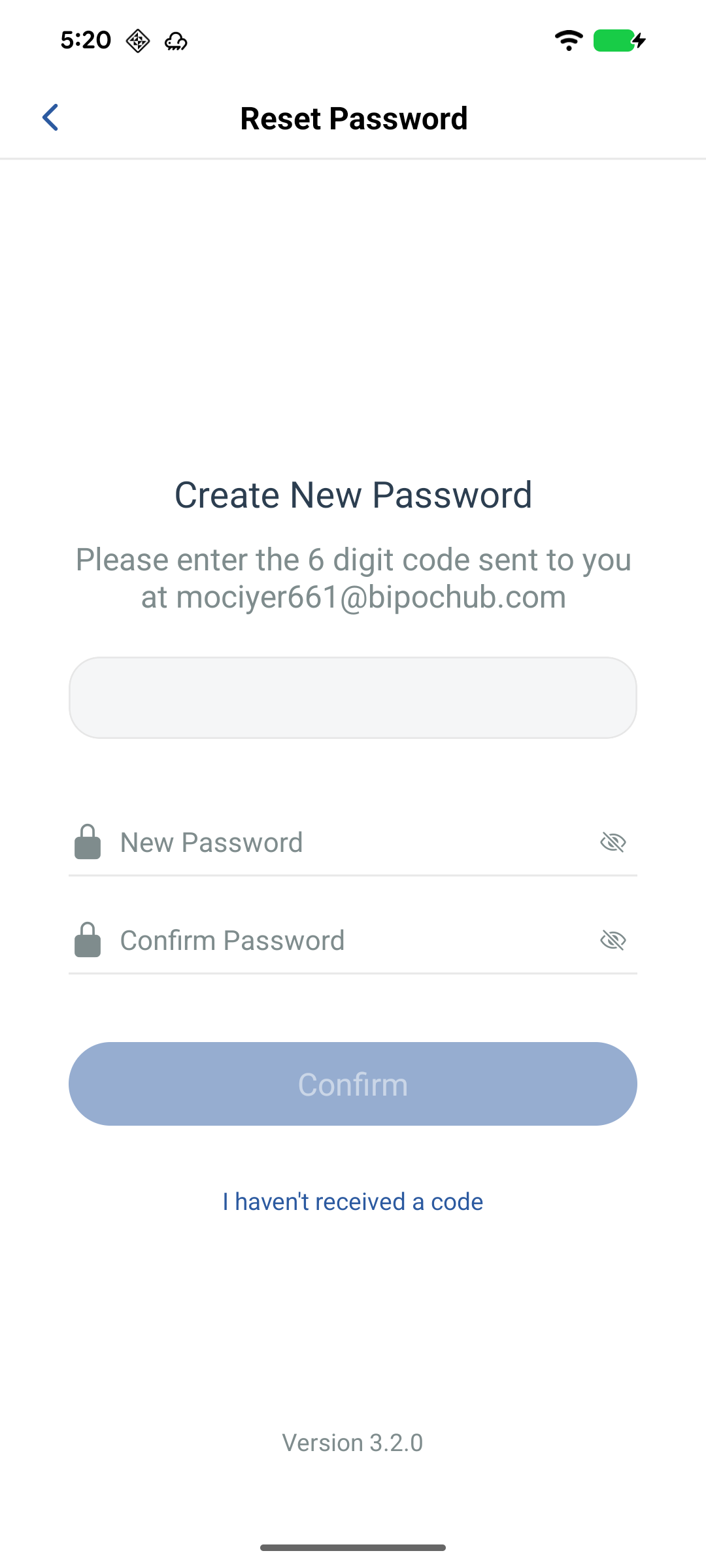
Send Code。 - 系统将向你的邮箱发送一个 6 位验证码。
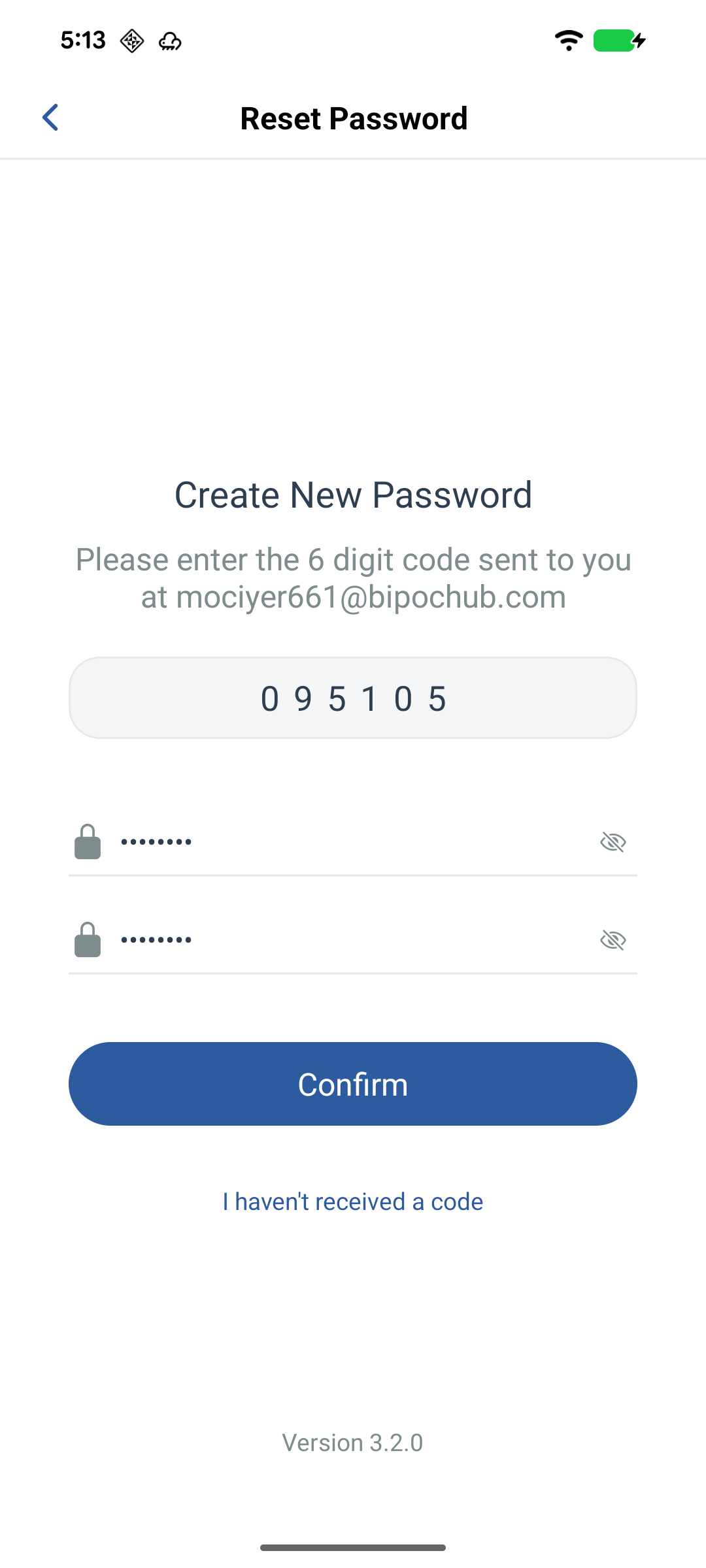
- 在下一个页面,输入验证码、新密码并确认密码。
- 点击
Set Password完成重置。 - 返回登录页面,使用新密码登录。
注意:如果未收到验证码,可以点击 Resend 重新发送(需等待 60 秒冷却时间)。
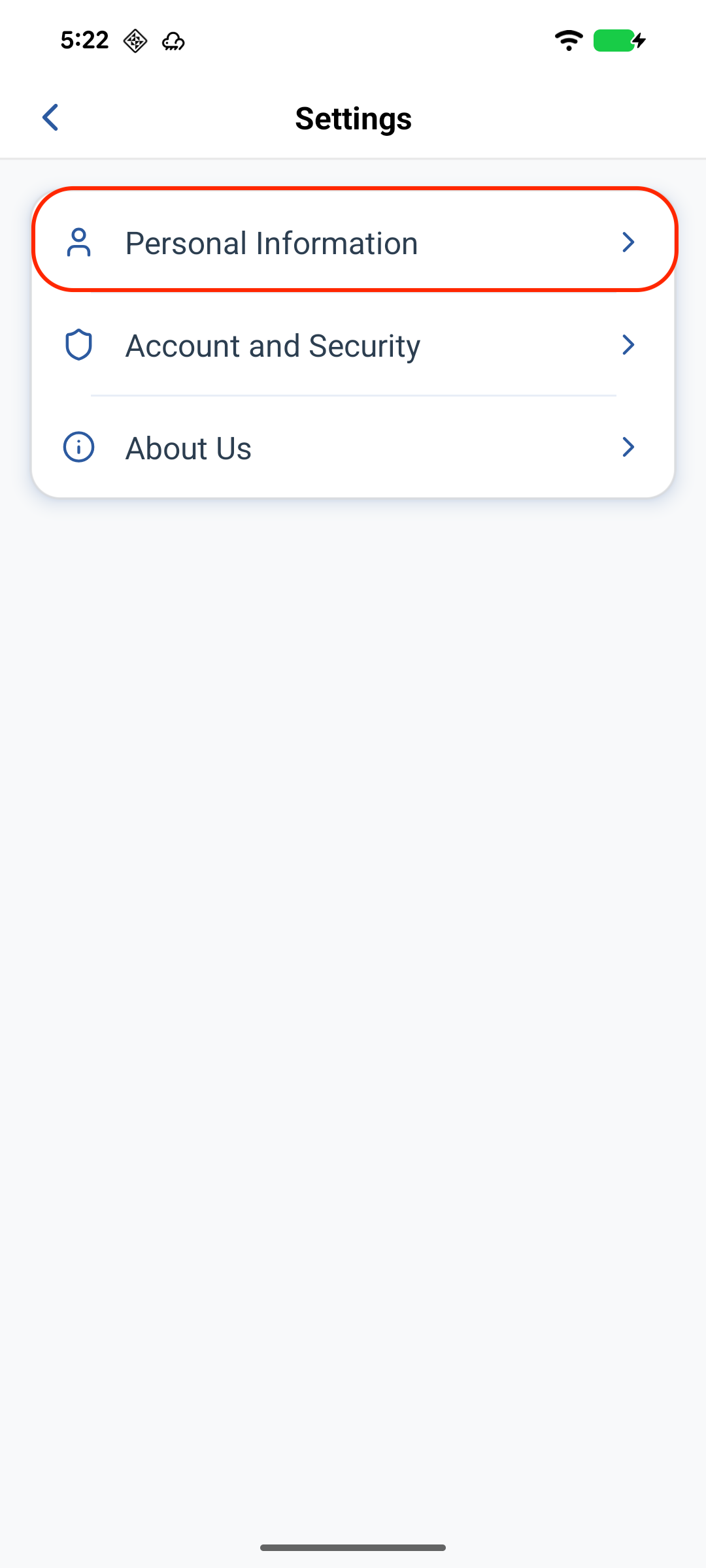
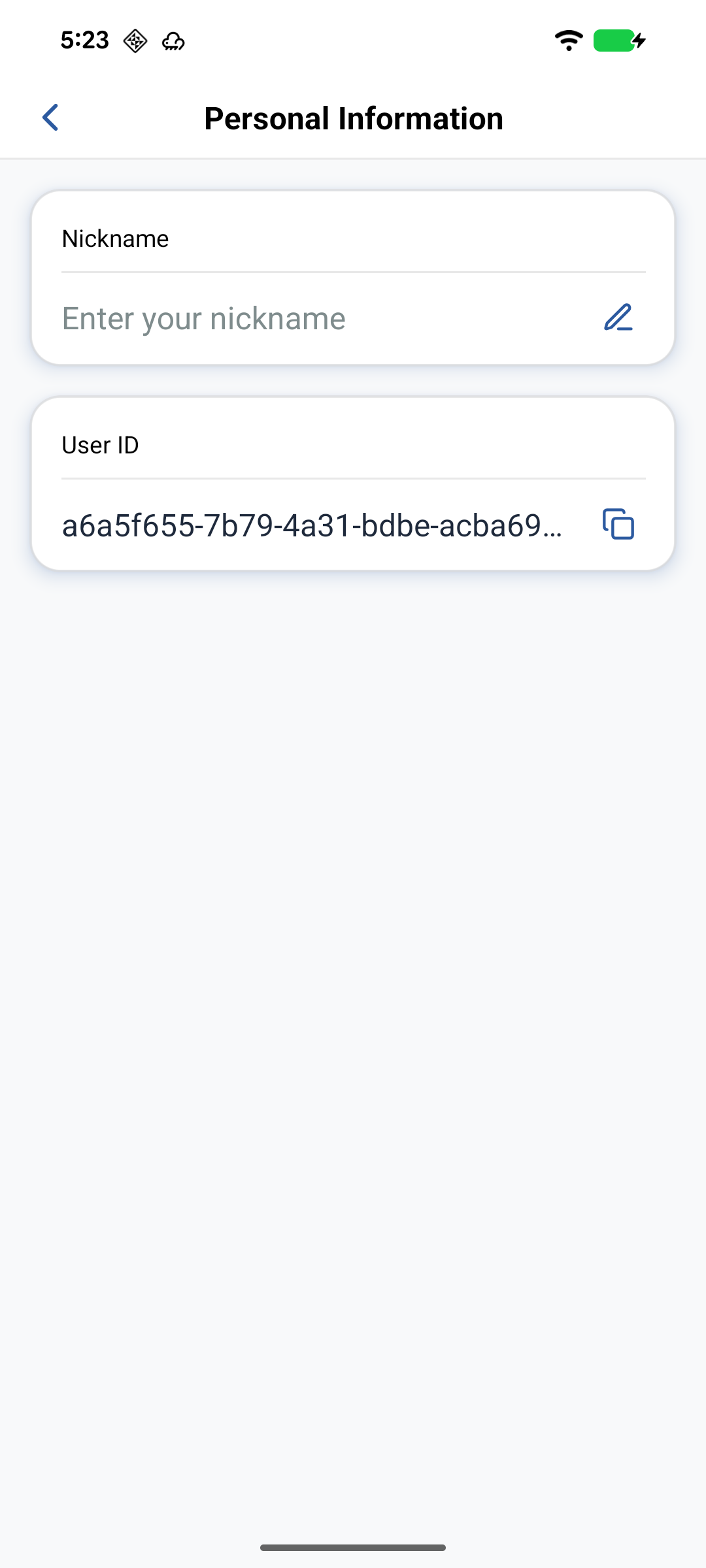
修改昵称
- 导航:点击
User标签 → 头像或设置图标 (⚙️) →Personal Information。 - 点击当前昵称旁边的 ✏️(编辑)图标。
- 在对话框中输入新昵称(最多 30 个字符)。
- 点击
Confirm保存。
退出登录
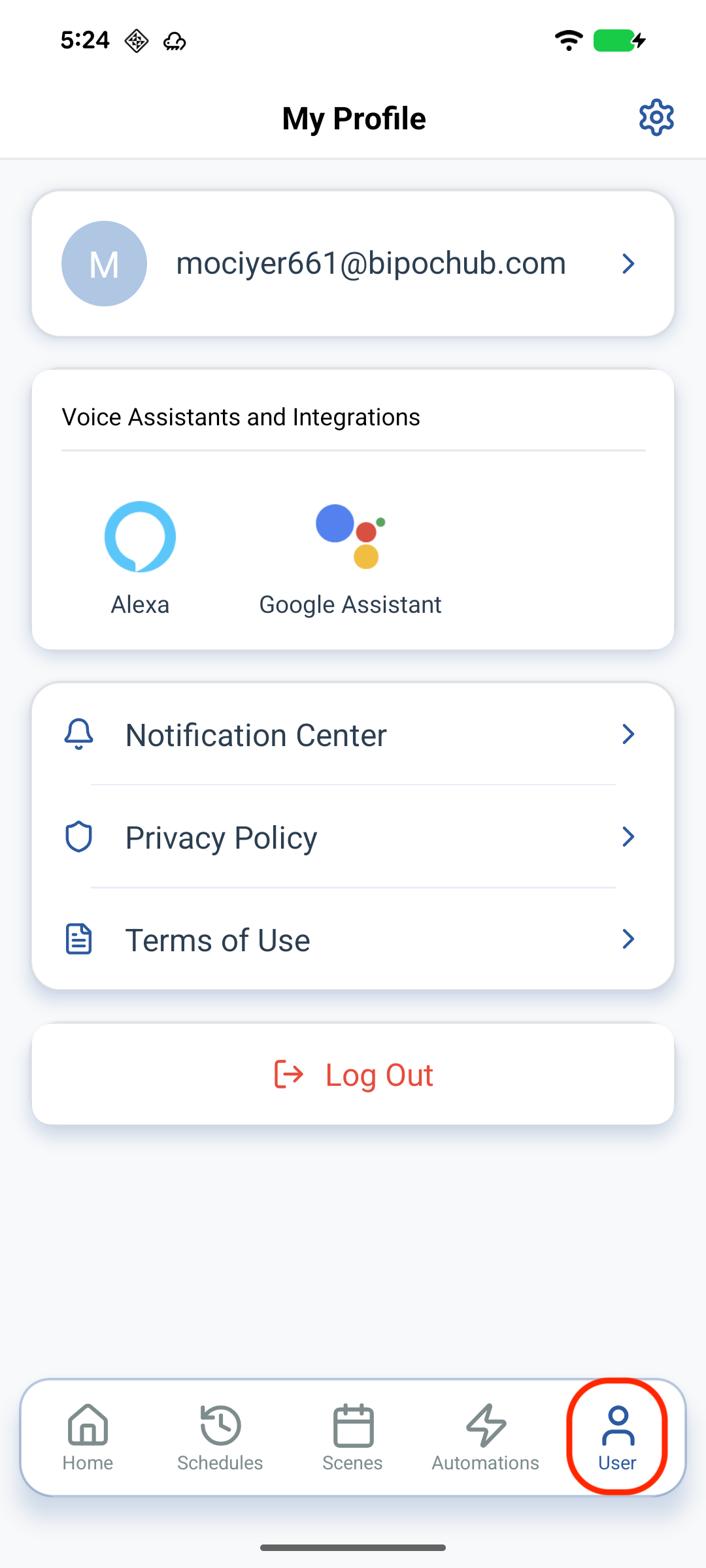
- 点击底部导航栏中的
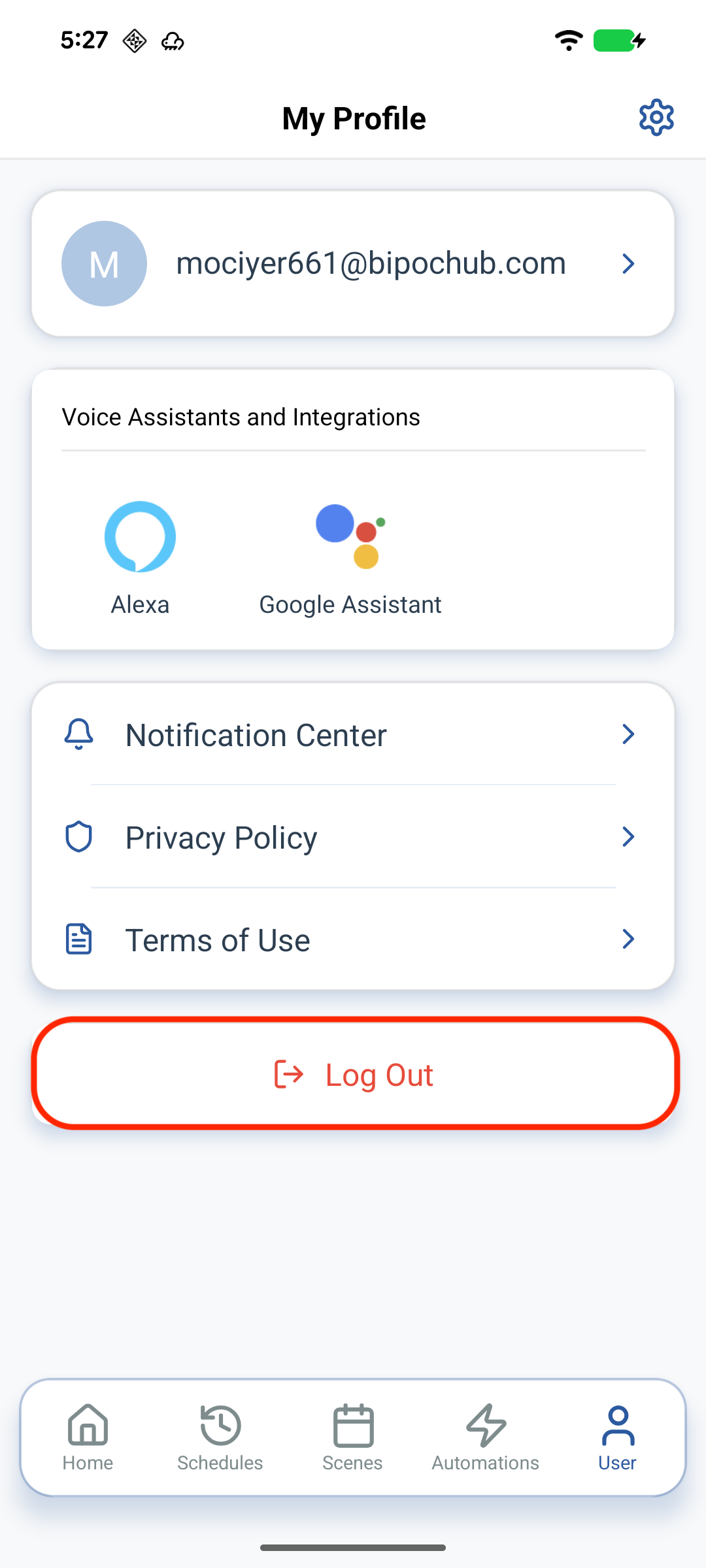
User标签。 - 向下滚动并点击红色的
Log Out按钮。 - 在出现的对话框中确认退出。
- 所有本地数据将被清除,你将返回到登录页面。