跳到主要内容

推送通知服务

推送通知 (Push Notifications) 服务用于向用户发送有关 RainMaker 的事件通知。在安卓和 iOS 中使用这一服务分别需要在通知设置中配置 FCM 和 APNS 环境。

在安卓中配置推送通知服务

  1. 为安卓应用配置推送通知服务,请参阅推送通知设置

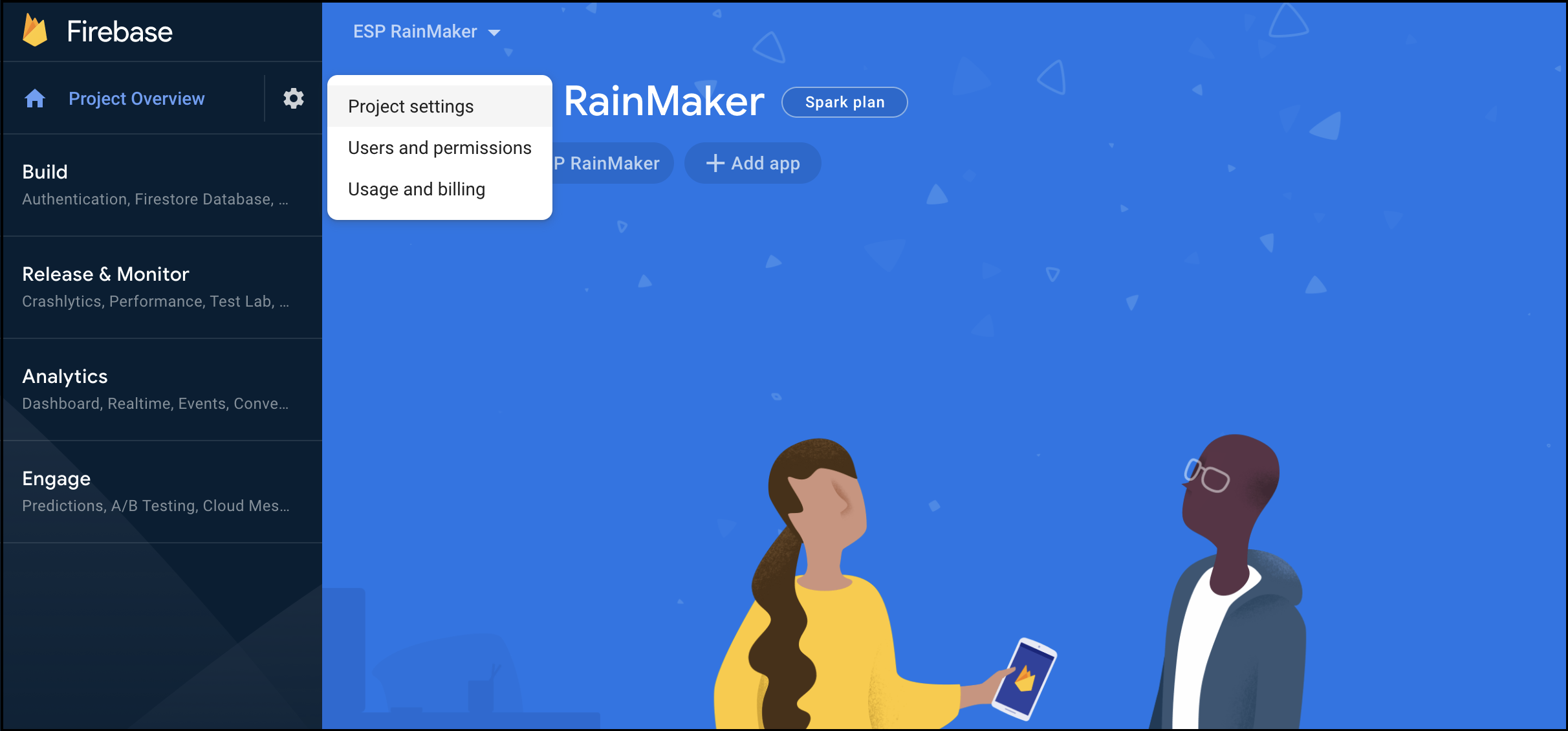
  2. 前往 Firebase 控制台选择您的项目。在左侧导航栏中点击齿轮图标,然后选择 Project settings

    firebase8

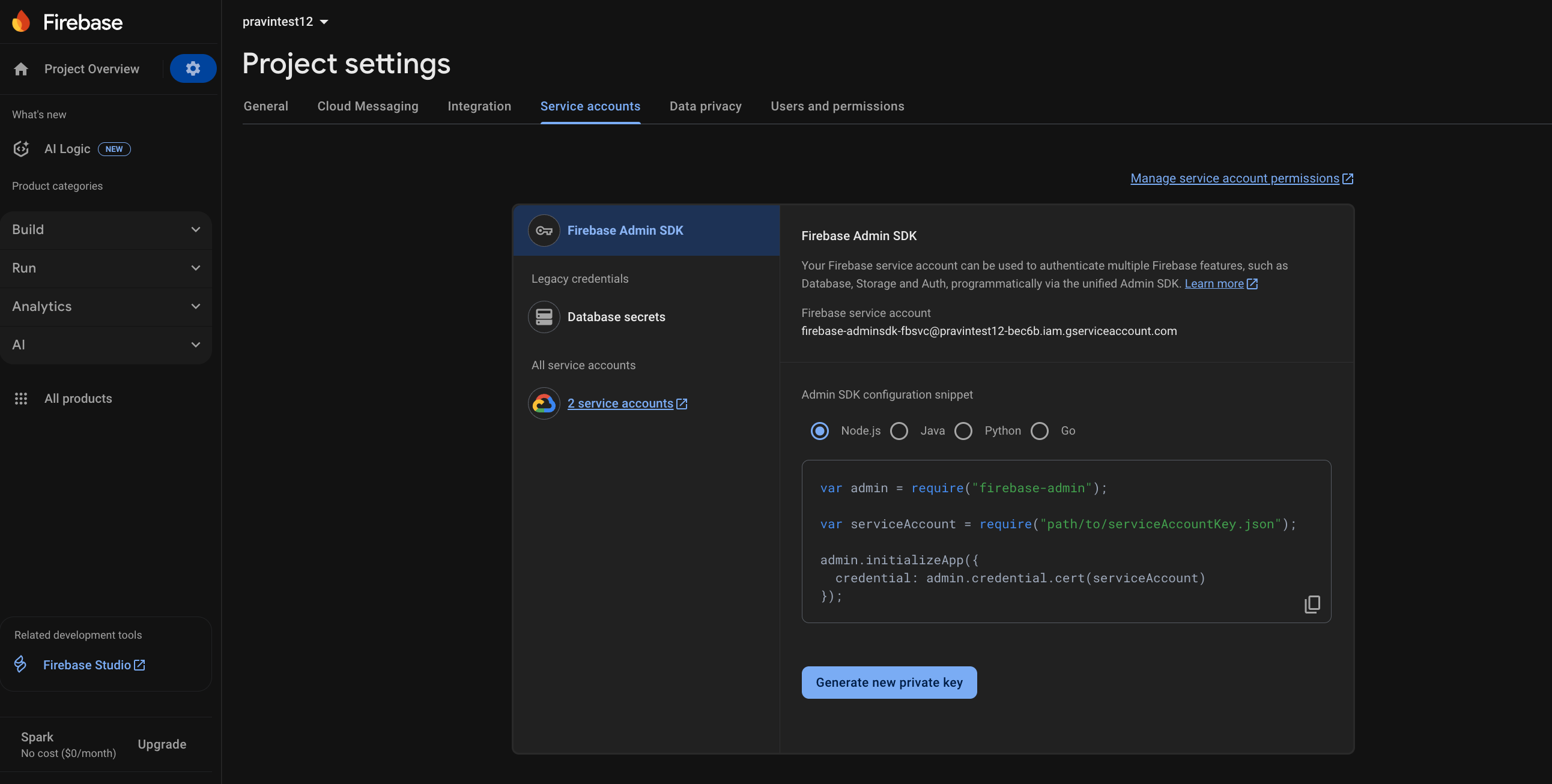
  3. 前往 Service accounts,点击 Generate new private key,请将其复制到剪贴板。

    firebase9

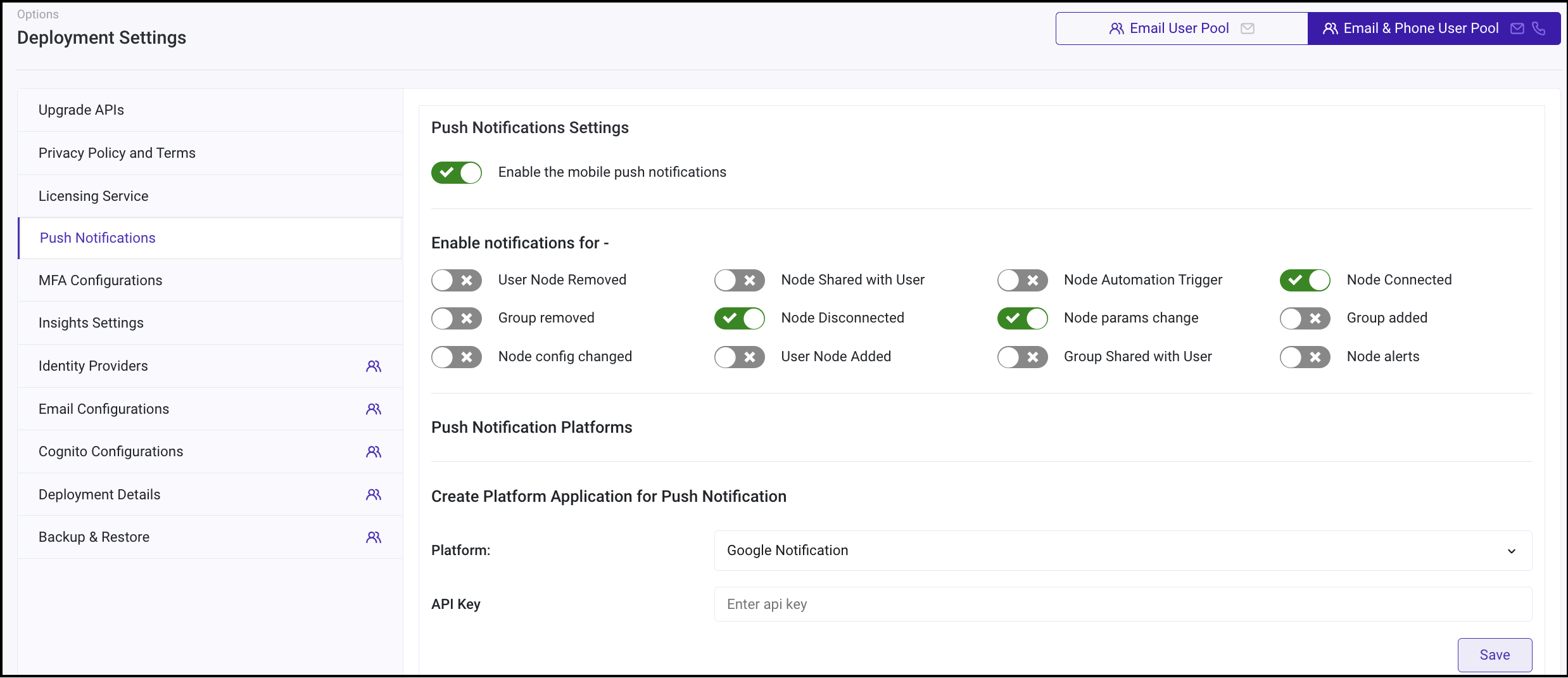
  4. 用管理员账号登录 RainMaker 管理面板。打开 Deployment Settings > Push Notifications

    push_notification12

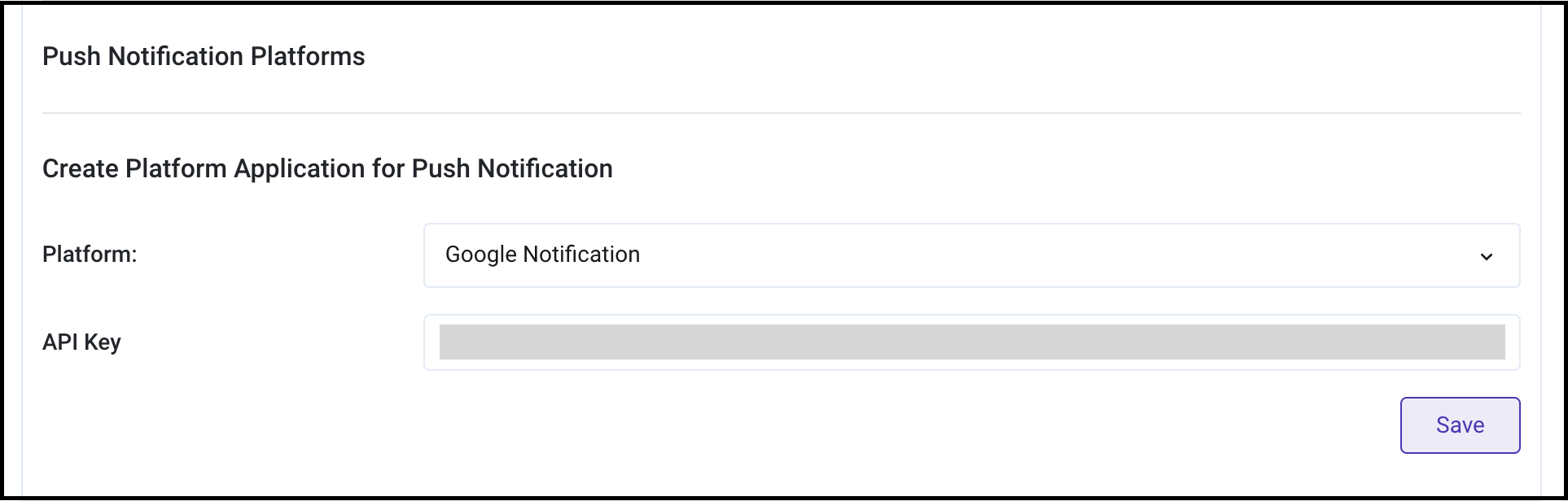
  5. 创建新的平台应用程序。选择类型为 Google Notification

    push_notification13

  6. 输入步骤 3 复制的整个文件内容,点击 Save

    push_notification14

  7. 现在可以启用推送通知服务了,具体启用步骤请参阅启用通知推送

Android App Code Level Configurations

  1. Your android application must be registered with Firebase for push notifications to work. You can Register using these steps if not done already.

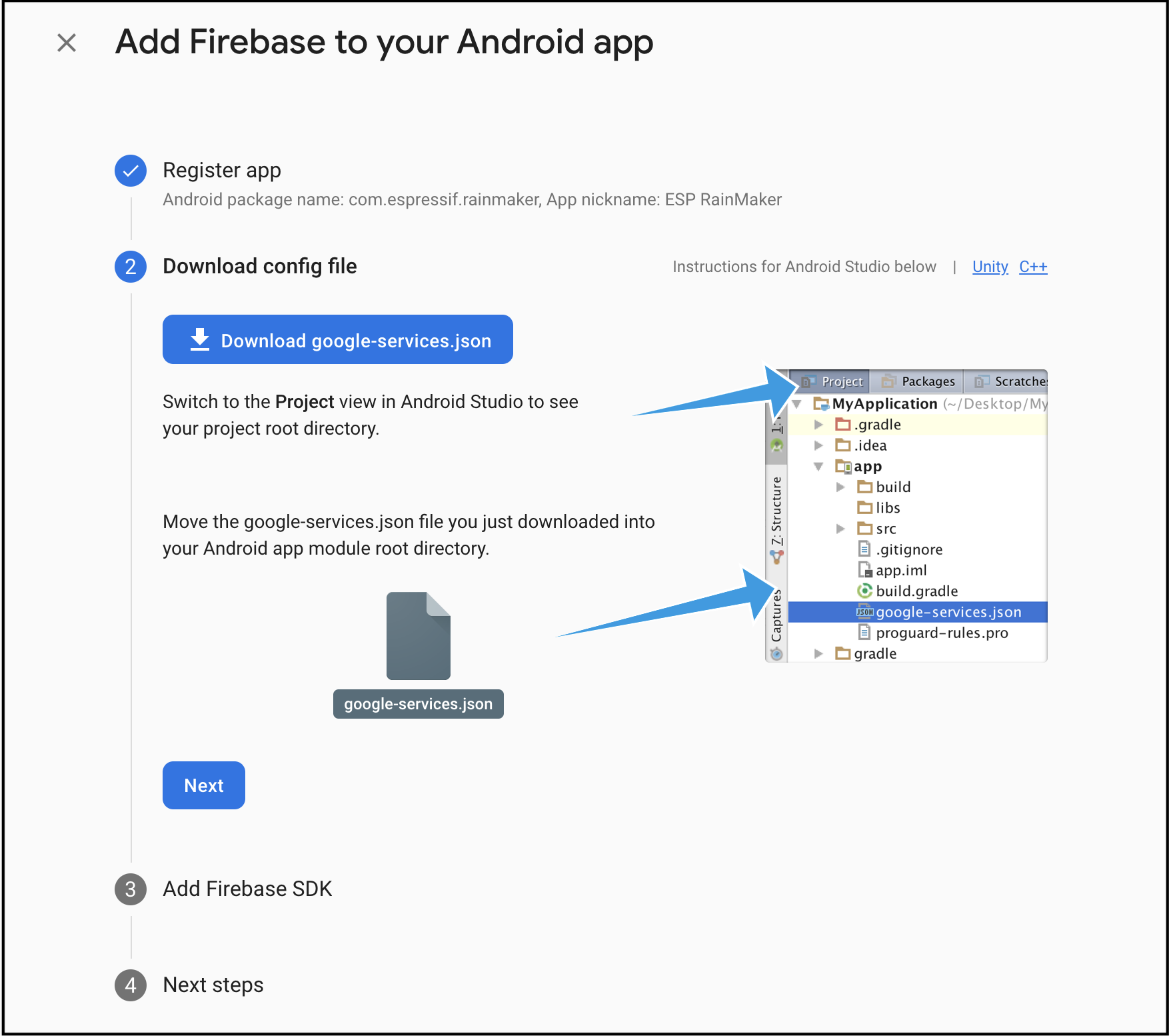
  2. Click Download google-services.json to obtain your Firebase Android config file (google-services.json). Replace existing google-services.json file with your downloaded file in the app module (app-level) directory of your app.

    firebase10

  3. Keep the remaining settings as it is.

    firebase11

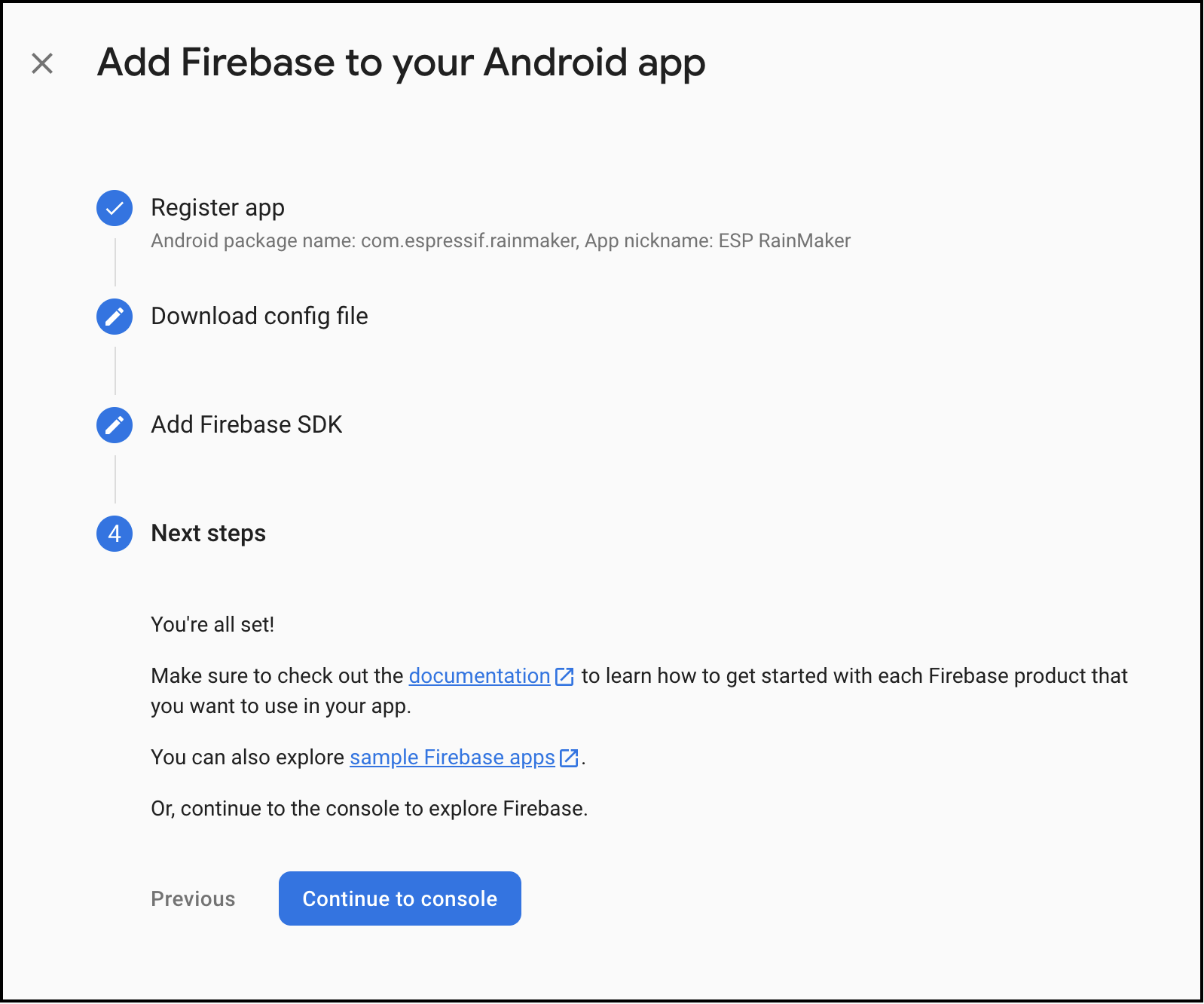
  4. Continue with the Push Notifications Configuration.


Firebase Settings

To configure this further, you must log in with your Google account on the Firebase console.

Create a Firebase project

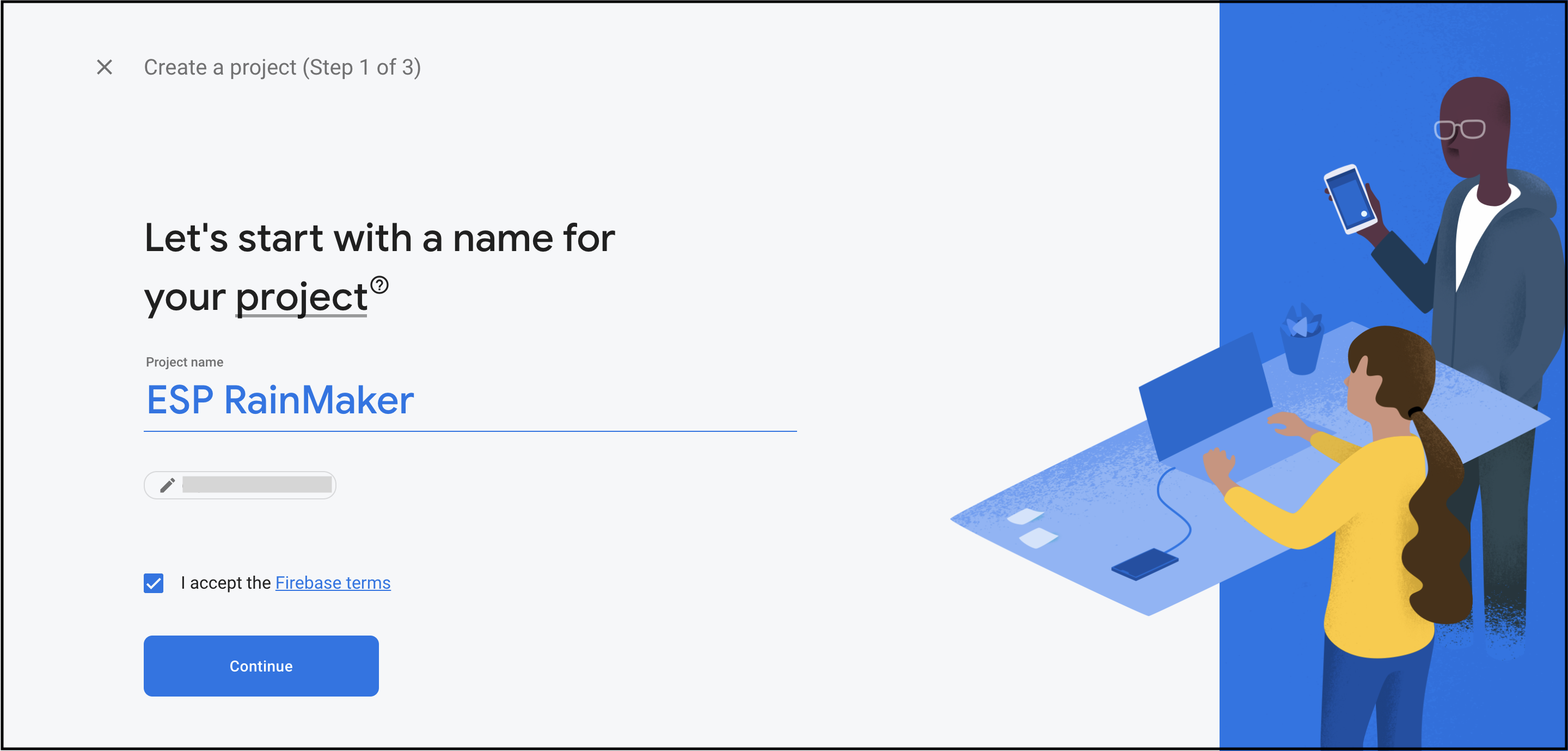
  1. In the Firebase console, click Create a project, then select or enter a Project name.

    firebase1

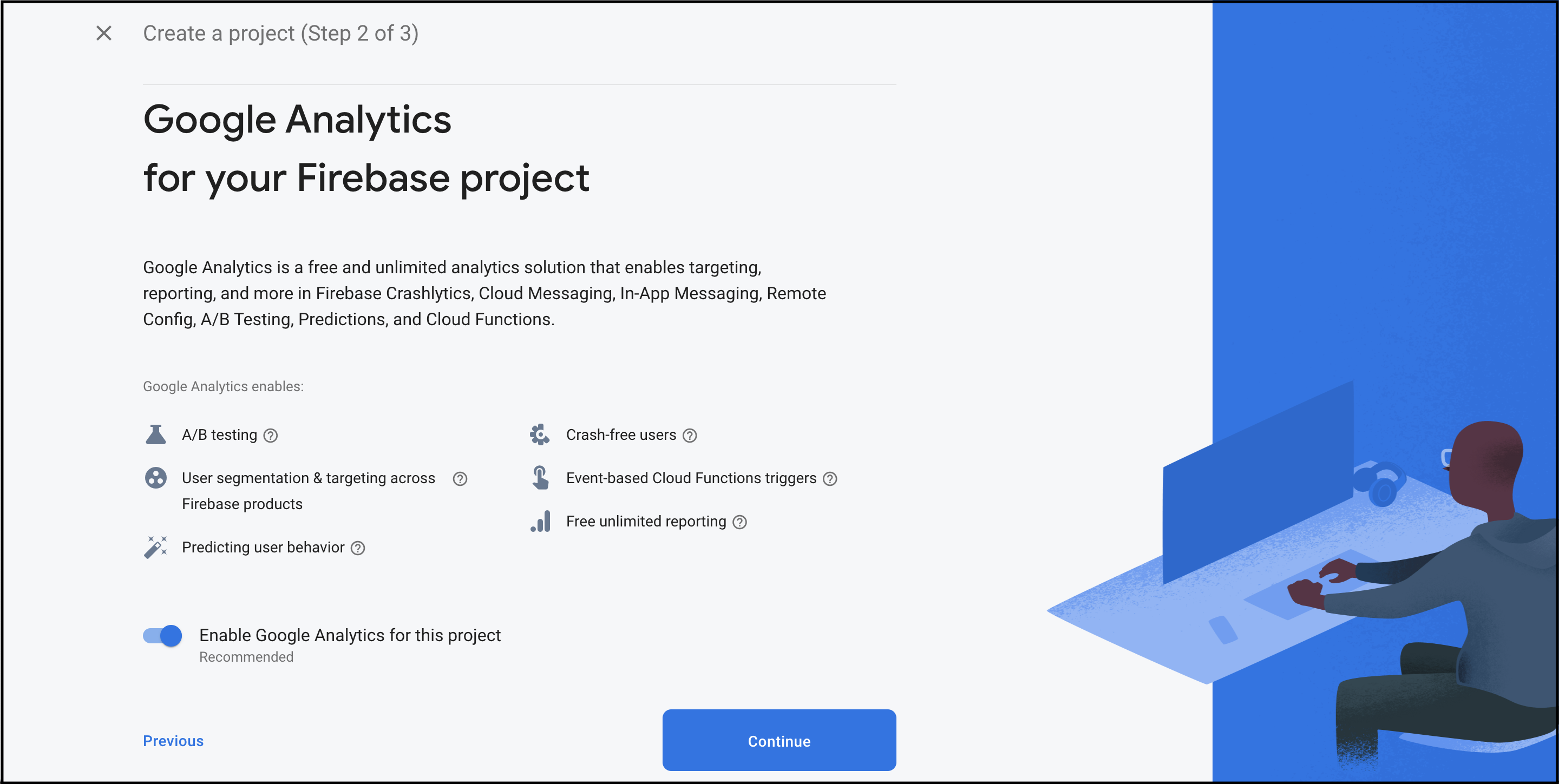
    firebase2

备注

If you have an existing Google Cloud project, you can select the project from the dropdown menu to add Firebase resources to that project.

  1. (Optional) If you are creating a new project, you can edit the Project ID. To use a specific identifier, you must edit your project ID during this setup step. Firebase automatically assigns a unique ID to your Firebase project.
备注

After Firebase provisions resources for your Firebase project, you cannot change your project ID.

  1. Click Continue.

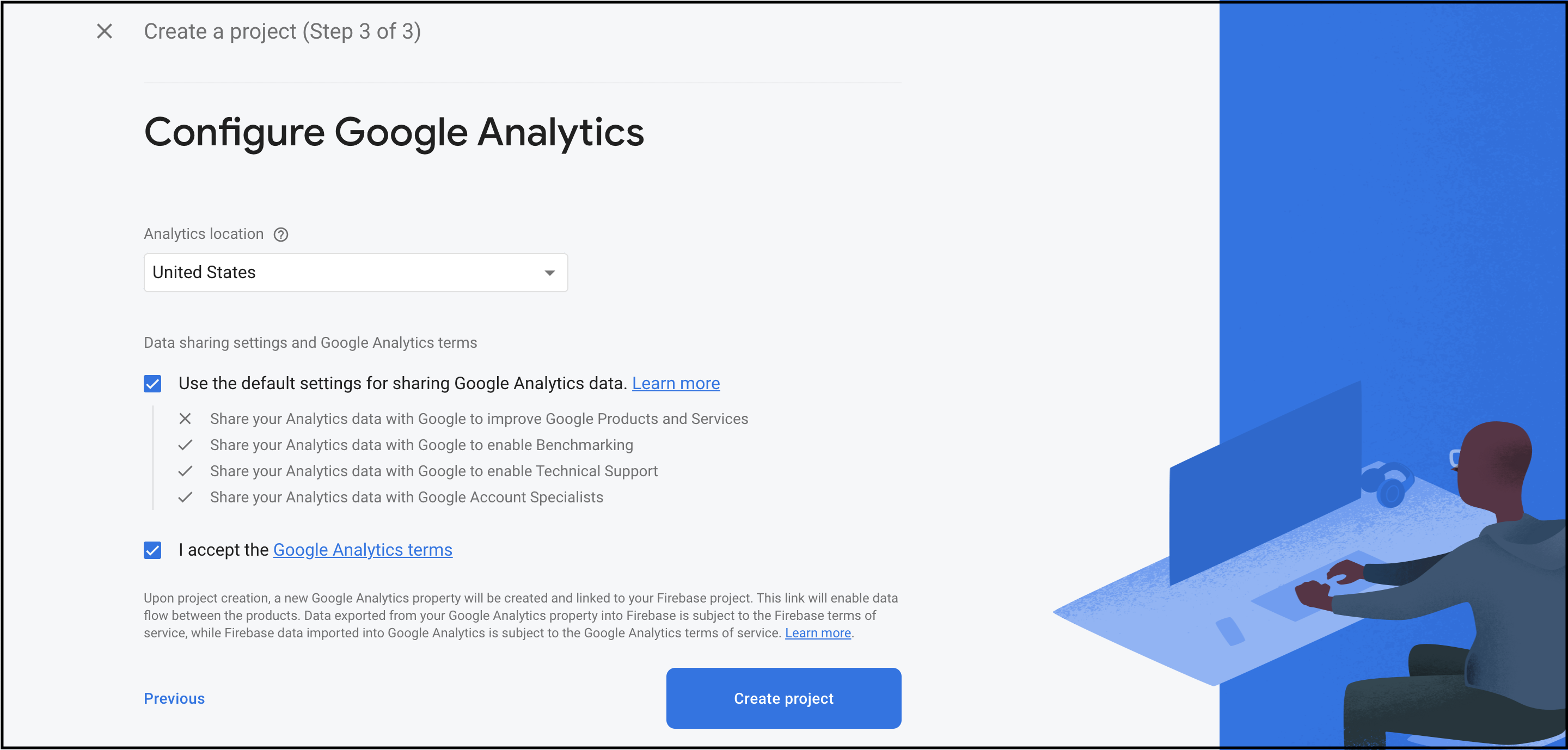
    firebase3

  2. Click Create project (or Add Firebase if you're using an existing Google Cloud project).

    firebase4

备注

For more information, see Create a Firebase project on the Firebase website.


Register your app with Firebase

To use Firebase in your Android app, you need to register your app with your Firebase project. Registering your app is often called "adding" your app to your project.

备注

Visit Understand Firebase Projects to learn more about best practices and considerations for adding apps to a Firebase project, including how to handle multiple build variants.

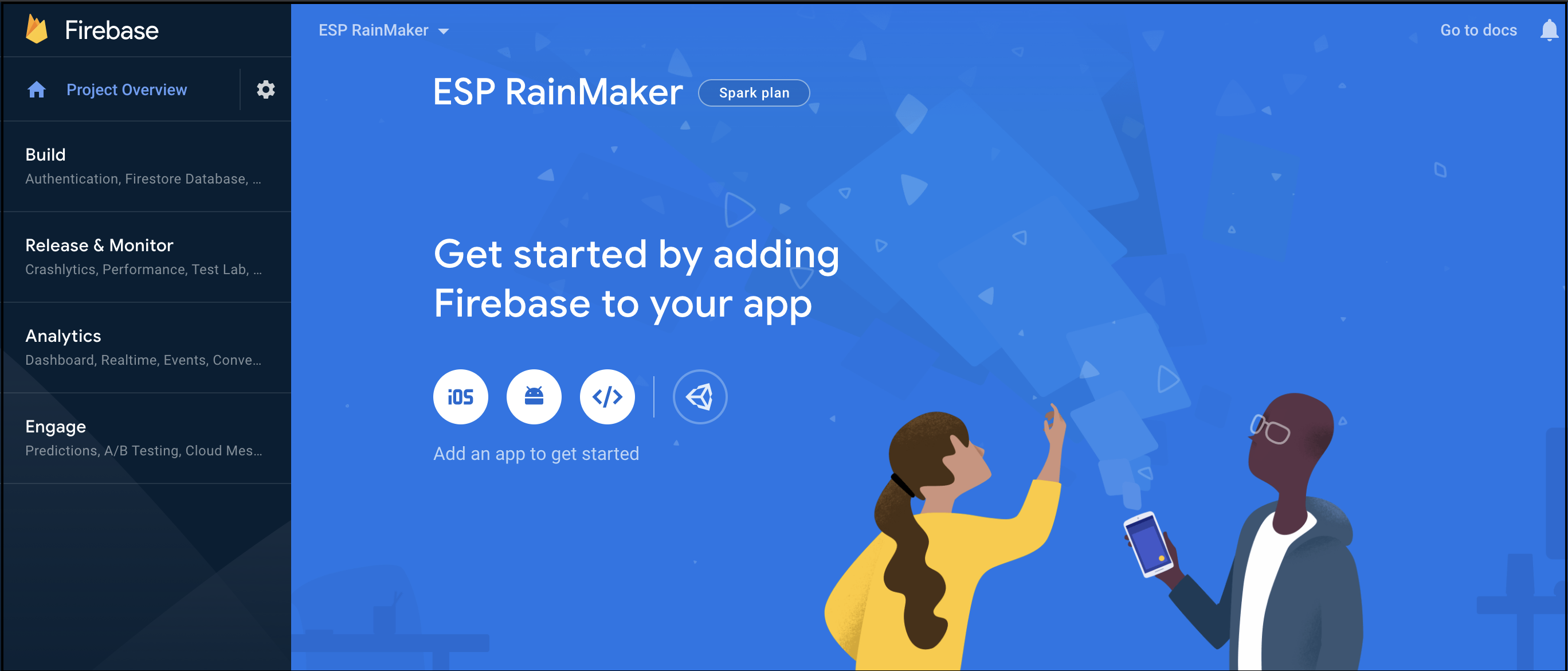
  1. Go to the Firebase console.

  2. In the centre of the Project Overview page, click the Android icon (plat_android) or Add an app to get started to launch the setup workflow.

    firebase5

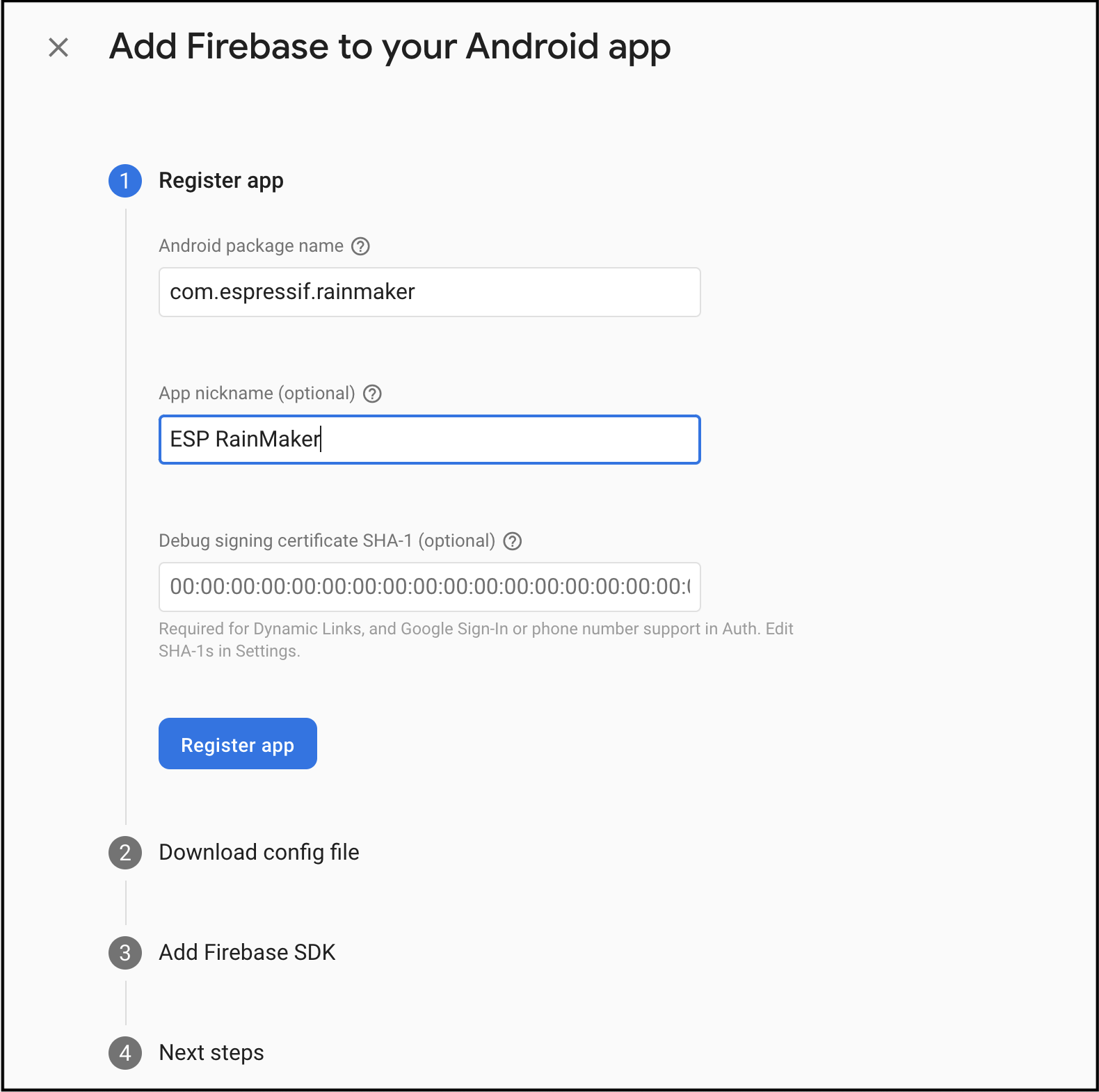
  3. Enter your app's package name (application id) in the Android package name field. Click Register app.

    firebase6

    备注

    Make sure to enter the package name that your app is using. The package name value is case-sensitive, and cannot be changed for this Firebase Android app after registering with your Firebase project.

    备注

    For more information, see Register your app on the Firebase website.

在 iOS 中配置推送通知服务

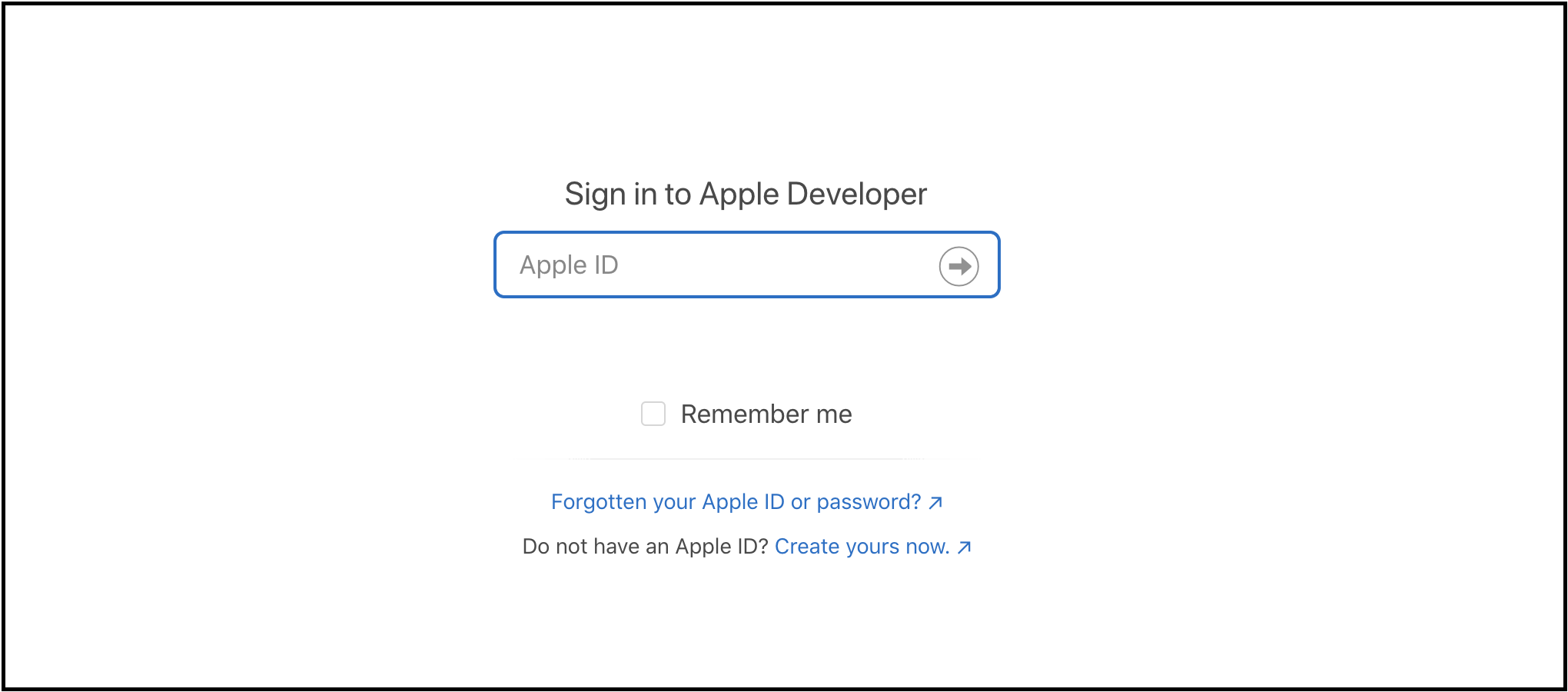
  1. 登录苹果开发者账号。

    push_notification1

  2. 启用此服务需要用 App ID。若尚未创建,请前往 Apple Developer 控制台创建新账号,具体步骤请参阅在苹果开发者控制台创建应用 ID

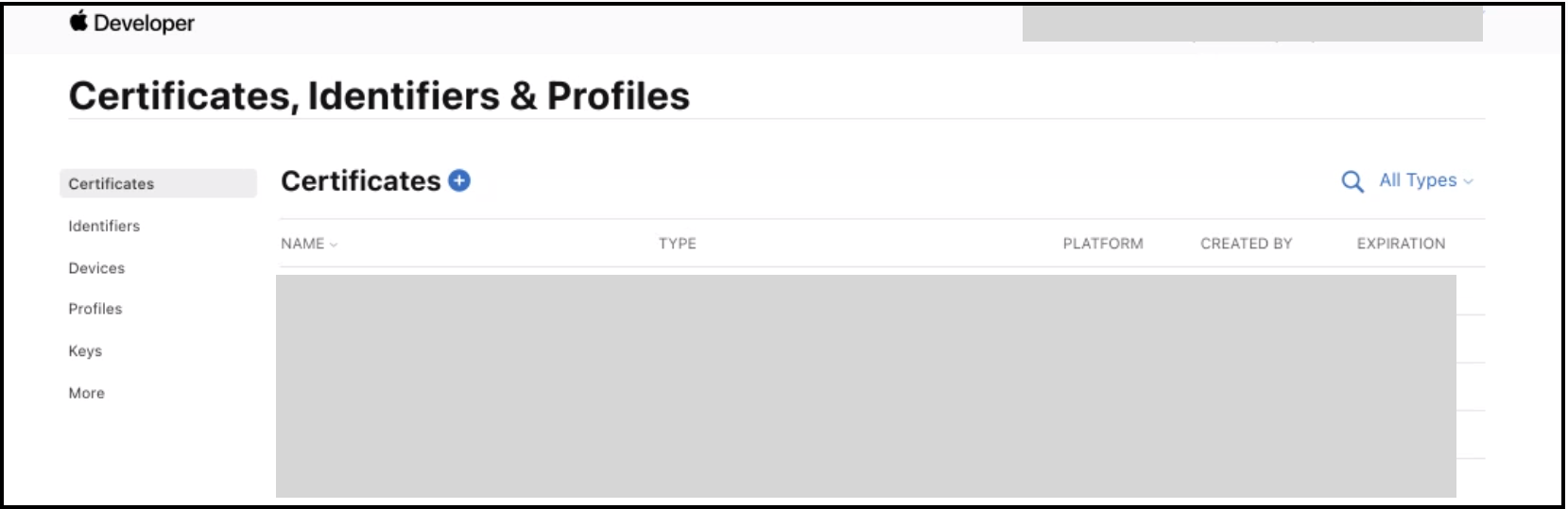
  3. 打开 Certificates 一栏,点击 +

    push_notification2

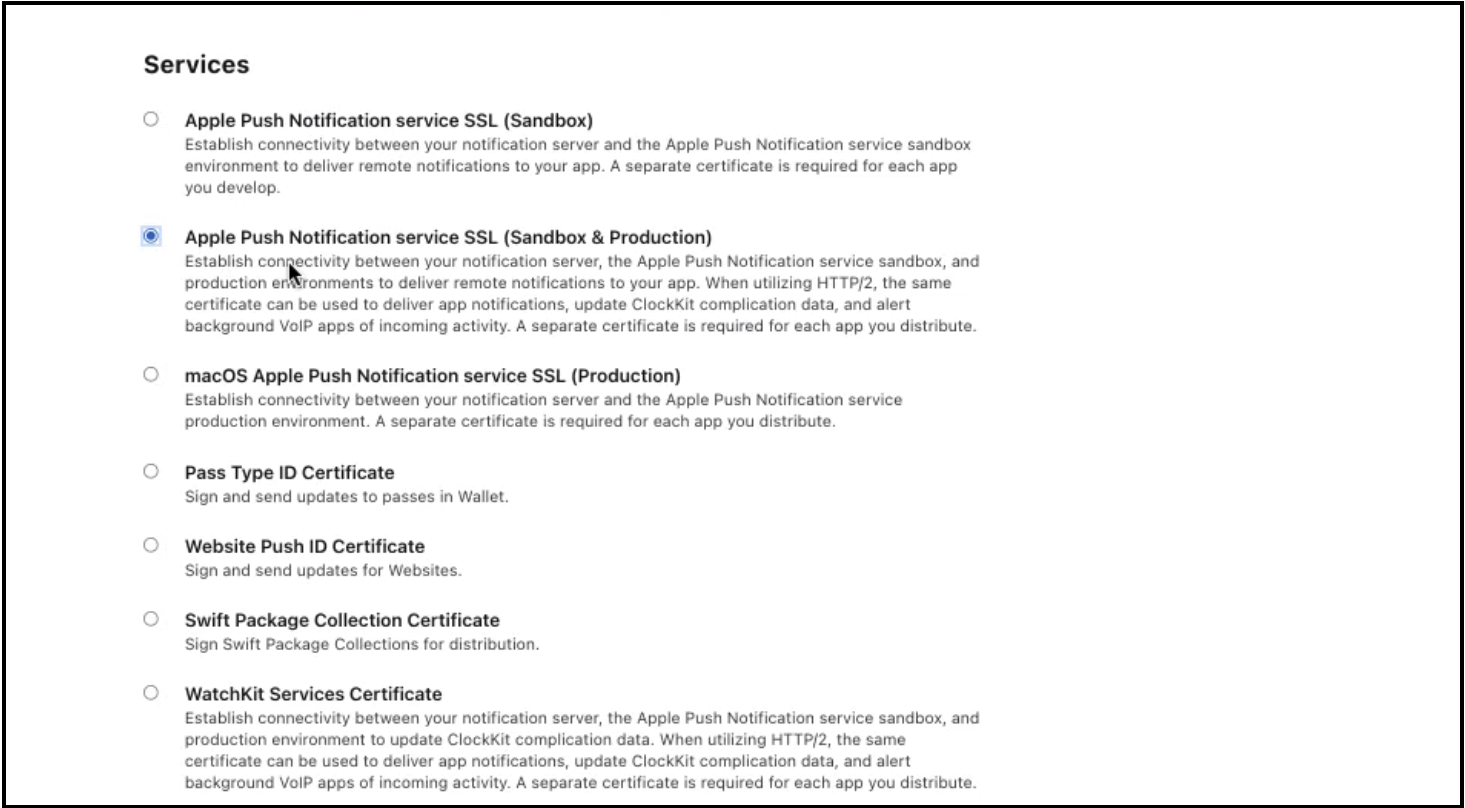
  4. 为推送通知服务创建新的证书,请选择 Apple Push Notification service SSL (Sandbox & Production) 并点击 Continue

    push_notification3

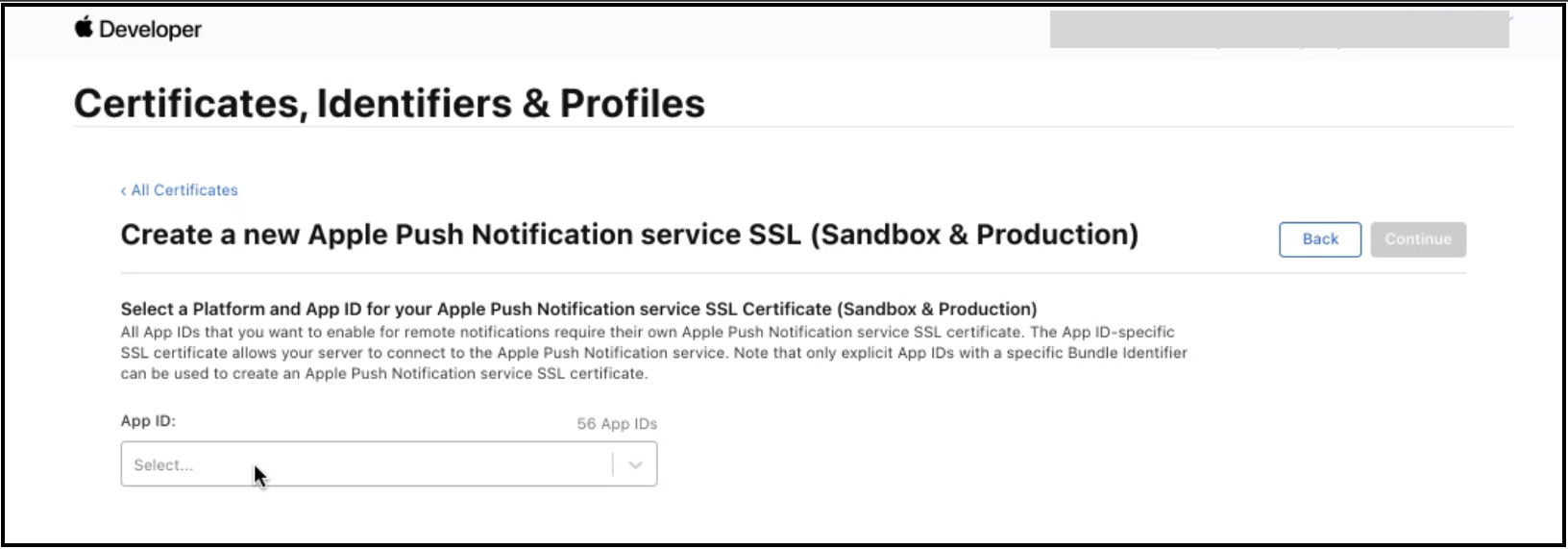
  5. 选择应用程序的 App ID 并点击 Continue

    push_notification4

  6. 接下来需要创建 Certificate signing request (CSR)

    push_notification5

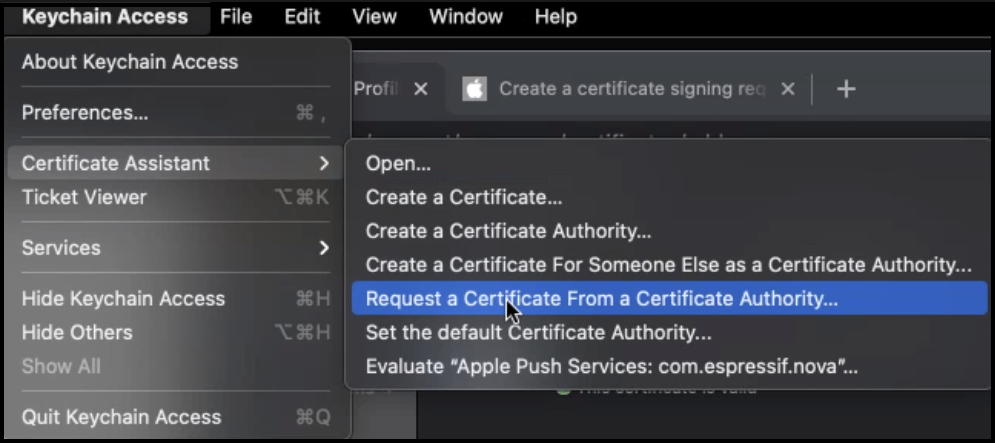
  7. 打开 Keychain Access 工具栏,选择 Certificate Assistant > Request a certificate from a Certificate Authority

    push_notification6

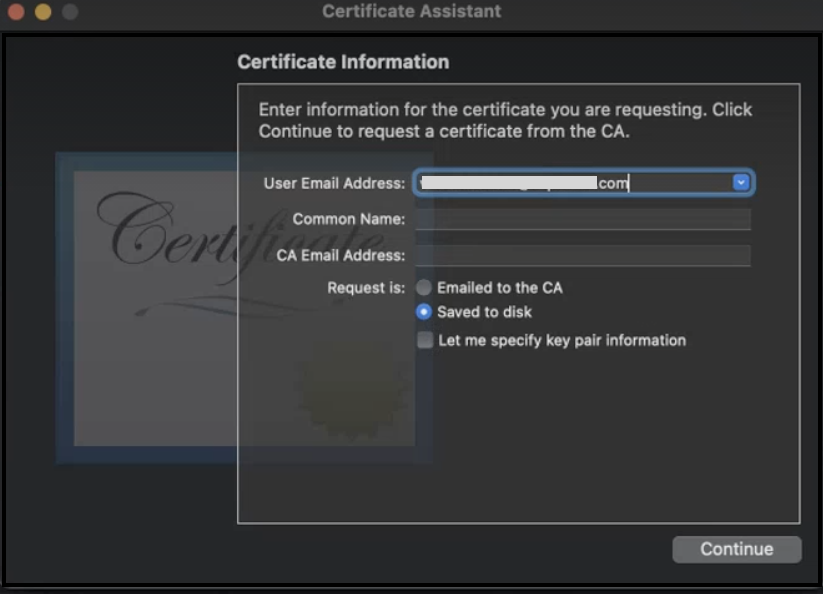
  8. Certificate Assistant 对话框中,找到 User Email Address 一栏并输入电子邮件地址,CA Email Address 一栏无需填写。选择 Saved to disk 并点击 Continue 以保存证书。

    push_notification7

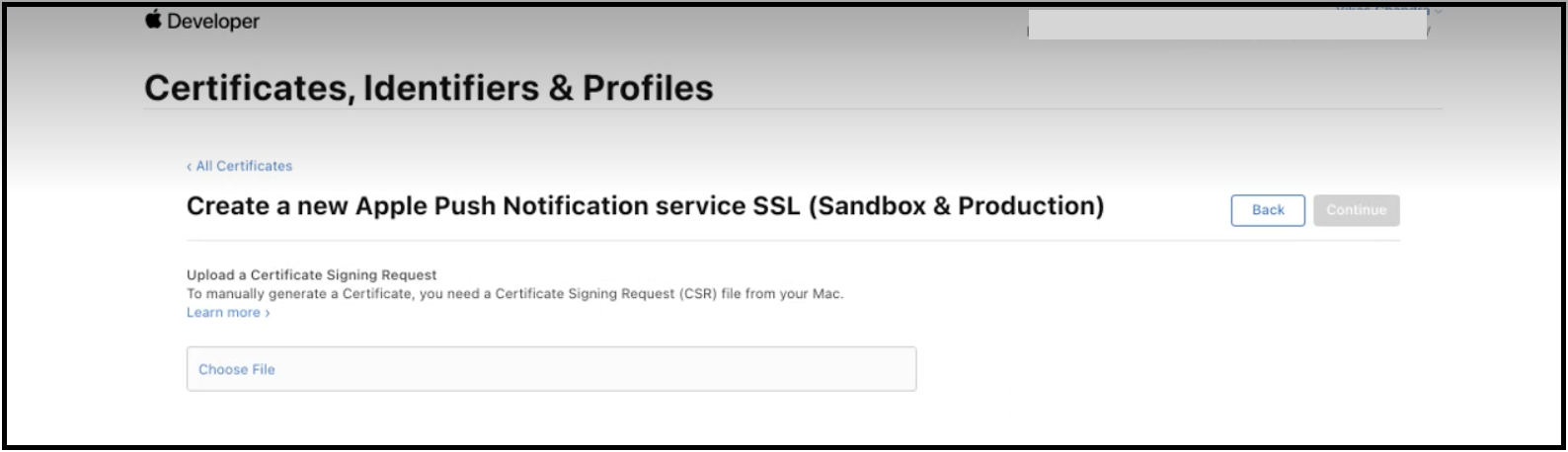
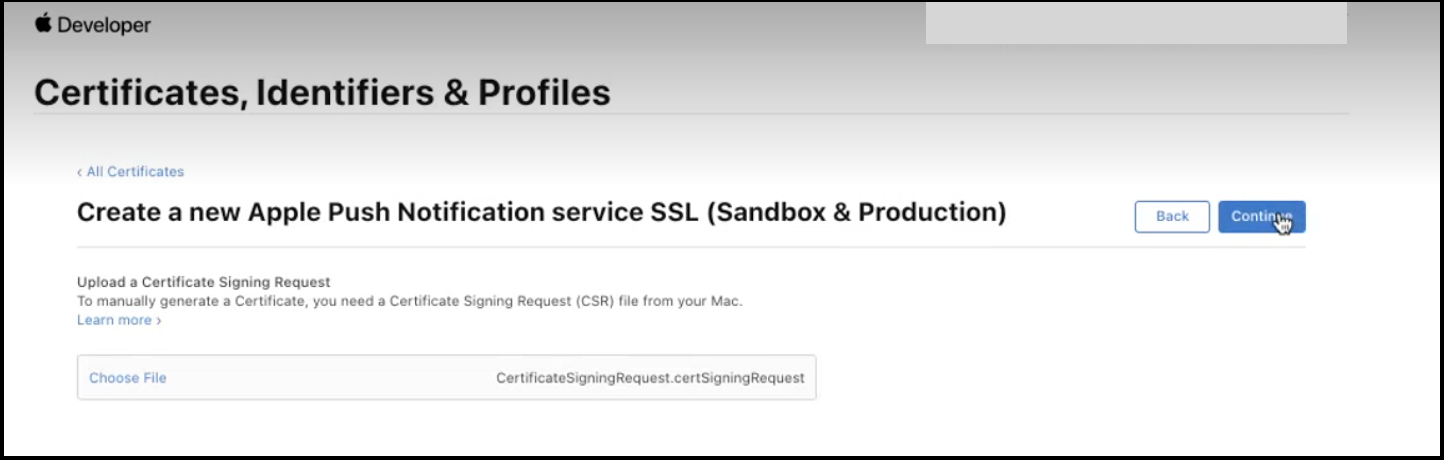
  9. 上传 CSR。

    push_notification8

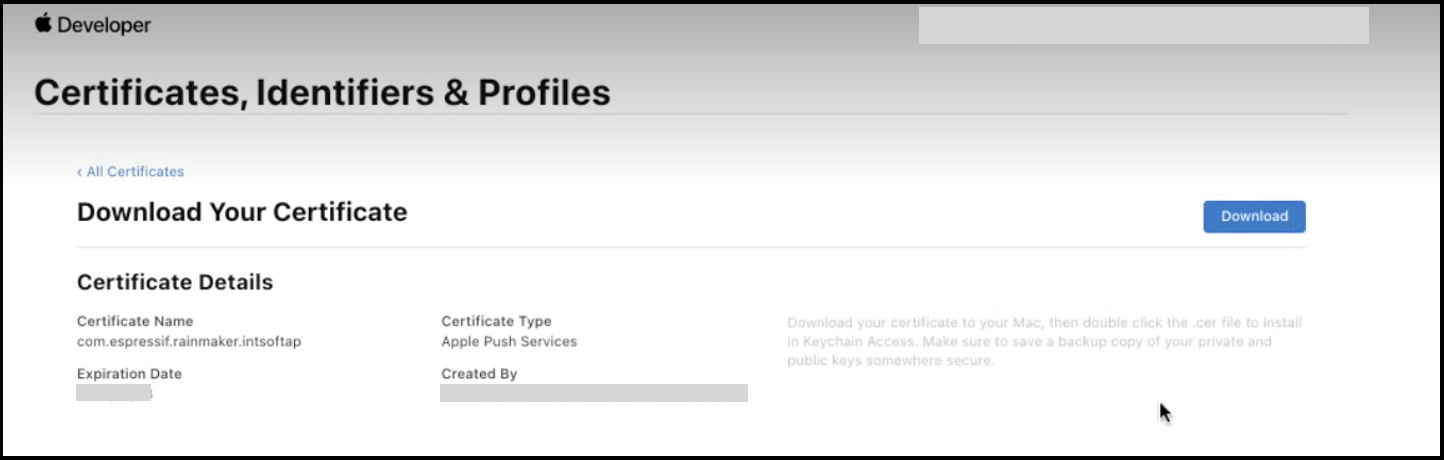
  10. 证书已经成功创建,可以使用 Keychain Access 下载并查看。

    push_notification9

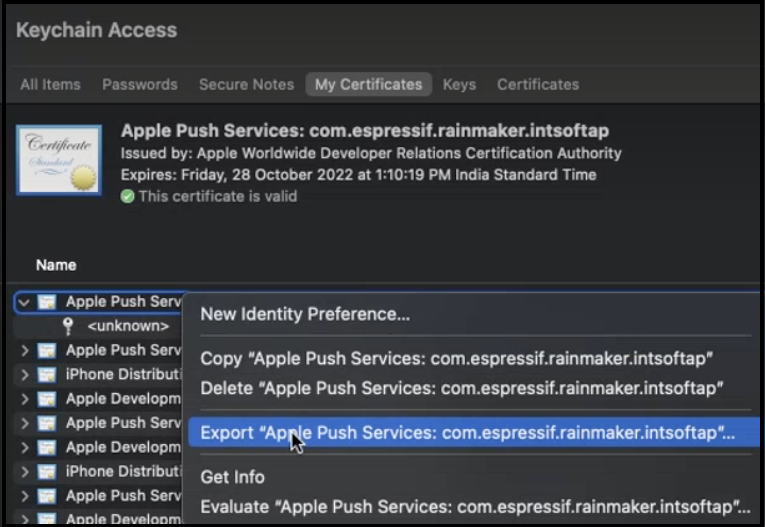
  11. Keychain Access 导出证书,格式为 p12

    push_notification10

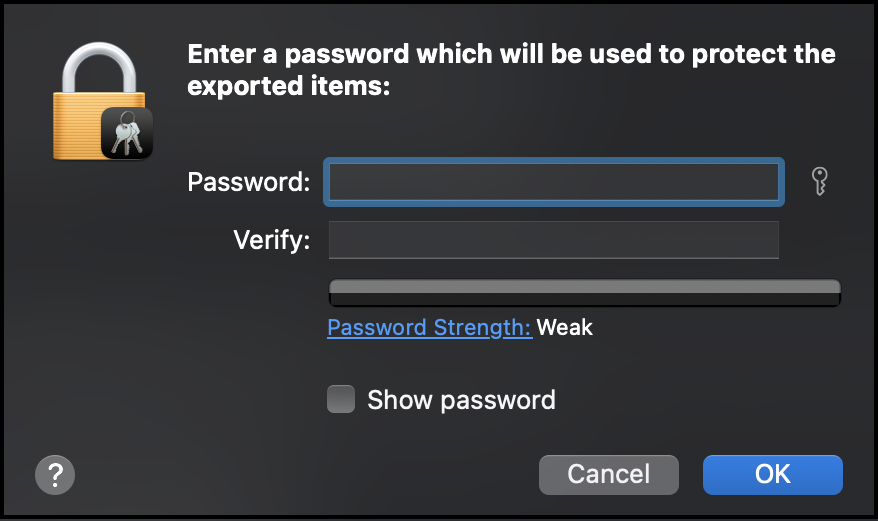
    无需设置密码来保护导出的证书。

    push_notification16

  12. 启动通知推送需要 SSL Certificate 和 Private Key。 使用以下命令可获取 SSL Certificate。

    openssl pkcs12 -in yourP12Certificate.p12 -clcerts -nokeys

    使用以下命令可获取 Private Key。

    openssl pkcs12 -in yourP12Certificate.p12 -nocerts -nodes

  13. 用管理员账号登录 RainMaker 管理面板。打开 Deployment Settings > Push Notifications

    push_notification12

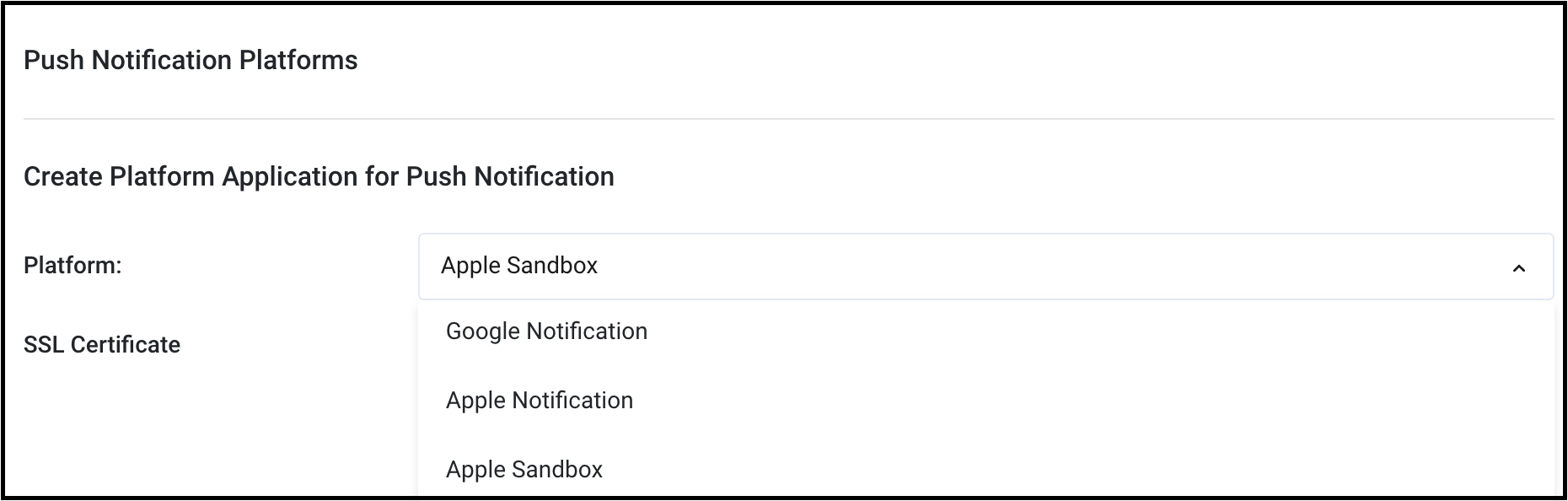
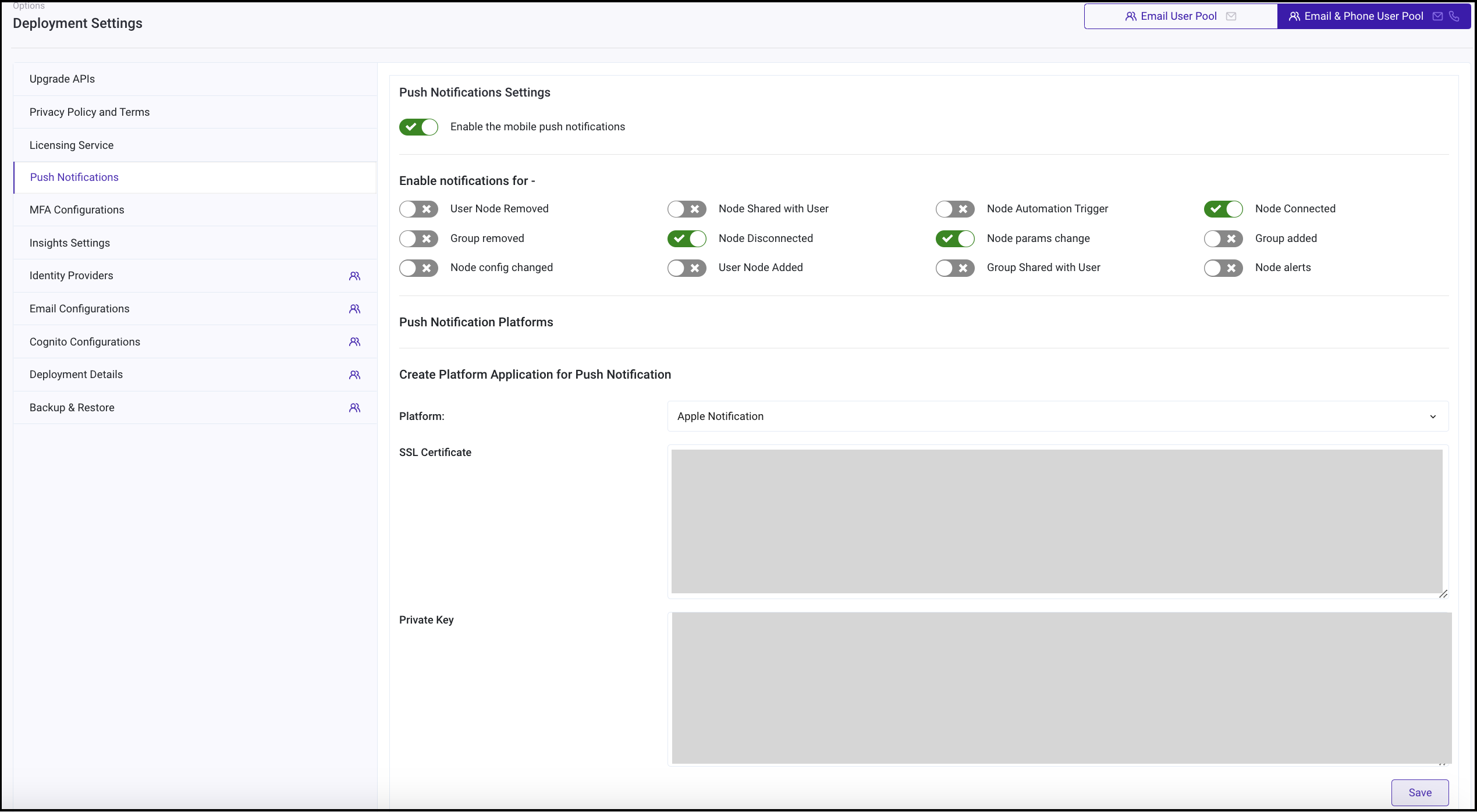
  14. 创建新的平台应用程序,选择类型为 Apple Notification (APNS)

    push_notification13

  15. 将步骤 12 中获取的 SSL Certificate 和 API Key 粘贴至此处,点击 Save

    push_notification11

    备注

    该证书也可用于沙盒和生产环境。沙盒环境用于测试通知和调试,APNS 用于分发。您可以重复步骤 13 和 14,选择类型为 APNS_SANDBOX,为沙盒环境设置推送通知。

  16. 现在可以启用推送通知服务了,具体启用步骤请参阅启用通知推送

启用通知推送

  1. 用管理员账号登录 RainMaker 管理面板。打开 Deployment Settings > Push Notifications

    push_notification12

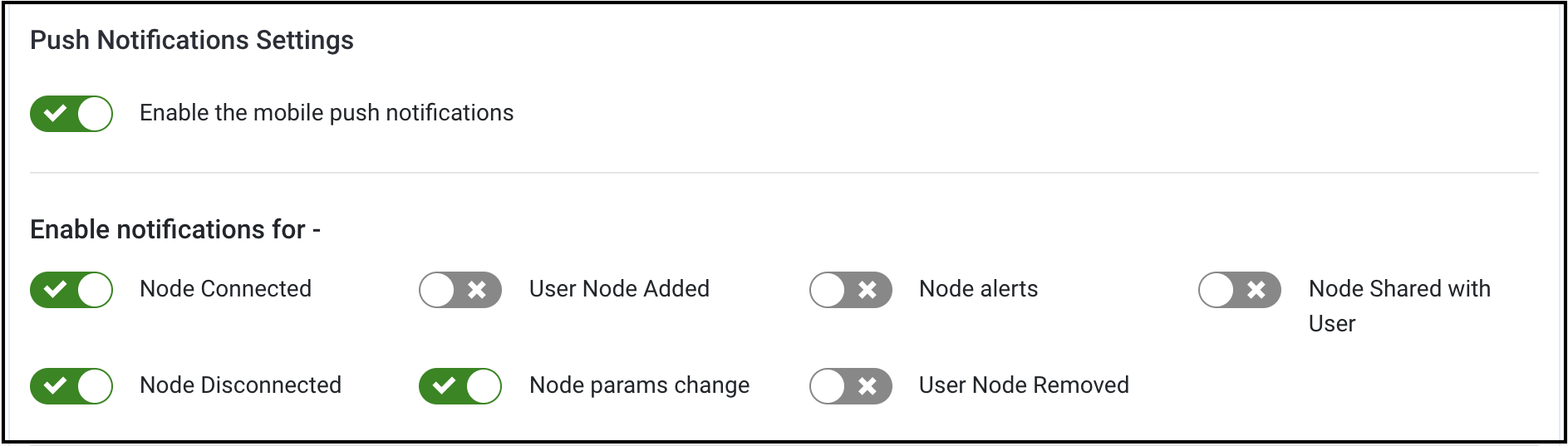
  2. 使用切换键启用推送通知。您可以自定义启用推送通知的事件。

    push_notification15

    备注

    使用同样的切换键也可以禁用推送通知。

Customizing Push Notification Templates

Follow these steps to configure your custom push notification templates:

  1. Log in to the RainMaker Dashboard and navigate to the Push Notifications section within Deployment Settings. push_notification_1
  2. Configure the common message title and save your changes by clicking the Update Push Notification Template button. push_notification_2
  3. To configure custom message bodies, select the template to configure (e.g. Group shared with User). push_notification_3
  4. Update the template fields by entering your desired Message Body. push_notification_4
  5. Click Update Push Notification Template to save your changes.
  6. Verify that the updated template appears correctly on the dashboard and that notifications are functioning as expected.

iOS App Code Level Push Notification Settings

Push notifications are enabled by default in the project. The getNotificationPlatform() method in ios/Notification/ESPNotificationModule.swift should return a platform identifier string based on the build configuration:

  • Production builds: Return "APNS"
  • Development/Sandbox builds: Return "APNS_SANDBOX"

This platform identifier is used by the backend to identify the notification platform type. The method should check the build configuration (DEBUG vs RELEASE) and return the appropriate value:

@objc(getNotificationPlatform:reject:)
func getNotificationPlatform(resolve: @escaping RCTPromiseResolveBlock, reject: @escaping RCTPromiseRejectBlock) {
// Development/Sandbox build - return APNS_SANDBOX
resolve("APNS_SANDBOX")
// Production build - return APNS
resolve("APNS")
}

On this page