

第三方登录配置
ESP RainMaker 使用 Amazon Web Services 提供 RESTful API,为移动应用提供身份验证、授权和用户管理功能。这些 API 也可用于与设备通信。此外,ESP RainMaker 还支持使用 Google 和 Apple ID 账户登录。
在移动应用中启用第三方登录和身份验证只需完成两个步骤:配置部署设置,并在移动应用上启用该功能。
部署配置
请按照部署指南中的步骤启用并配置谷歌控制台、苹果开发者账户以及 ESP RainMaker 控制面板中的 ESP RainMaker 第三方登录。
应用端配置
除了配置部署端,还需要在应用端代码中配置重定向 URL。详情请参阅安卓配置和 iOS 配置章节。
你需要在 rainmaker.config.ts 文件中,根据部署修改认证 URL 以及 clientId、redirectUrl 等参数。
| 键 | 类型 | 描述 |
|---|---|---|
| clientId | 字符串 | 用于唯一标识用户池中的某个应用。请参考获取 Client ID 的步骤。 |
| authUrl | 字符串 | 用于第三方登录的 OAuth 认证 URL。请参阅获取认证 URL 的步骤。 |
| redirectUrl | 字符串 | 第三方登录完成后,用于将用户重定向回应用的自定义 URI scheme。你还需要将该值复制到 rainmaker.config.ts 文件中,详见下文。 |
安卓配置
如果要构建安卓应用,则需要在安卓专属的文件中完成以下步骤,以支持第三方登录功能。
设置重定向 URI
要为应用设置重定向 URI,需要在 AndroidManifest.xml 文件的 data 标签中,将应用 ID 写为 host。
以下是 ESP RainMaker 应用的重定向 URI 示例:
<data
  android:host="com.espressif.novahome"
  android:path="/success"
  android:scheme="rainmaker" />
ESP RainMaker Home 应用的重定向 URI 为:
rainmaker://com.espressif.novahome/success
将上述数据中的 com.espressif.novahome 替换为你的应用 ID,则你应用的重定向 URI 为:
rainmaker://your_application_id/success
iOS 配置
如果要构建 iOS 应用,则需要在 iOS 专属的文件中完成以下步骤,以支持第三方登录功能。
添加 URL Scheme
应在 ESP RainMaker Home 项目的 Info.plist 文件中包含 App Bundle ID。前往 ESPRainMaker > Info 选项卡,向下滚动到 URL Types 并展开。按下图所示添加你的 URL scheme。
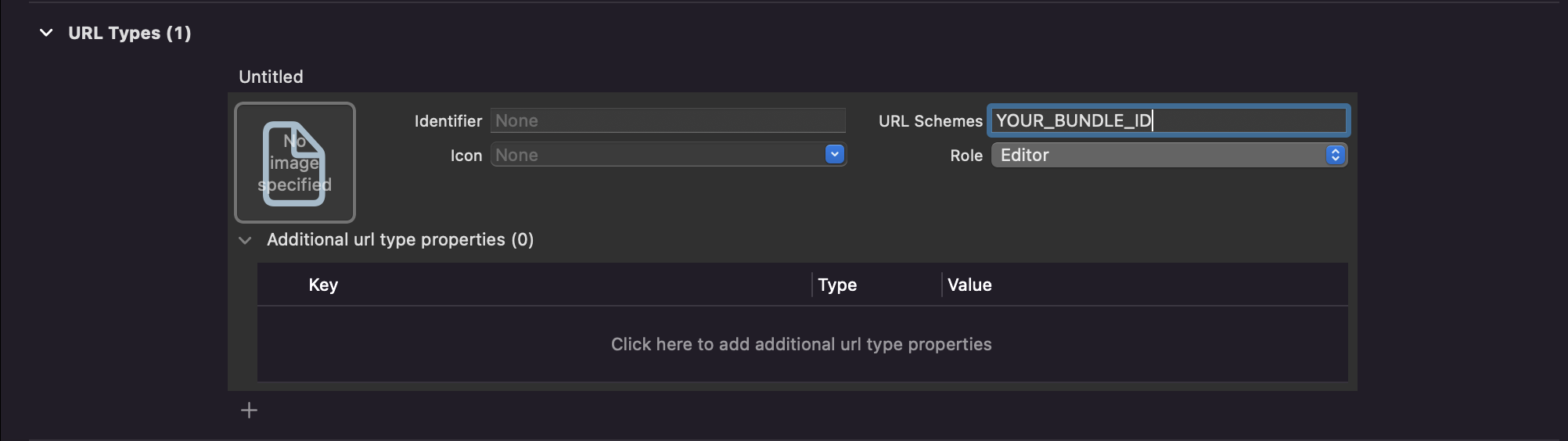
创建重定向 URL
ESP RainMaker Home 应用的重定向 URL 为:
com.espressif.novahome://success
将上述数据中的 com.espressif.novahome 替换为你应用的 Bundle ID。你应用的重定向 URL 为:
com.your_application_id.app://success