

Your organization
An organization is your team's workspace in ESP CloudHub. The AWS accounts you add, and everything deployed into them, belong to the organization. Each member has a role in it that decides what they can do — see Team access & roles.
Your organization is created automatically the first time you sign in. Its name and your role are shown at the top right of the console (for example Example Org · RootAdmin).
Open the organization settings
Click the gear icon (top right) → System configurations → My organization.
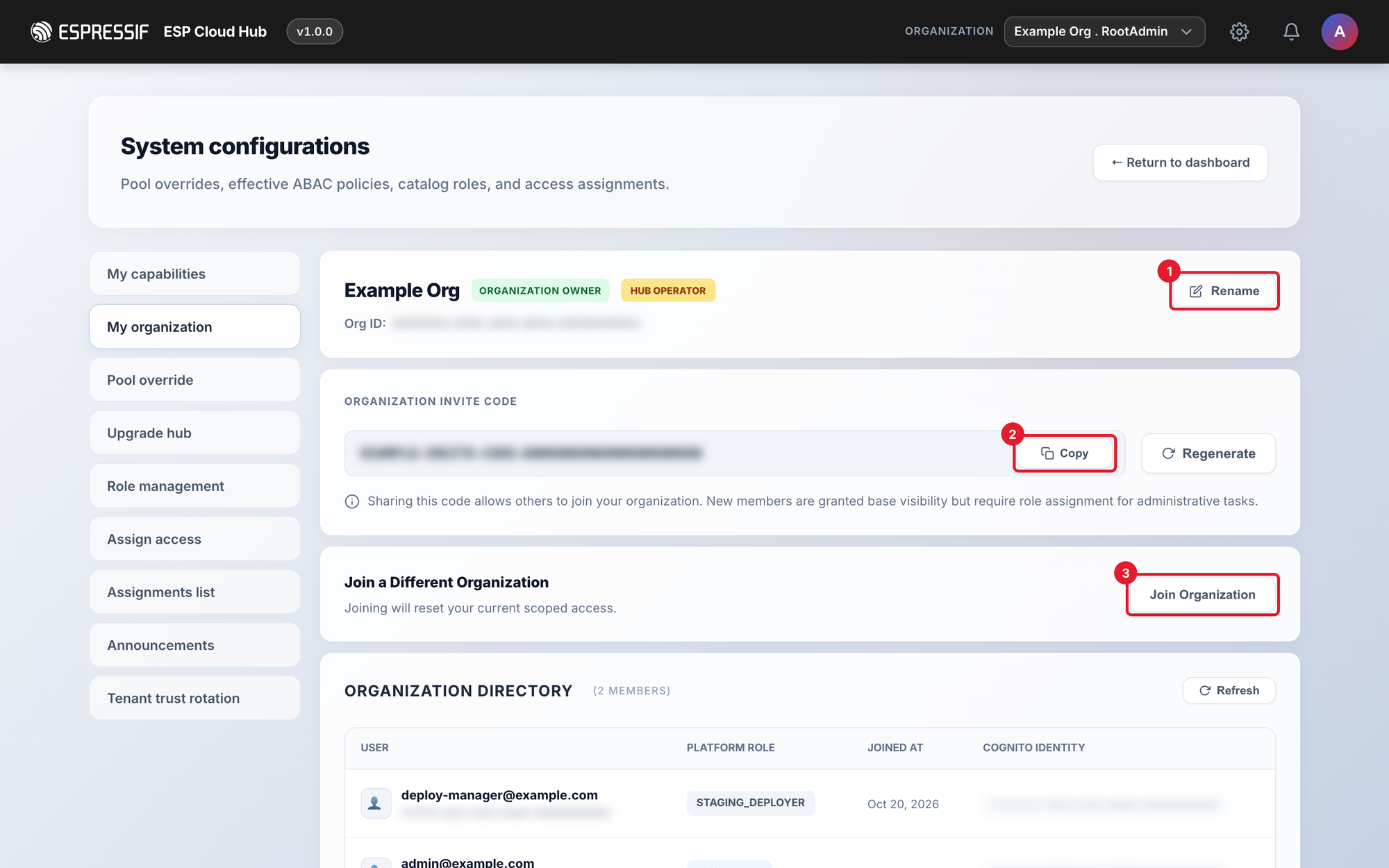
| What you can do | How |
|---|---|
| Rename the organization (1) | Click Rename, enter the new name, click Update Name. |
| Invite a teammate (2) | Click Copy next to Organization Invite Code and send it to them. They paste it under Join a Different Organization → Join Organization. |
| Replace the invite code | Click Regenerate. The old code stops working immediately. |
| See who is in the organization | Organization Directory lists each member, their role and when they joined. |
| Join another organization (3) | Paste an invite code under Join Organization. This moves you to that organization and resets the access you had. |
Anyone with the code can join your organization. Share it only with people who should be in it, and click Regenerate if it may have leaked.
Joining gives a member a place in the organization, but almost no permissions. Give them a role next — see Team access & roles. You can also skip the invite code and add someone directly by email from Assign access.
Switch between organizations
If you belong to more than one organization, click the organization name at the top right of the console and pick another one. Your role can be different in each organization, so what you can see and do changes when you switch.