

1. Sign in to ESP CloudHub
How you sign in depends on which ESP CloudHub you use.
| You use | Go to |
|---|---|
| The Espressif-hosted ESP CloudHub | Espressif-hosted ESP CloudHub below |
| ESP CloudHub in your own AWS account | Your own ESP CloudHub below |
Espressif-hosted ESP CloudHub
Open https://espcloudhub.rainmaker.espressif.com.
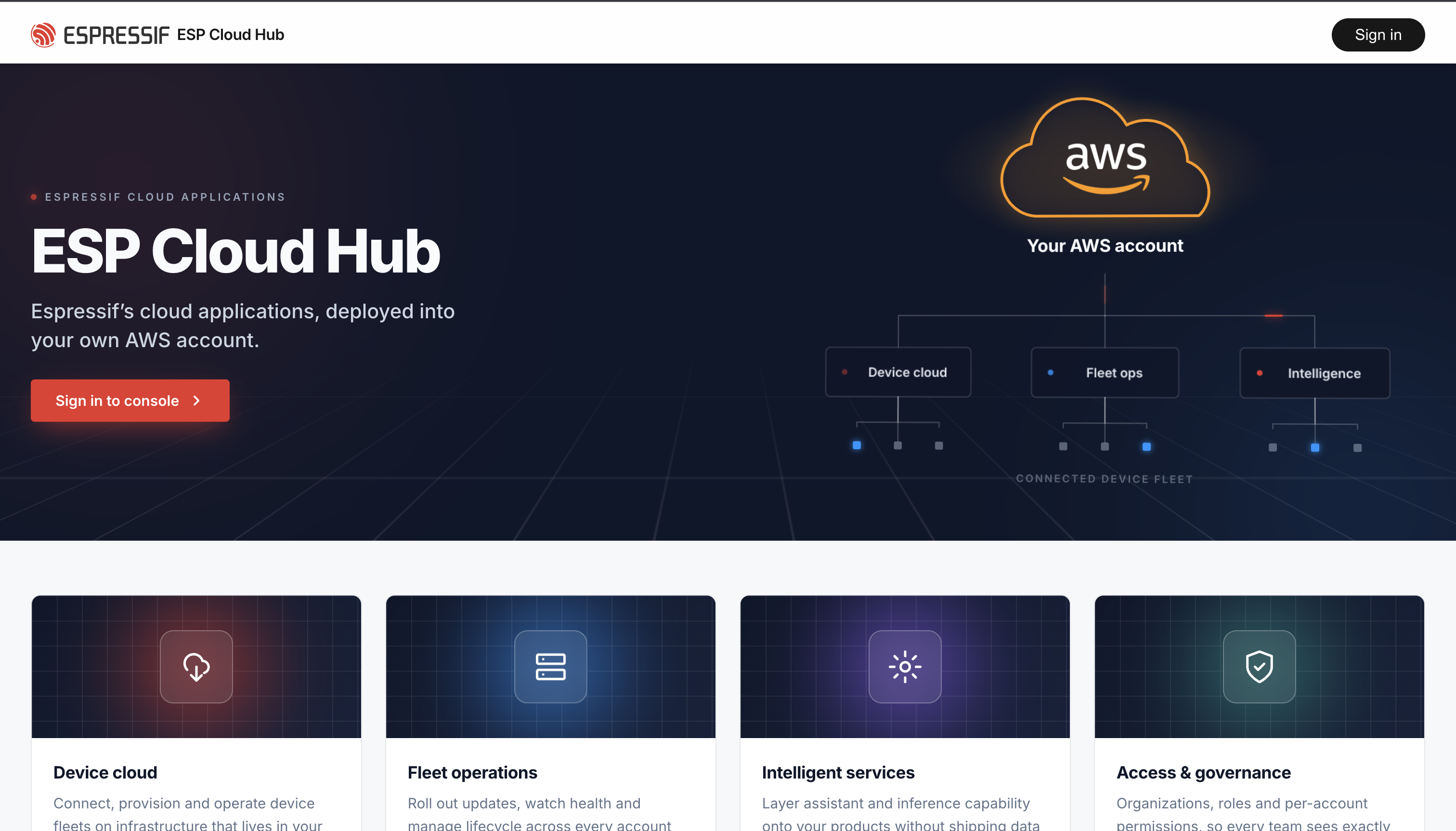
Find the Sign-in button
On the landing page there are two ways in — use either:
- the Sign in button in the top-right corner, or
- the large Sign in to Console button in the middle of the page.
Sign in (or sign up)
The sign-in screen offers several options:
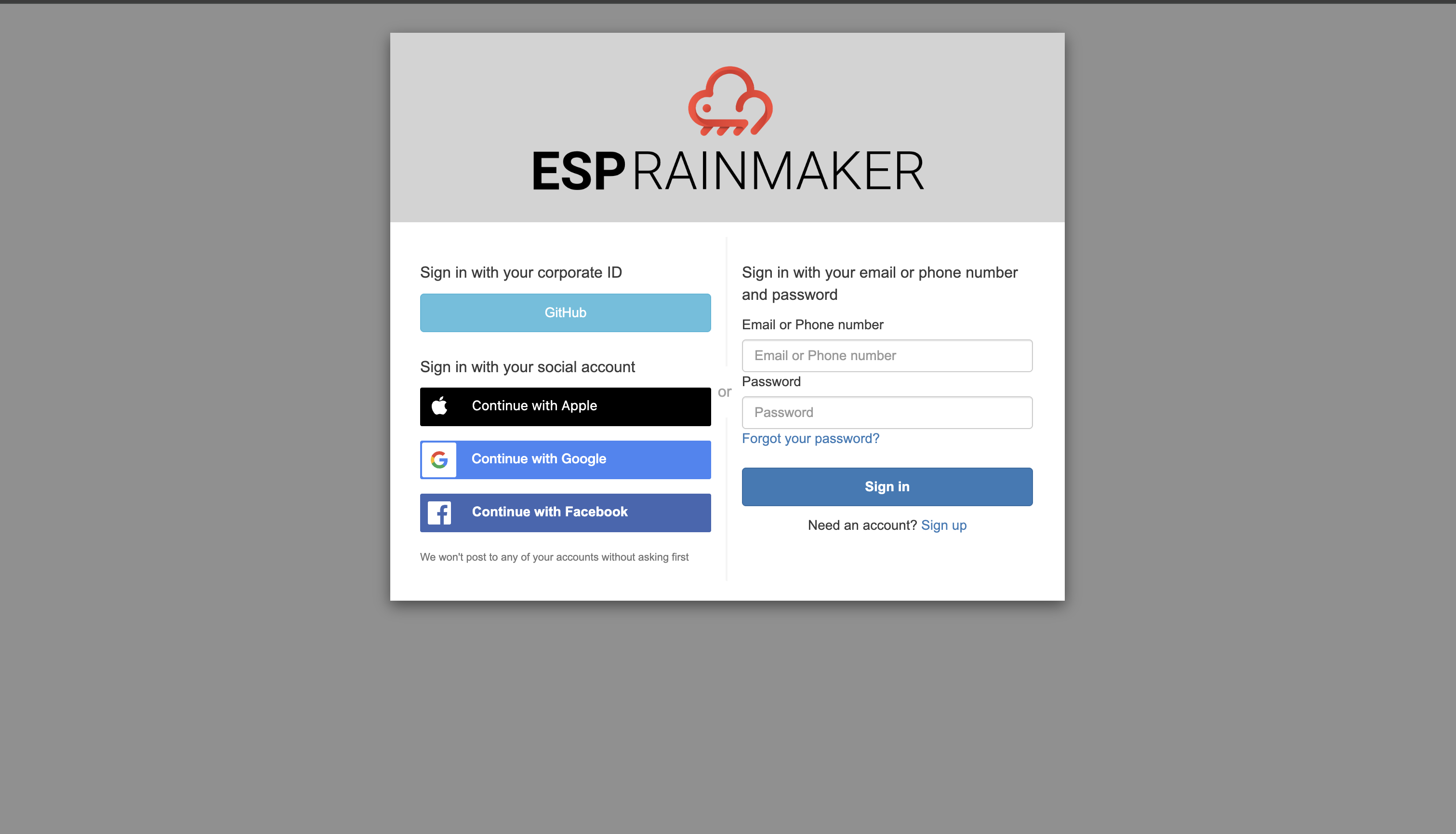
- Corporate ID — sign in with GitHub.
- Social account — Continue with Apple, Continue with Google or Continue with Facebook.
- Email or phone number + password — enter them and click Sign in. Forgot it? Use Forgot your password?
- No account yet? Click Need an account? Sign up, register, then come back and sign in.
The Espressif-hosted ESP CloudHub uses ESP RainMaker accounts. If you already have an ESP RainMaker account, you can sign in with it.
Your organization is created automatically the first time you sign in, and you land in the ESP CloudHub console.
Your own ESP CloudHub
- Open your ESP CloudHub address — the
DashboardUrloutput of theesp-cloud-hubstack (see Step 8). - Sign in with your administrator email address and password.
- If this is your first sign-in, use the temporary password you were given and then set a new one. See Step 9.
There is no sign-up on your own ESP CloudHub — only the administrators named when it was deployed can sign in.
Which ESP CloudHub version am I on?
Every signed-in user can see it — no administrator role needed:
-
Top bar, on every page: the version badge next to ESP Cloud Hub.

-
Dashboard (AWS Accounts Overview): under the page title, with its status — Up to date, or v… available when a newer release exists. On a phone, look here; the top bar has no room for the badge.

When a newer version is available, only an administrator with upgrade permission can apply it (gear icon → System configurations → Upgrade hub); everyone else sees a banner asking them to contact one. See Keep ESP CloudHub up to date for your own ESP CloudHub. The Espressif-hosted ESP CloudHub is upgraded by Espressif.
Next
Register the AWS account you want to deploy RainMaker into: 2. Add your AWS account.