

Matter DAC
In the context of Matter smart home devices, a Matter DAC (Device Attestation Certificate) is a unique digital certificate that proves a device's authenticity and legitimacy during the secure network setup (Matter device commissioning).
Matter DAC
Matter DAC interface allows Super Admin Users to manage Matter DAC batches directly from the ESP RainMaker Dashboard. Users can create and edit DAC batches without leaving the dashboard. DAC batches are used for Matter-ready upgrades of in-field devices; see Matter Fabric Support.
Setup Matter DAC
The Matter DAC setup page is the central entry point for all DAC related actions. Super Admin users can add, edit, and view Matter DAC batches, as well as create and view authentication keys.
| Setup Matter DAC |
|---|
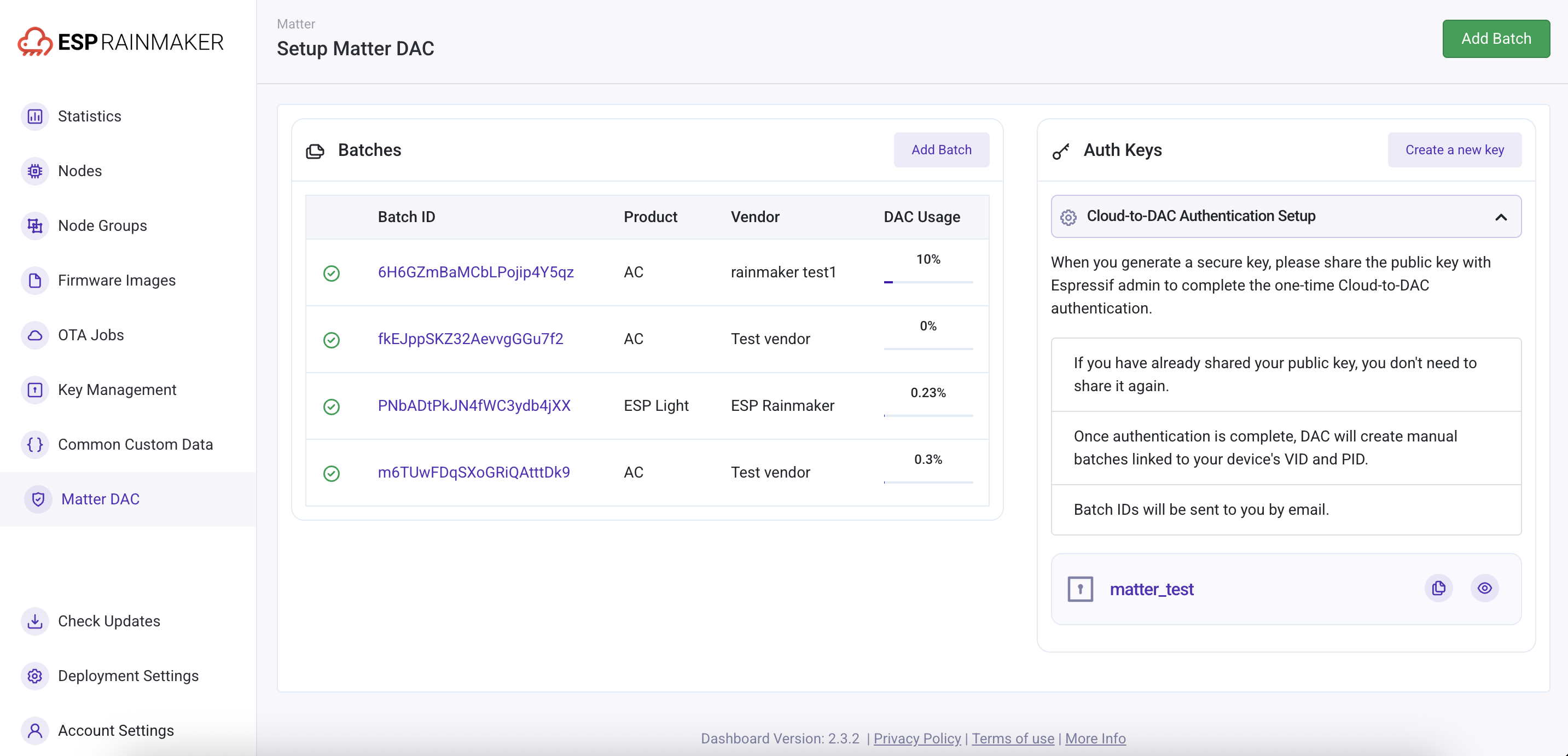 |
Batch ID: Unique id given to the batch of matter devices.Product: Matter Device or Product type, for e.g. - Air Conditioner, Smart Lock etc.Vendor: Manufacturer Vendor Name.DAC Usage: Displays usage percentage along with a progress bar for quick visualization.
User can create and add a new batch of DAC devices.
Auth Keys
The Auth Keys widget provides information and guidance for the Cloud-to-DAC authentication setup in a collapsible section (expanded by default). It displays a list of available auth keys, where each key name is a hyperlink leading to its details. Each key also includes action buttons to view and copy its contents.
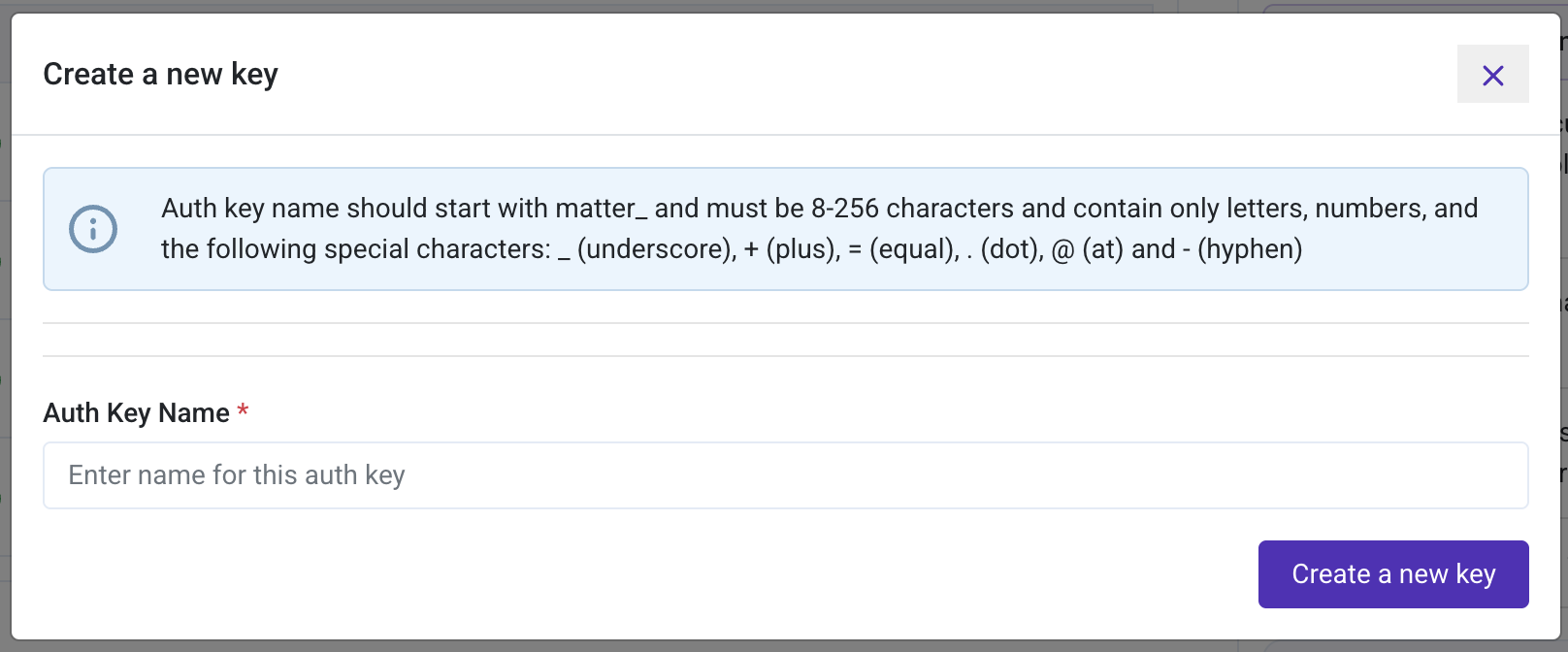
Super Admin users can create a new Auth key by clicking the Create a new key button.
| Create Auth Keys |
|---|
 |
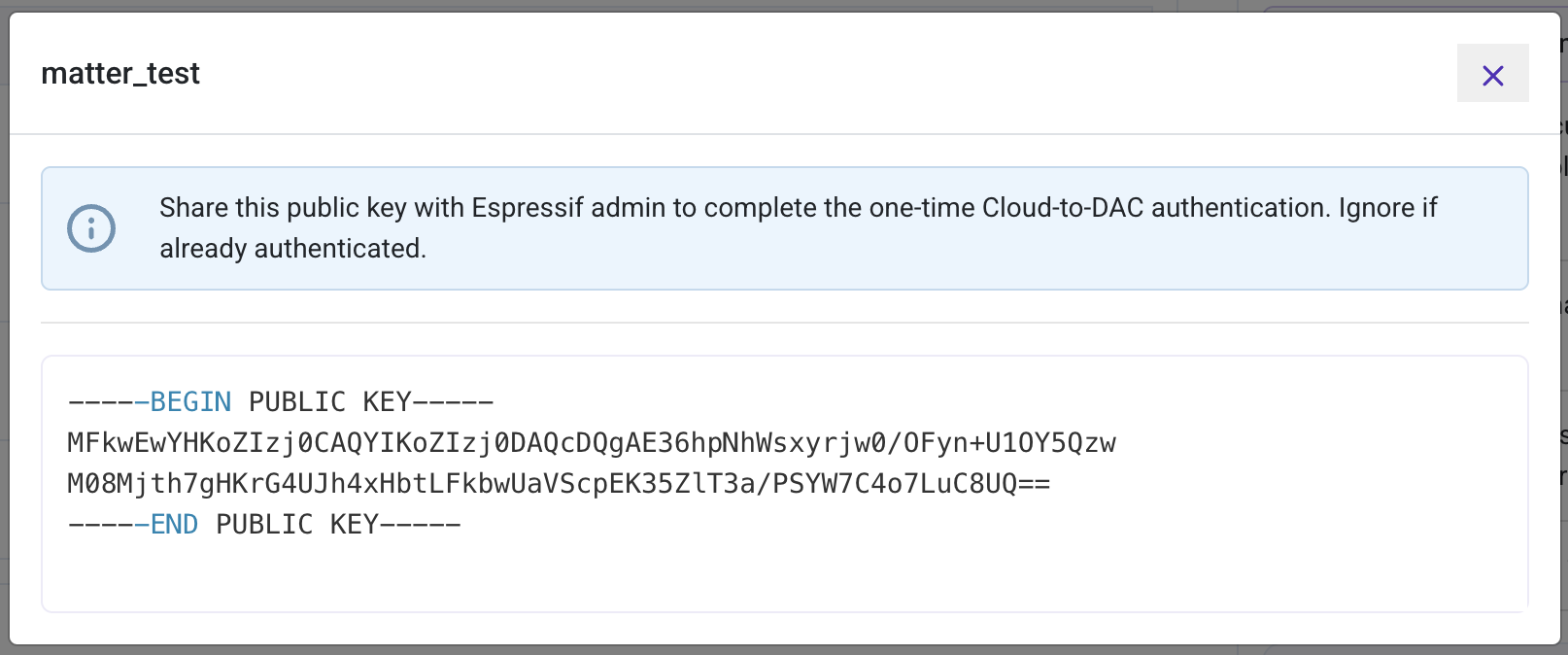
Created Auth keys are listed in the Auth keys widget. Clicking the key name or the View icon button opens a popup displaying the key details.
| View Auth Keys |
|---|
 |
Matter DAC Batch Details
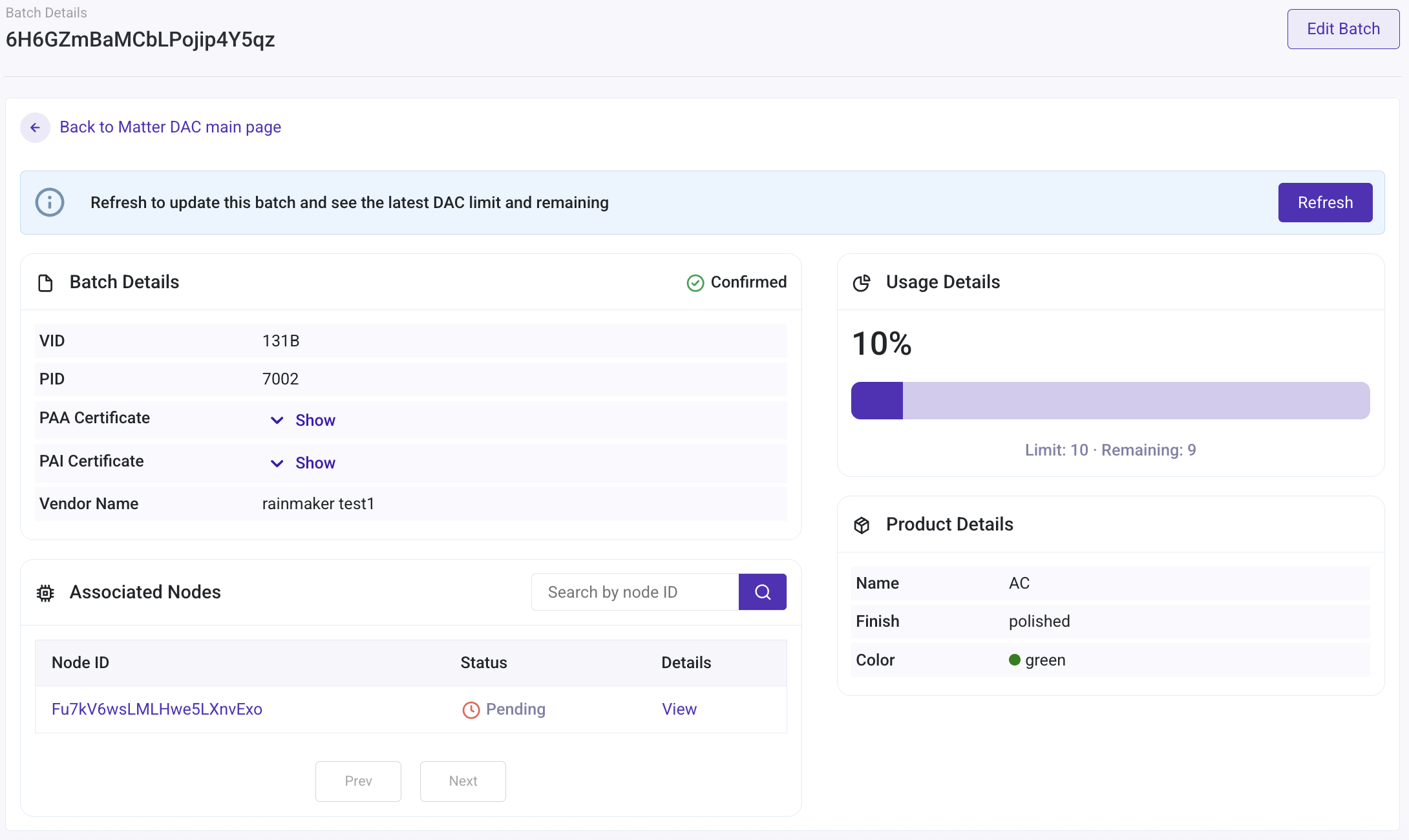
The Batch Details page displays information about a batch and allows Super Admin Users to view and edit its details. For confirmed batches, the page includes a refresh button that users can use to retrieve the latest DAC data.
| Batch Details |
|---|
 |
-
Batch Details Widget: Shows details about the patch with information about VID, PID, Vendor Name and details about PAA and PAI certificates. -
Usage Details Widget: Displays usage percentage along with a progress bar for quick visualization. -
Product Details: Matter Device or Product type along with other applicable attributes likes the color, finish, product URL and more. -
Associated Nodes: This widget displays a table of all nodes associated with the batch, with the following columns:Node ID: Linked to the node details page (opens in a new tab).Status: Shows the status of the node in the batch.Details: Provides a 'View' link that opens the node details in a popup.
The widget also includes a search box to quickly search a node by its ID. Super Admin Users can view the details of the associated nodes.
Associated Node Details 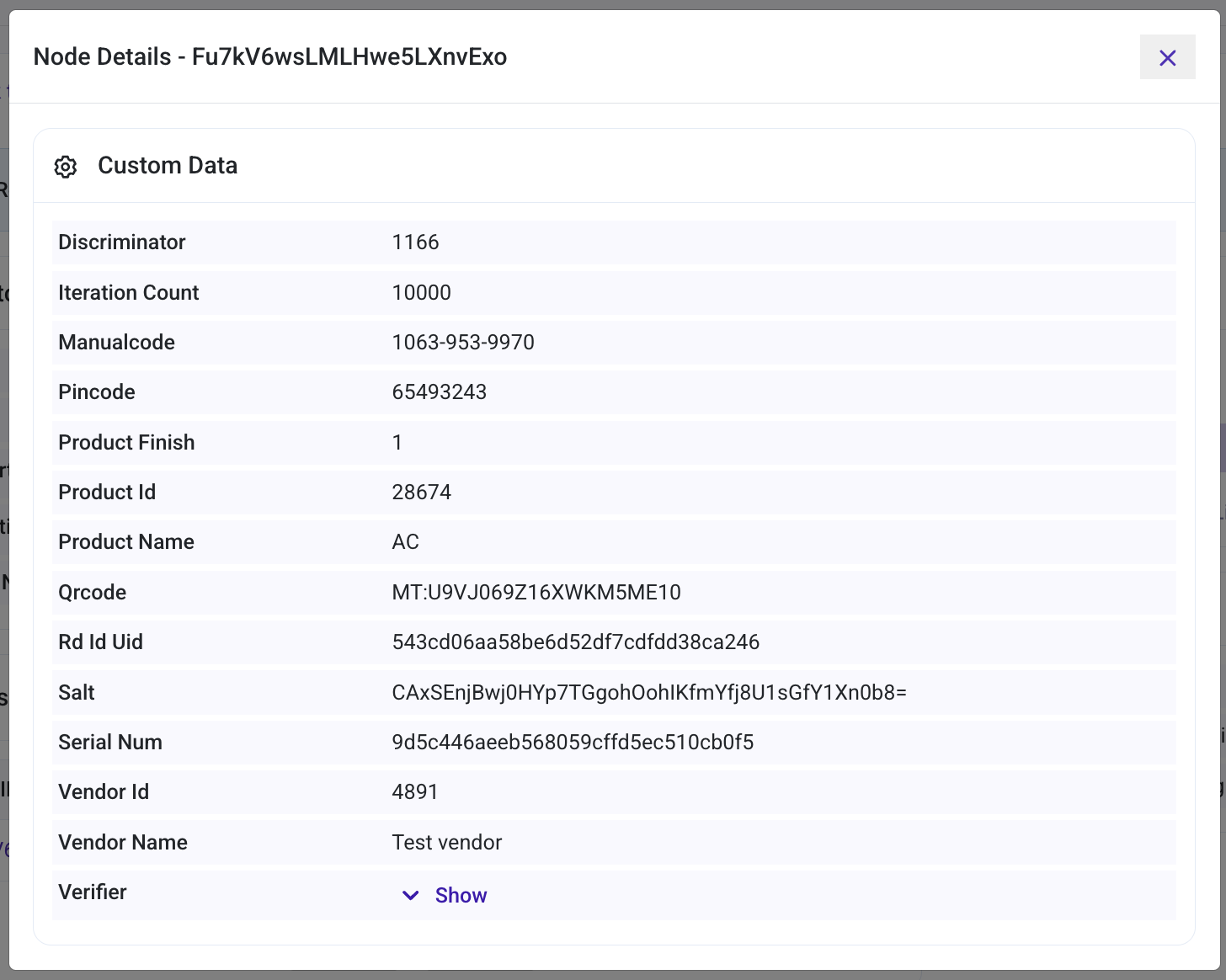
Matter DAC Batch Create
The Add Batch page allows Super Admin Users to create a new batch. It includes a form for entering batch details along with information about the batch creation process.
| Add Batch |
|---|
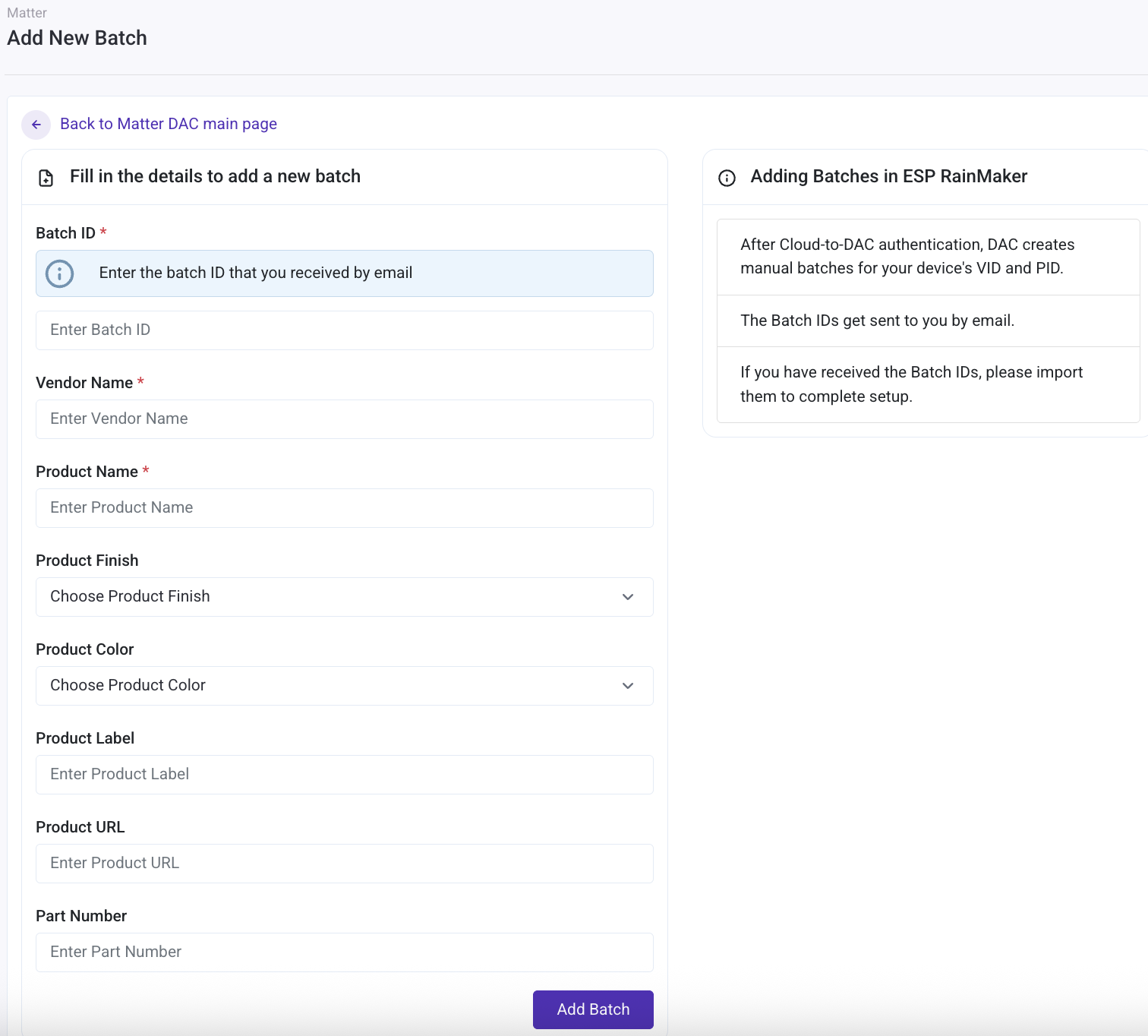 |
After Cloud-to-DAC Authentication, DAC service creates manual batches for your Device VID and PID. The unique batch IDs generated are sent to you by email. Import the Batch IDs to complete the setup.
After a batch is successfully created, users see a success message along with a button to Review batch details details.
From the Batch Details page, users can click the Edit Batch button in the top-right header to update batch details. The Edit Batch page provides a form for editing along with information about the batch editing process.