

Debug User Connection Issues
This guide covers common RainMaker user connection issues and their debugging from the cloud side. Users in RainMaker are managed through AWS Cognito, and their authentication and connection logs can be monitored using CloudWatch.
Verifying User Existence in Cognito User Pools
Sometimes user connection issues occur because the user is not properly registered or is missing from the Cognito user pools. AWS Cognito is the service used to authenticate users for RainMaker. RainMaker uses two main user pools that you should check.
Checking rainmaker-user-email-mobile-pool
This pool is used for users who authenticate using email or mobile phone.
Follow these steps to check if a user exists in this pool:
- Sign in to the AWS Management Console.
- Navigate to the Cognito service.
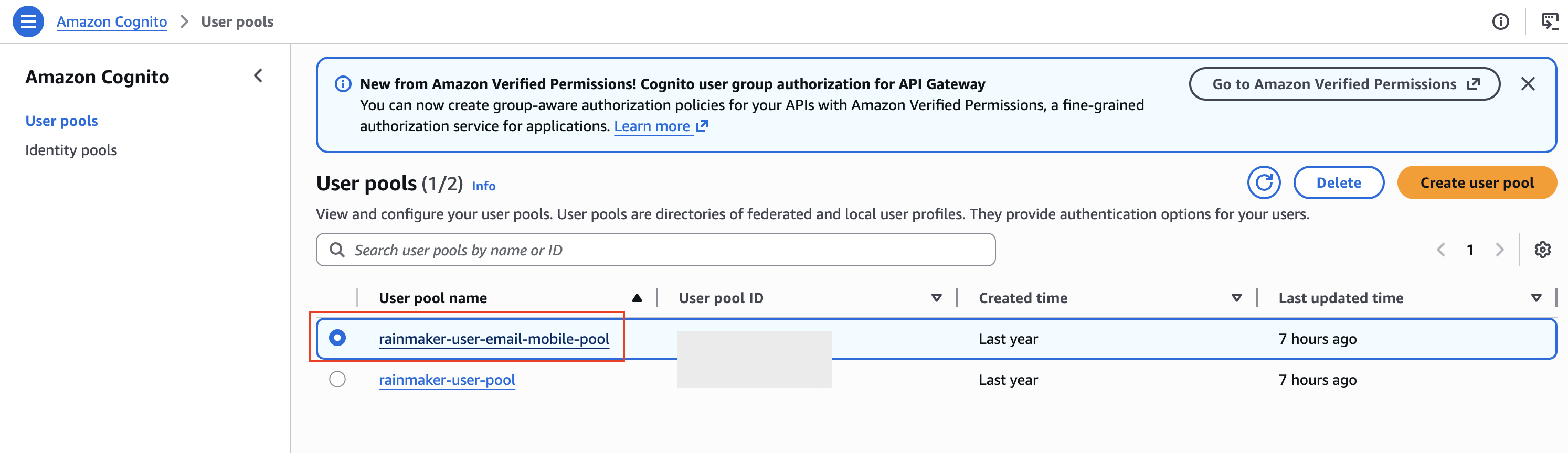
- From the left navigation pane, click on User pools.
- Search for and select the user pool rainmaker-user-email-mobile-pool.
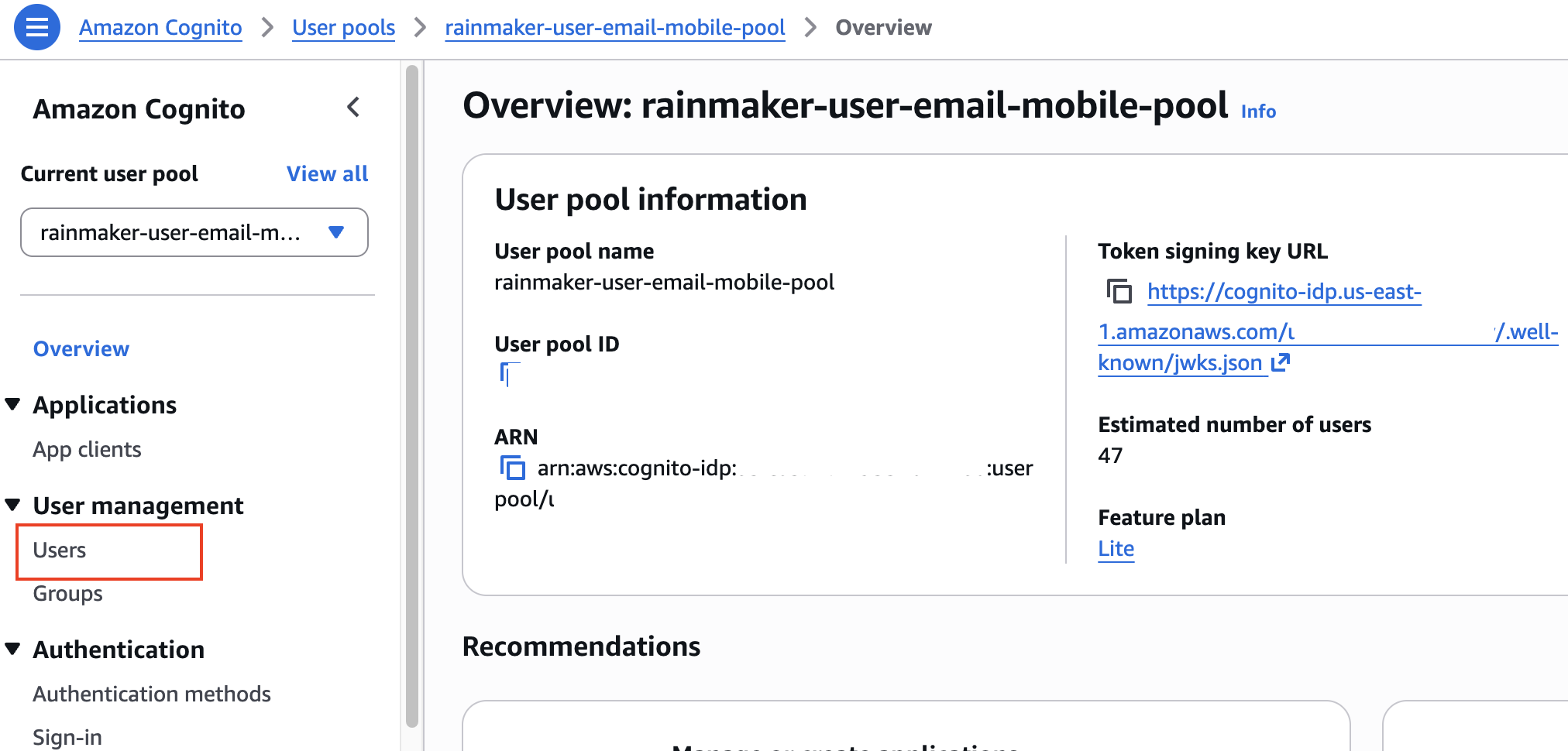
- From the left navigation bar, click on Users under the User Management section.
- You will now see a list of all users present in that user pool.
Searching for a Specific User
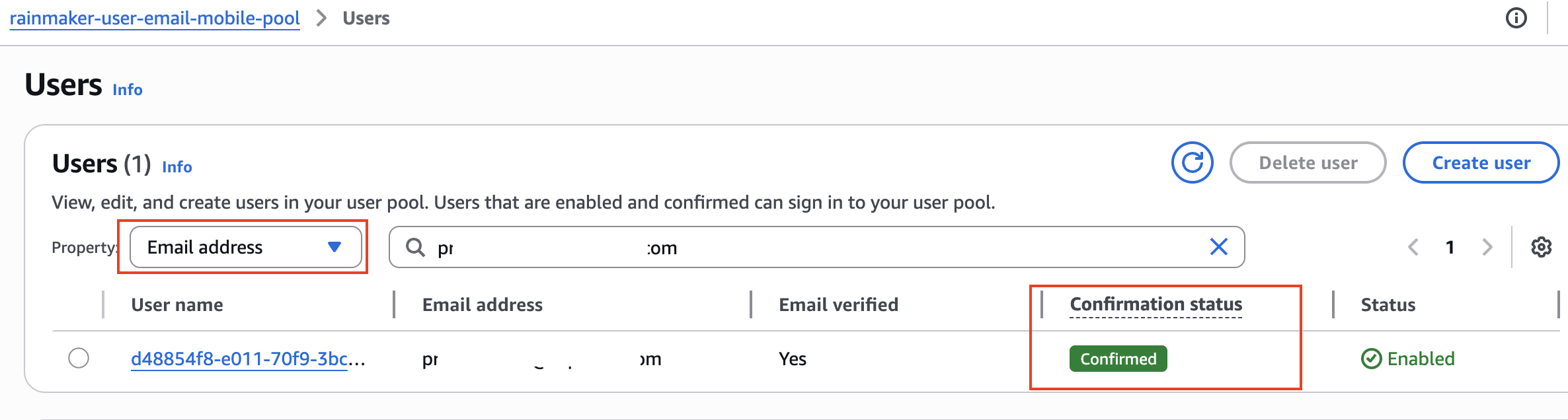
To search for a particular user, you can filter by either their email address or phone number:
- In the user list view, locate the Property dropdown menu.
- Select either Email address or Phone number from the property options.
- In the search bar, enter the value you want to search for.
- Check the confirmation status of the user. Only a status of
CONFIRMEDmeans the user is able to sign in. Any other status indicates the user cannot sign in yet or has a pending action required.
Active UserStatus Values
| Status | Description |
|---|---|
UNCONFIRMED | User created but not confirmed (has not verified email or phone). |
CONFIRMED | User confirmed and can sign in normally. |
RESET_REQUIRED | User confirmed, but must request a reset code and set a new password before signing in. |
FORCE_CHANGE_PASSWORD | User confirmed, can sign in with a temporary password, but must change it on first sign-in (typical for admin-created users). |
EXTERNAL_PROVIDER | User signed in via a third-party IdP (e.g. Google, Facebook). |
Note: Only users with
CONFIRMEDstatus are able to successfully sign in. All other statuses indicate the user is blocked from normal sign-in until the required action is completed.
Typical flows:
UNCONFIRMED→ user verifies →CONFIRMEDCONFIRMED+ admin sets temporary password →FORCE_CHANGE_PASSWORD→ user changes password →CONFIRMED
Viewing User Details
If you find the user in the search results:
- Click on the User ID (username) of the user.
- You will be able to see all the user details including:
- User attributes (email, phone number, etc.)
- User status (Confirmed, Unconfirmed, etc.)
- Account creation date
- Last modified date
- Group memberships
- MFA settings
Checking rainmaker-user-pool
This is the primary user pool for RainMaker users. Follow the same process as above:
- Sign in to the AWS Management Console.
- Navigate to the Cognito service.
- From the left navigation pane, click on User pools.
- Search for and select the user pool rainmaker-user-pool.
- From the left navigation bar, click on Users under the User Management section.
- You will see a list of all users present in that user pool.
- Use the same search process (by email or phone number) as described above to find specific users.
- Click on the User ID to view complete user details.
If a user is not present in either of these user pools, they need to complete the registration process before they can successfully connect to RainMaker.
When troubleshooting user connection issues, always verify the user's status in the user details page. Common issues include unconfirmed accounts or disabled users.
Viewing User Connection Logs
To check user connection logs, you can use AWS CloudWatch. All authentication and login-related logs for RainMaker users are stored in a specific log group.
Follow these steps to view the user connection logs:
- Sign in to the AWS Management Console.
- Navigate to the CloudWatch service.
- In the left navigation pane, click on Logs > Log Management.
- Search for the log group named
/aws/lambda/esp-LoginEmailPhone. - Click on the log group to view all logs related to user authentication and login events.
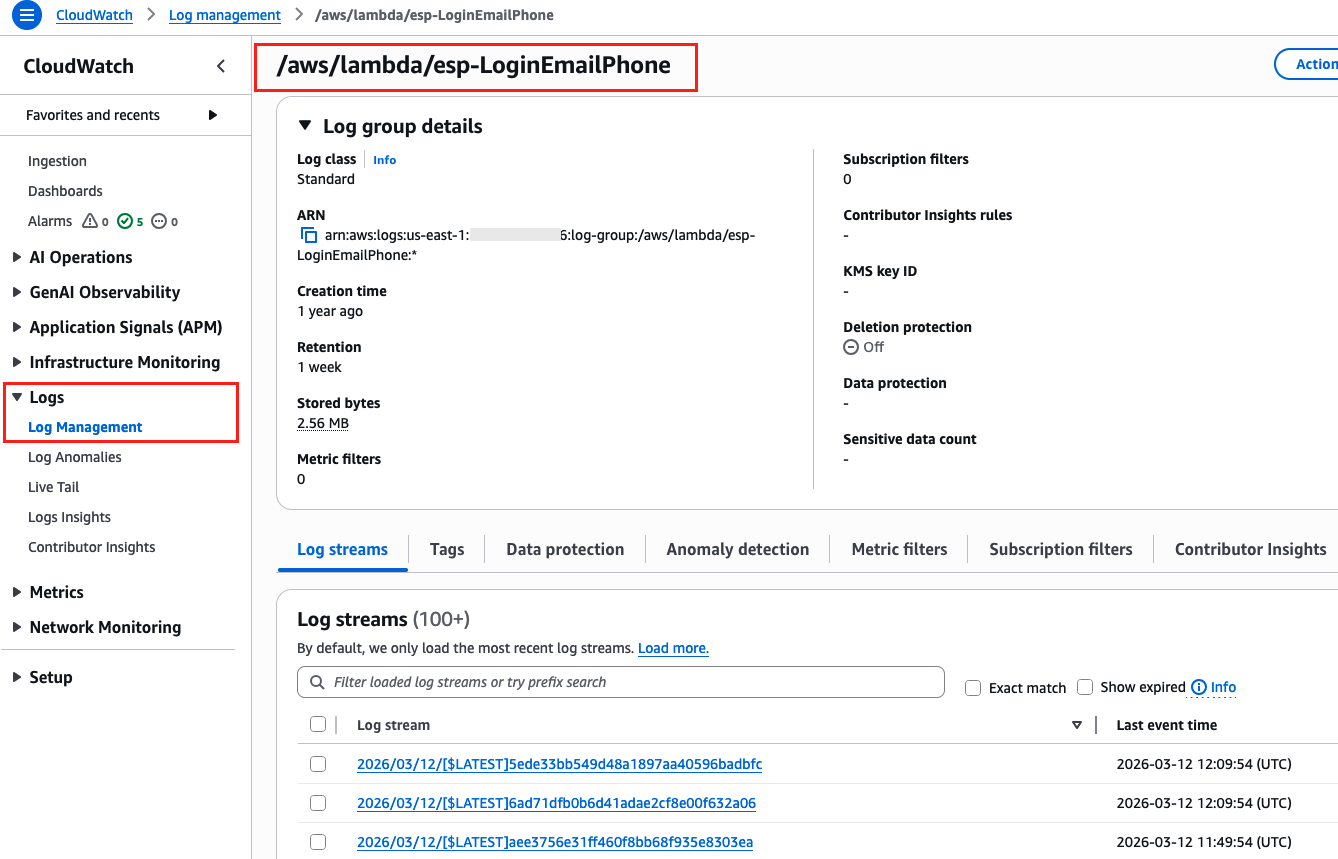
This log group contains authentication events for all users attempting to connect to your RainMaker deployment.
Debugging a Specific User's Connection Logs
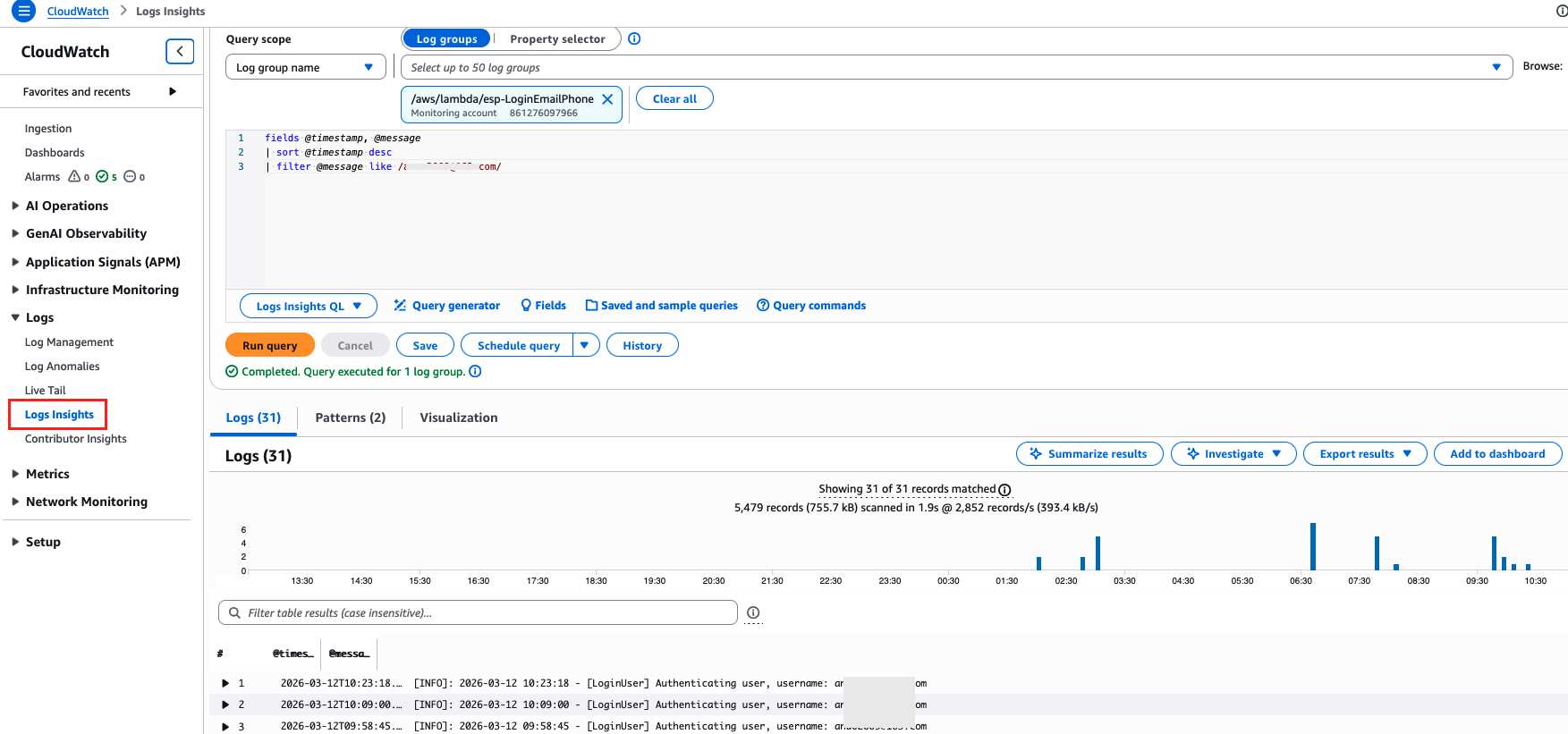
If you need to check and debug connection logs for a particular user, you can use CloudWatch Logs Insights to filter logs by user email or phone number.
Follow these steps to query logs for a specific user:
- Sign in to the AWS Management Console.
- Navigate to the CloudWatch service.
- In the left navigation pane, click on Logs > Logs Insights.
- In the Select log group(s) dropdown, search for and select
/aws/lambda/esp-LoginEmailPhone. - In the query editor, enter the following query:
fields @timestamp, @message
| sort @timestamp desc
| filter @message like "<user_email_or_phone>"
Replace <user_email_or_phone> with the actual email address or phone number of the user you want to debug.
-
Select the appropriate time range based on your use case:
- Last 1 hour - For recent authentication issues
- Last 4 days - For investigating issues over a few days
- Last 1 week - For historical analysis
- Custom - To specify a specific date and time range
-
Click Run query to execute the query and view the filtered logs.
You can further refine your query by adding additional filters or adjusting the time range to narrow down the results.
Common User Connection Issues
Here are some common issues you might encounter when debugging user connections:
| Issue | Possible Cause | Resolution |
|---|---|---|
| User not found | User hasn't completed registration | Ask user to complete the registration process |
| Authentication failed | Incorrect credentials or expired tokens | Have user reset password or re-authenticate |
| User exists but can't login | User account might be disabled or unconfirmed | Check user status in Cognito and confirm/enable the account |
| Login timeout | Network issues or Lambda cold start | Check CloudWatch logs for Lambda execution time and errors |
Always check both the CloudWatch logs and Cognito user pools when troubleshooting user connection issues for a complete picture of the problem.