Backup & Restore
Backup Cognito Settings
This feature is not supported for OAuth-only RainMaker yet.
Before proceeding with the RainMaker upgrade, it is advisable to take a backup of Cognito configurations from RainMaker Dashboard. This precautionary measure helps prevent the reset of Cognito configurations to default values post-upgrade. Once the RainMaker backend upgrade is successfully completed, you can restore the Cognito configurations from the backup to ensure that your preferred settings are retained.
-
Log in to RainMaker Dashboard with Superadmin credentials.
-
Navigate to
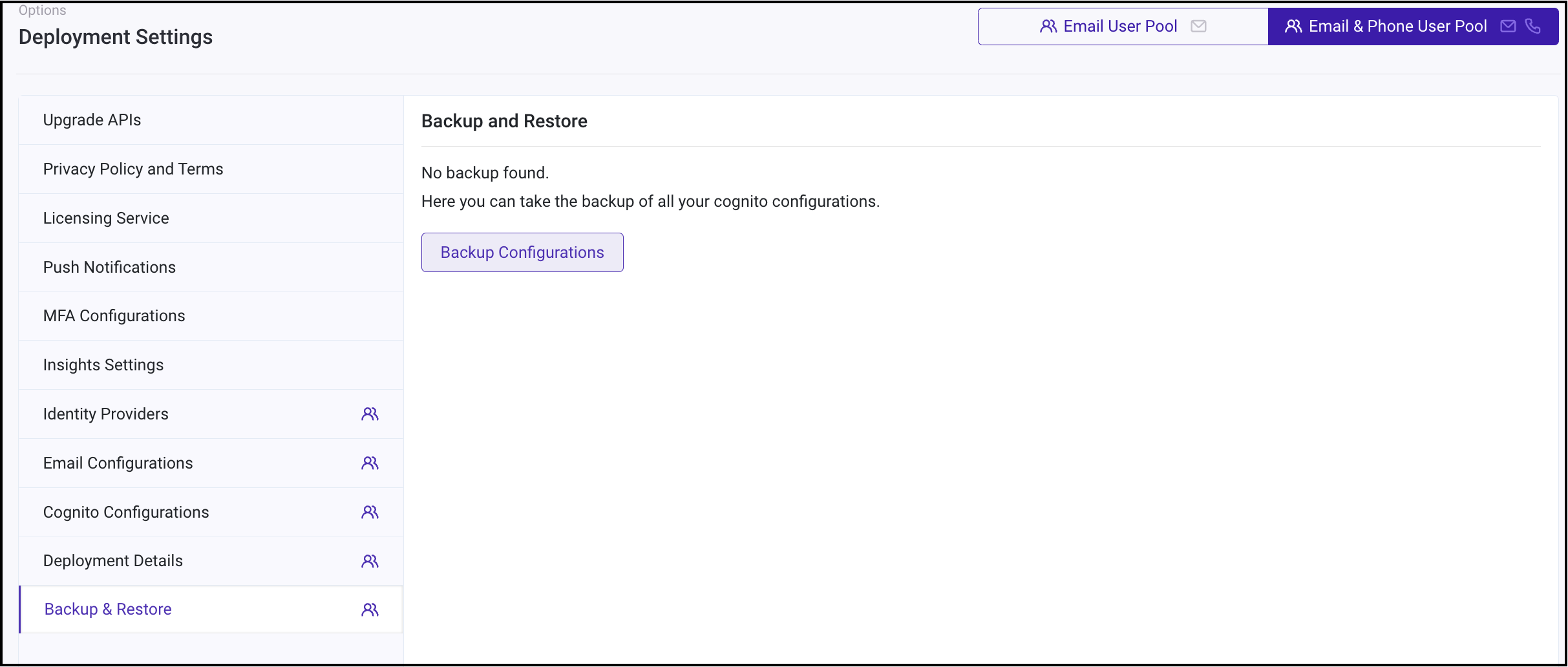
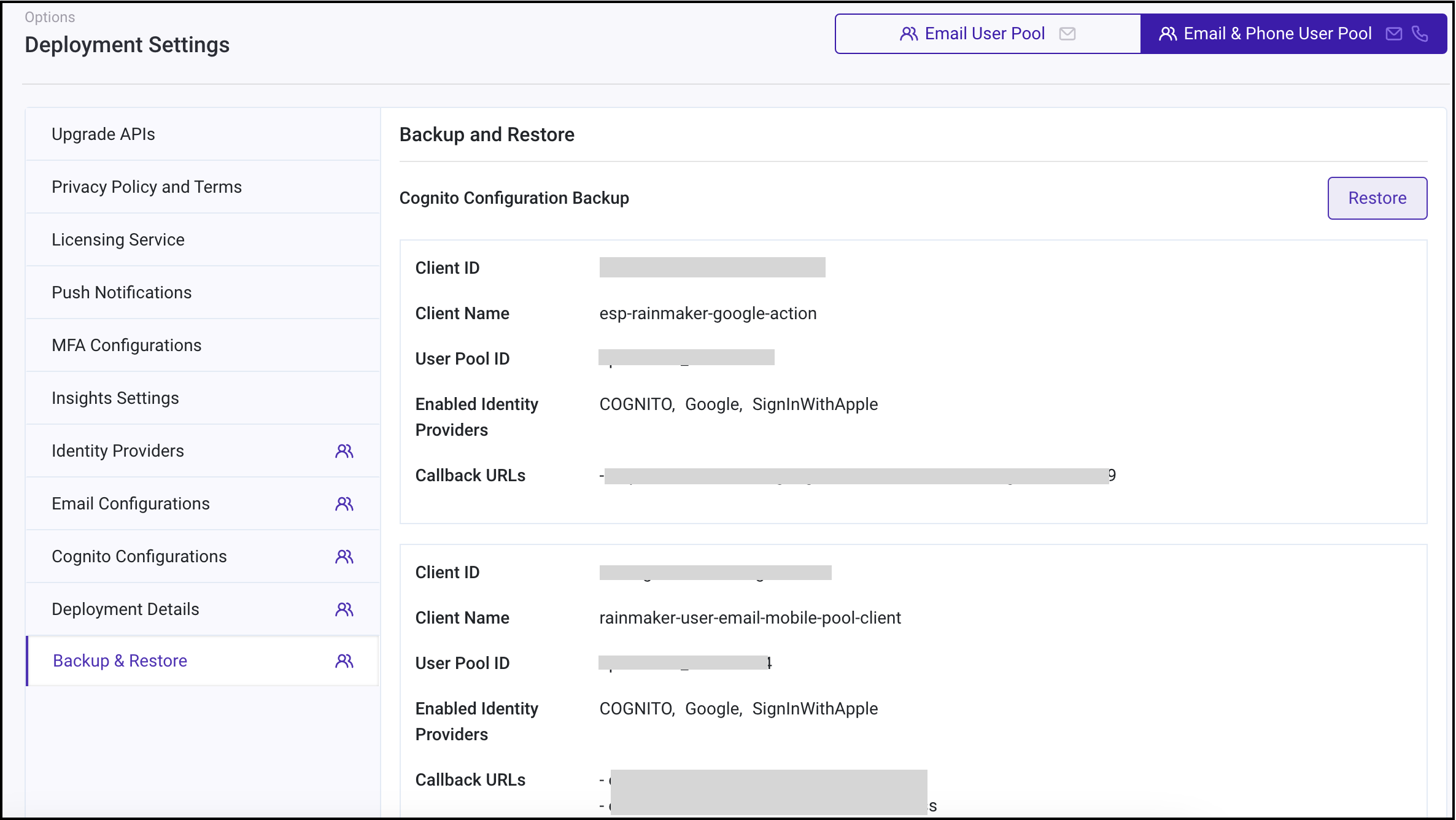
Deployment Settingsand clickBackup and Restore. If you've taken backups before, you'll see a Cognito configuration backup; otherwise, you'll see a message sayingNo backup found.
-
Click
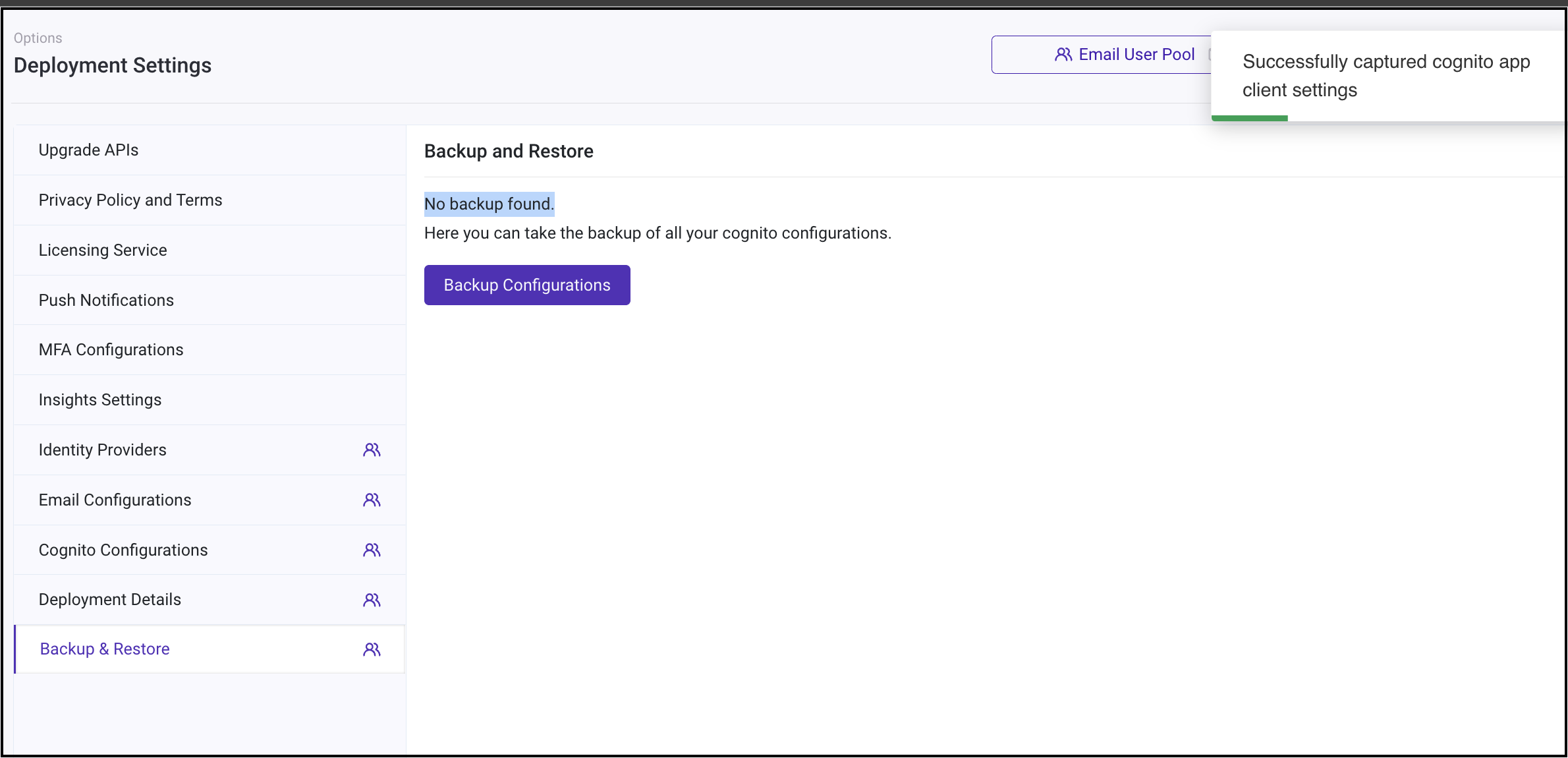
Backup Configurationsto save a backup of Cognito configurations. Once the backup process is finished, you'll receive a success message in the upper right corner stating,Successfully captured Cognito app client settings.
This section provides stepwise instructions for upgrading RainMaker backend components using SAM and SAR. The upgrade process for both SAM and SAR repositories are documented below. Follow the appropriate guide based on your integration setup.
Restore Cognito Settings
This feature is not supported for OAuth-only RainMaker yet.
-
Upon successfully finishing all the steps of the RainMaker backend upgrade, navigate to
Deployment Settings>Backup & Restoresection.
Here, you can see the backup you created before initiating the upgrade.
-
Simply clicking
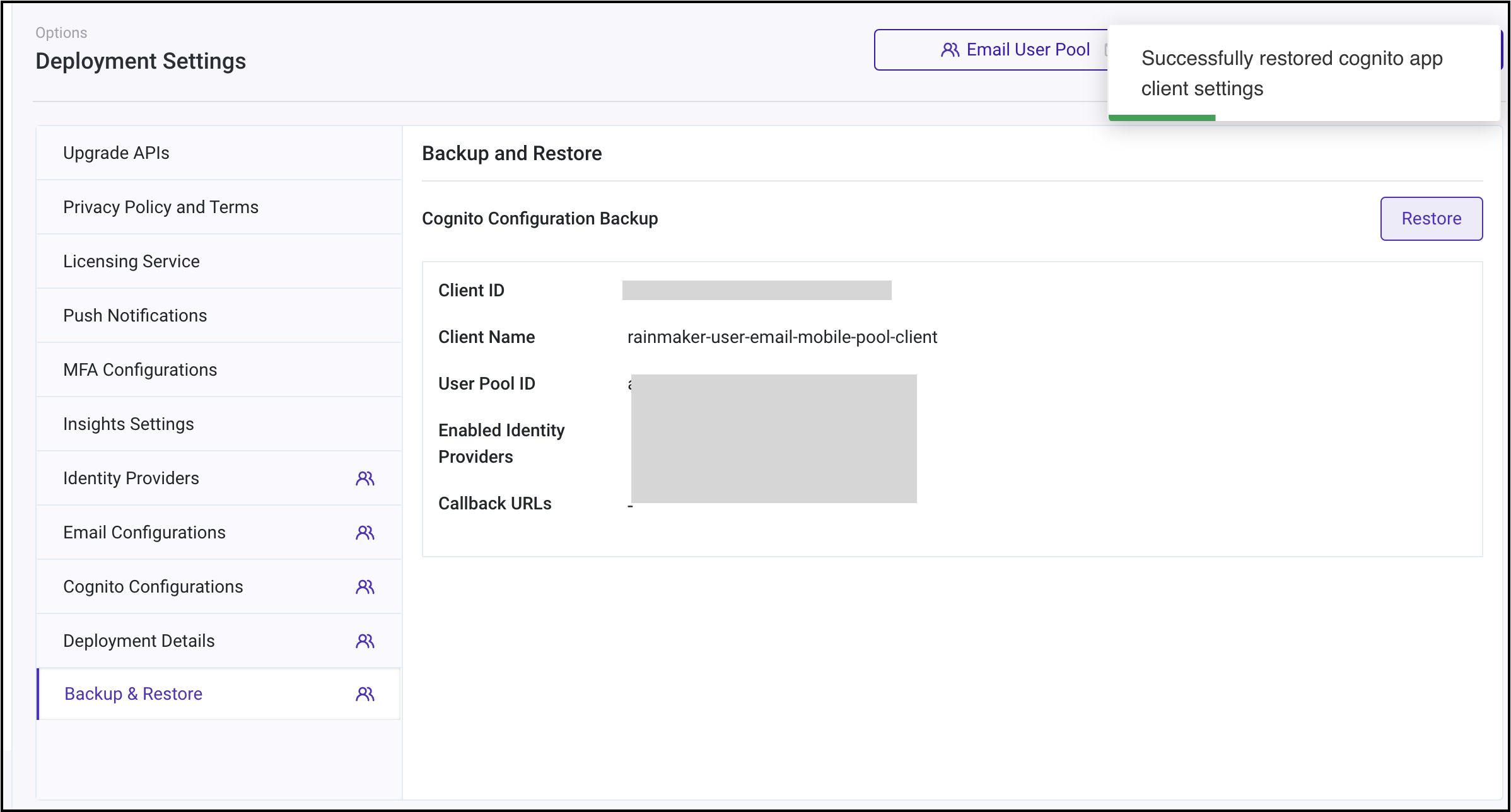
Restorewill bring back the Cognito configurations to your preferred settings. You will receive a success message in the upper right corner stating,Successfully restored Cognito app client settings.